
How to Format External Hard Drive on Mac: A Step-by-step Guide
Are you tired of dealing with external hard drive problems? Do you want to format your external hard drive on your Mac, but don’t know where to start? Look no further! In this article, we’ll guide you through the process of formatting an external hard drive on a Mac.
Why Format External Hard Drive?
Before we dive into the step-by-step instructions, let’s quickly discuss why you might need to format your external hard drive. Here are a few reasons:
- Corruption: If your external hard drive becomes corrupted, it may not be readable or writable.
- Incompatible File System: If your external hard drive is formatted with an incompatible file system, such as NTFS on Windows, it may not be readable on a Mac.
- Security Concerns: Formatting your external hard drive can help remove any sensitive data and ensure that your device is secure.
Choosing The Right File System
When formatting your external hard drive on a Mac, you’ll need to choose the right file system. Here are a few options:
- Ms-dos (FAT): This is an older file system that’s compatible with most operating systems.
- Exfat: This is a newer file system that’s faster and more efficient than MS-DOS (FAT).
- Mac OS Extended: This is the default file system for Macs, but it’s not compatible with Windows.
How to Format External Hard Drive on Mac: Step-by-step Guide
Now that we’ve discussed why you might need to format your external hard drive and what file systems are available, let’s dive into the step-by-step guide:
Step 1: Connect Your External Hard Drive
Connect your external hard drive to your Mac using a USB cable.
Step 2: Open Disk Utility
Open Disk Utility by searching for it in Spotlight or finding it in the Applications/Utilities folder.
Step 3: Select The External Hard Drive
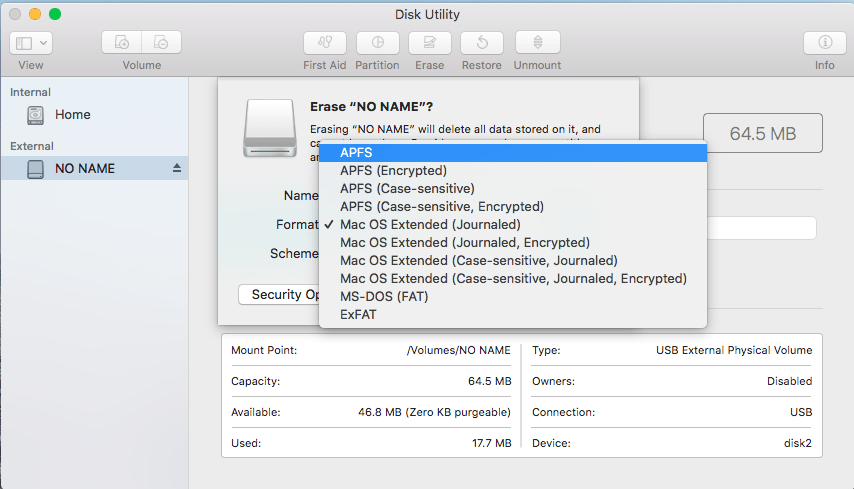
In the Disk Utility window, select the external hard drive you want to format from the list on the left-hand side.
Step 4: Click “Erase”
Click the “Erase” button in the top toolbar.
Step 5: Choose a File System
Choose the file system you want to use for your external hard drive. For most users, ExFAT is a good option.
Step 6: Enter a Name And Choose a Format
Enter a name for your external hard drive and choose the format (e.G., MS-DOS (FAT), ExFAT).
Step 7: Click “Erase” Again
Click the “Erase” button to confirm that you want to erase the external hard drive.
How Long Does Formatting Take?
The time it takes to format your external hard drive will depend on the size of the drive and the file system you choose. Here are some estimated times:
- Small Drives (less Than 1TB): 5-10 Minutes
- Medium Drives (1-4TB): 15-30 Minutes
- Large Drives (more Than 4TB): 30-60 Minutes
Tips And Tricks
Here are a few tips to keep in mind when formatting your external hard drive:
- Back up Data: Before formatting your external hard drive, make sure you back up any important files to another device or cloud storage.
- Choose The Right File System: Choose a file system that’s compatible with both Mac and Windows, such as ExFAT.
- Use Disk Utility: Use Disk Utility to format your external hard drive for optimal performance.
How to Format External Hard Drive on Windows: A Quick Guide
If you’re formatting an external hard drive on a Windows machine, here are the steps:
- Connect the external hard drive to your Windows PC.
- Open File Explorer and right-click on the external hard drive.
- Select “Format” from the context menu.
- Choose the file system (e.G., NTFS, ExFAT).
- Enter a name for the external hard drive and click “Format”.
Conclusion
Formatting your external hard drive can be a straightforward process if you follow these steps. Remember to choose the right file system, back up important files, and use Disk Utility on Mac or File Explorer on Windows.
Faqs
Here are some frequently asked questions about formatting an external hard drive:
Q: How Long Does it Take to Format an External Hard Drive?
A: The time it takes to format your external hard drive will depend on the size of the drive and the file system you choose. See above for estimated times.
Q: What File Systems Are Available on Mac And Windows?
A: On Mac, you can use MS-DOS (FAT), ExFAT, or Mac OS Extended. On Windows, you can use NTFS, ExFAT, or FAT32.
Q: How do I Format an External Hard Drive in Disk Utility?
A: Open Disk Utility on your Mac, select the external hard drive from the list on the left-hand side, and click “Erase” to start the formatting process.
Q: Can I Use a Third-party Software to Format my External Hard Drive?
A: Yes, you can use third-party software like iBoysoft NTFS for Mac to format your external hard drive with the NTFS file system.


