
How to Install Powerpoint: A Step-by-step Guide
Are you looking to create a presentation for your boss, but don’t have PowerPoint installed on your computer? No worries! We’ve got you covered. In this article, we’ll show you how to install PowerPoint on your PC and Mac, as well as on your smartphone and tablet.
Preliminary Information
Before we dive into the instructions, let’s cover some preliminary information. PowerPoint is part of the Microsoft Office suite, which means it’s not available for free download on computers. To use it, you’ll need to subscribe to Microsoft 365, which costs around 7 euros/month or 69 euros/year for a single person and up to 5 devices.
Installing Powerpoint on Computer
To install PowerPoint on your computer, follow these steps:
- Open the browser you usually use (e.G., Chrome) and navigate to the Microsoft website.
- Click on the “Initiate the free proof of 1 month” button.
- Log in with your Microsoft account credentials or create a new one if you don’t have an existing account.
- Select your payment method and complete the form.
- Wait for the download to complete, then follow the instructions to install PowerPoint and other Office apps.
Installing Powerpoint on Windows 10 And Successive Versions
To install PowerPoint on Windows 10 or successive versions, follow these steps:
- Open the Microsoft Store app.
- Click on the search icon in the top-right corner and type “powerpoint”.
- Select the PowerPoint app from the list of results.
- Click on the “Get” button to download and install the app.
- Wait for the installation to complete, then follow the instructions to activate your subscription.
Installing Powerpoint on Macos
To install PowerPoint on a Mac, follow these steps:
- Open the App Store app.
- Type “powerpoint” in the search bar at the top-right corner.
- Select the PowerPoint app from the list of results.
- Click on the “Get” button to download and install the app.
- Wait for the installation to complete, then follow the instructions to activate your subscription.
Installing Powerpoint on Chromebook
Unfortunately, PowerPoint is not compatible with Chrome OS. However, you can use a web-based version of PowerPoint directly in your browser without having to download or install anything.
Installing Powerpoint For Students
As a student or teacher, you may be eligible to install the Office 365 Education suite, which includes PowerPoint, Word, Excel, and OneNote. To do so, follow these steps:
- Visit the Office 365 Education website.
- Click on the “Get started” button.
- Enter your institutional email address and click on the “Continue” button.
- Follow the instructions to install the suite.
Installing Powerpoint on Smartphone
To install PowerPoint on a smartphone, follow these steps:
On Android:
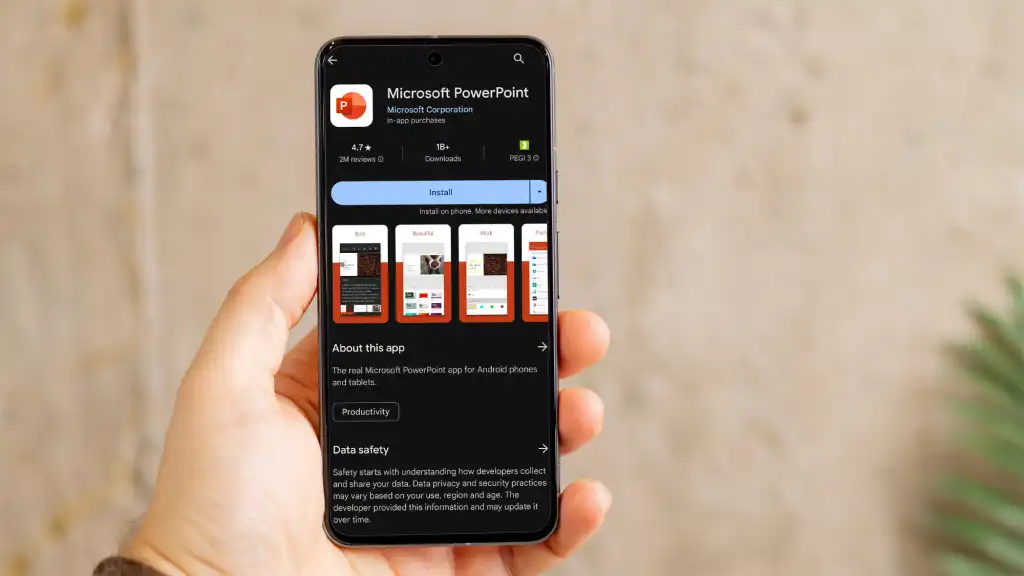
- Open the Play Store app.
- Type “powerpoint” in the search bar at the top-right corner.
- Select the PowerPoint app from the list of results.
- Click on the “Install” button to download and install the app.
- Wait for the installation to complete, then follow the instructions to activate your subscription.
On Ios:
- Open the App Store app.
- Type “powerpoint” in the search bar at the top-right corner.
- Select the PowerPoint app from the list of results.
- Click on the “Get” button to download and install the app.
- Wait for the installation to complete, then follow the instructions to activate your subscription.
Conclusion
Installing PowerPoint is a straightforward process that can be completed in just a few steps. Whether you’re using a PC or Mac, or even a smartphone or tablet, we’ve got you covered. Remember to subscribe to Microsoft 365 to access all the features and updates of PowerPoint.
Faqs:
- Q: Do I Need to Install Powerpoint on my Computer?
A: No, you can use the web-based version of PowerPoint directly in your browser without having to download or install anything. - Q: How Much Does Microsoft 365 Cost?
A: The cost varies depending on the plan you choose, but it’s around 7 euros/month or 69 euros/year for a single person and up to 5 devices. - Q: Can I Use Powerpoint on my Chromebook?
A: Unfortunately, no, PowerPoint is not compatible with Chrome OS. - Q: How do I Install Powerpoint on my Smartphone?
A: Follow the steps outlined in this article for installing PowerPoint on Android and iOS devices. - Q: Do I Need to Activate a Subscription to Use Powerpoint?
A: Yes, you’ll need to subscribe to Microsoft 365 to access all the features and updates of PowerPoint. - Q: Can I Use Powerpoint Online Without Having to Download or Install Anything?
A: Yes, you can use the web-based version of PowerPoint directly in your browser without having to download or install anything. - Q: How do I Install The Office 365 Education Suite on my Computer?
A: Follow the steps outlined in this article for installing the Office 365 Education suite on a PC or Mac. - Q: Can I Use Powerpoint on Multiple Devices at Once?
A: Yes, you can use PowerPoint on up to 5 devices with an active Microsoft 365 subscription.


