
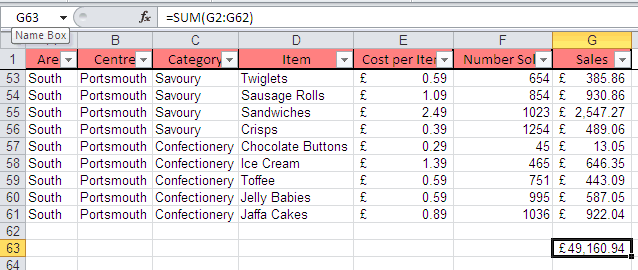
Displaying Formulas on Excel: A Step-by-step Guide
Are you curious about how to display formulas on Excel? Look no further! In this article, we will guide you through the process of visualizing formulas on various versions of Excel, including Windows, Mac, Online, and smartphone/tablet.
Understanding Excel Formulas
Excel formulas are a crucial aspect of using the software. They help you perform automatic calculations and arrive at desired results. But have you ever wondered which formula is behind a particular calculation? Displaying formulas on Excel allows you to see the code used in your spreadsheet, enabling you to modify or reuse it as needed.
Displaying Formulas on Excel For Windows
To display formulas on Excel for Windows:
- Select The Cell Containing The Formula: Click on the cell that contains the formula you want to analyze.
- Check if The Formula Bar is Visible: Ensure that the Formula Bar is enabled in your Excel interface. You can do this by going to the “View” tab and checking the box next to “Formula Bar.”
- Click on The Formula Bar: Once the Formula Bar is visible, click on it to see the formula.
- Modify or Copy The Formula: From here, you can modify or copy the formula as needed.
Displaying Formulas on Excel For Mac
If you’re using a Mac, follow these steps:
- Select The Cell Containing The Formula: Click on the cell that contains the formula you want to analyze.
- Check if The Formula Bar is Visible: Ensure that the Formula Bar is enabled in your Excel interface. You can do this by going to “Excel” > “Preferences” and checking the box next to “Formula Bar.”
- Click on The Formula Bar: Once the Formula Bar is visible, click on it to see the formula.
- Modify or Copy The Formula: From here, you can modify or copy the formula as needed.
Displaying Formulas on Excel Online
To display formulas on Excel Online:
- Open Your Spreadsheet in Excel Online: Log in to your account and open the spreadsheet containing the formula.
- Select The Cell Containing The Formula: Click on the cell that contains the formula you want to analyze.
- Click on The Formula Bar: Once the Formula Bar is visible, click on it to see the formula.
- Modify or Copy The Formula: From here, you can modify or copy the formula as needed.
Displaying Formulas on Excel For Smartphone/tablet
If you’re using a smartphone or tablet:
- Open Your Spreadsheet in Excel: Download and install the Excel app from the App Store (for iOS) or Google Play Store (for Android).
- Select The Cell Containing The Formula: Tap on the cell that contains the formula you want to analyze.
- Click on The Formula Bar: Once the Formula Bar is visible, tap on it to see the formula.
- Modify or Copy The Formula: From here, you can modify or copy the formula as needed.
Tips And Tricks
- You can also display formulas in cells instead of the Formula Bar by going to “Excel” > “Preferences” (for Windows) or “Excel” > “Settings” (for Mac).
- To visualize a formula directly in the cell, select the cell, go to the “Home” tab, click on “Text,” and then double-click inside the cell.
- If you want to modify a formula without affecting the rest of your spreadsheet, you can use the “Formula Bar” feature.
Conclusion
Displaying formulas on Excel is an essential skill for anyone using the software. Whether you’re working with Windows, Mac, Online, or smartphone/tablet versions, these steps will guide you through the process. Remember to always check if the Formula Bar is visible and modify or copy the formula as needed.
Frequently Asked Questions (FAQs)
- Q: How do I Display Formulas on Excel For Windows?
A: Select the cell containing the formula, ensure that the Formula Bar is enabled, and click on it to see the formula. - Q: Can I Display Formulas in Cells Instead of The Formula Bar?
A: Yes, you can display formulas directly in cells by going to “Excel” > “Preferences” (for Windows) or “Excel” > “Settings” (for Mac). - Q: How do I Modify a Formula Without Affecting my Spreadsheet?
A: Use the Formula Bar feature to modify a formula without affecting the rest of your spreadsheet. - Q: Can I Display Formulas on Excel Online?
A: Yes, you can display formulas on Excel Online by selecting the cell containing the formula and clicking on the Formula Bar. - Q: How do I Display Formulas on Excel For Smartphone/tablet?
A: Download and install the Excel app from the App Store (for iOS) or Google Play Store (for Android), select the cell containing the formula, and tap on it to see the formula. - Q: Can I Visualize a Formula Directly in The Cell?
A: Yes, you can display formulas directly in cells by selecting the cell, going to the “Home” tab, clicking on “Text,” and then double-clicking inside the cell. - Q: How do I Modify or Copy a Formula?
A: Once you’ve displayed the formula, you can modify or copy it as needed.
Note: The above FAQs are based on general questions related to displaying formulas on Excel. If you have specific questions or concerns, please consult the official Microsoft Excel documentation for further assistance.


