
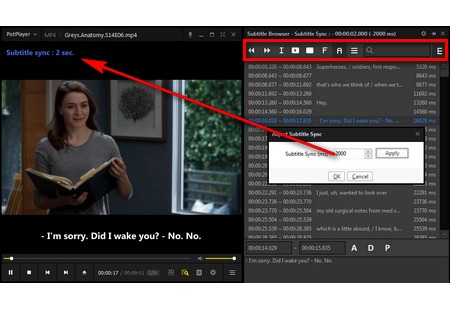
How to Synchronize Subtitles With Videos: A Comprehensive Guide
As a fan of movies and TV shows, you might have encountered situations where the subtitles didn’t quite sync up with the video. This can be frustrating, especially if you’re trying to follow along with what’s being said. In this article, we’ll explore how to synchronize subtitles with videos using various media players and software.
Why Synchronize Subtitles?
Synchronizing subtitles with videos is crucial for several reasons:
- It ensures that the dialogue and actions on screen are properly aligned with the audio.
- It helps viewers who rely on subtitles for comprehension, such as those with hearing impairments or language learners.
- It enhances the overall viewing experience by providing a seamless connection between visual and auditory cues.
Tools And Software
Several media players and software programs allow you to synchronize subtitles with videos. Here are some of the most popular options:
- Vlc Media Player: VLC is a free, open-source media player available for Windows, macOS, and Linux. It offers an intuitive interface and advanced features like subtitle synchronization.
- Media Player Classic (MPC): MPC is another popular media player that allows you to synchronize subtitles with videos. It’s available for Windows only.
- Aegisub: Aegisub is a free, open-source software specifically designed for editing and synchronizing subtitles. It supports various file formats and operating systems.
- Subtitle Workshop: Subtitle Workshop is another powerful tool for synchronizing subtitles with videos. It offers advanced features like subtitle editing and formatting.
- Subtitle Edit: Subtitle Edit is a free, open-source software that allows you to synchronize subtitles with videos using an intuitive interface.
Step-by-step Instructions
Here’s how to synchronize subtitles with videos using some of these tools:
Synchronizing Subtitles With Vlc
- Download and install VLC Media Player on your computer.
- Open the video file in VLC.
- Go to “Tools” > “Effects and Filters.”
- Select “Subtitle Settings” and adjust the timing as needed.
Synchronizing Subtitles With Mpc
- Download and install Media Player Classic (MPC) on your computer.
- Open the video file in MPC.
- Press the F1 key to increase or decrease the subtitle delay by 500 milliseconds each time.
- Adjust the timing as needed.
Synchronizing Subtitles With Aegisub
- Download and install Aegisub on your computer.
- Open the video file in Aegisub.
- Go to “Timings” > “Capitalize Timing.”
- Adjust the timing as needed.
Synchronizing Subtitles With Subtitle Workshop
- Download and install Subtitle Workshop on your computer.
- Open the video file in Subtitle Workshop.
- Go to “Edit” > “Timings.”
- Adjust the timing as needed.
Synchronizing Subtitles With Subtitle Edit
- Download and install Subtitle Edit on your computer.
- Open the video file in Subtitle Edit.
- Go to “Synchronization” > “Adjust all times.”
- Adjust the timing as needed.
Troubleshooting Tips
If you encounter issues while synchronizing subtitles, try these troubleshooting tips:
- Check that the subtitle file is properly formatted and saved.
- Ensure that the video file is not corrupted or damaged.
- Try adjusting the timing in small increments to avoid significant delays.
By following these steps and using the right tools, you can ensure that your subtitles are perfectly synchronized with your videos. Happy viewing!
Faqs
Here are some frequently asked questions about synchronizing subtitles:
Q: What Software do I Need to Synchronize Subtitles?
A: You’ll need a media player or software specifically designed for subtitle synchronization, such as VLC Media Player, Media Player Classic (MPC), Aegisub, Subtitle Workshop, or Subtitle Edit.
Q: How do I Adjust The Timing of Subtitles in Vlc?
A: Go to “Tools” > “Effects and Filters,” select “Subtitle Settings,” and adjust the timing as needed.
Q: Can I Synchronize Subtitles on Mobile Devices?
A: Yes, you can use VLC Media Player on Android or iOS devices to synchronize subtitles with videos.
Q: What if my Subtitles Are Not Synchronizing Correctly?
A: Try checking that the subtitle file is properly formatted and saved. Ensure that the video file is not corrupted or damaged. Adjust the timing in small increments to avoid significant delays.


