
How to Count Words on Microsoft Word
Are you tired of manually counting words on Microsoft Word? Do you want to know the easy way to get the word count in seconds? Look no further! In this article, we will guide you through the simple steps to count words on Microsoft Word for desktop, online, and mobile app.
What is Microsoft Word?
Microsoft Word is a popular word processing software used by millions of people worldwide. It allows users to create, edit, and format documents with ease. With its user-friendly interface, it’s no wonder why many prefer using Microsoft Word over other writing tools.
Why Count Words on Microsoft Word?
Counting words on Microsoft Word can be useful in various situations:
- Academic Purposes: When writing essays or research papers, knowing the word count helps you stay within the required limit.
- Content Creation: Bloggers and writers often need to write articles with specific word counts. By counting words on Microsoft Word, they can ensure their content meets the requirements.
- Professional Settings: In a work environment, counting words on Microsoft Word can be helpful when writing proposals, reports, or other business documents.
Counting Words on Microsoft Word For Desktop
To count words on Microsoft Word for desktop:
- Open your document in Microsoft Word.
- Click on the “Review” tab in the top menu bar.
- Select “Word Count” from the dropdown menu.
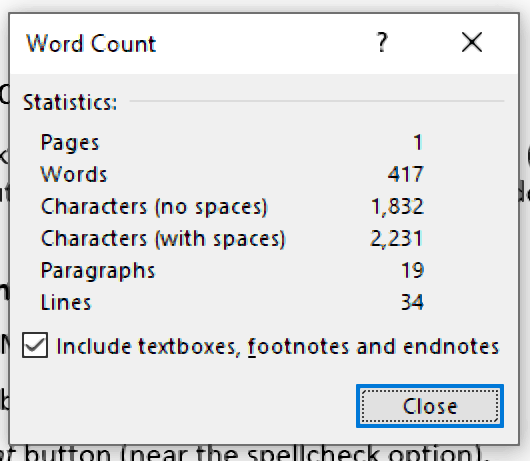
- In the “Word Count” dialog box, you’ll see the total word count, character count (excluding spaces), and paragraph count.
How to Count Words on Microsoft Word For Online
If you’re using Microsoft Word online:
- Open your document in Microsoft Word Online.
- Click on the “Review” tab in the top menu bar.
- Select “Word Count” from the dropdown menu.
- In the “Word Count” dialog box, you’ll see the total word count and character count (including spaces).
Counting Words on Microsoft Word For Mobile App
To count words on Microsoft Word for mobile app:
- Open your document in Microsoft Word mobile app.
- Tap on the “Revision” tab at the bottom of the screen.
- Select “Word Count” from the menu options.
- In the “Word Count” dialog box, you’ll see the total word count and character count (including spaces).
Tips And Variations
- To count words in a selected portion of text, highlight the desired section and click on the “Word Count” button.
- If your document contains boxes or tables with text, ensure that these elements are included in the word count by selecting the respective options in the “Word Count” dialog box.
Conclusion
Counting words on Microsoft Word is a simple task that can be done quickly using the software’s built-in features. Whether you’re working on a desktop, online, or mobile app version, our step-by-step guide ensures you’ll never struggle with word counts again. So go ahead and unleash your creativity, knowing that counting words is just a click away!
Frequently Asked Questions (FAQs)
- Q: How do I Count Words in Microsoft Word Online?
A: To count words on Microsoft Word online, follow the same steps as for desktop version. - Q: Can I Count Words in a Specific Section of Text?
A: Yes, highlight the desired portion and click on the “Word Count” button to get the word count for that section. - Q: How do I Include Boxes or Tables With Text in The Word Count?
A: Select the respective options in the “Word Count” dialog box to include these elements in the total word count. - Q: Can I Use Microsoft Word on my Mobile Device to Count Words?
A: Yes, you can use Microsoft Word mobile app to count words by following our step-by-step guide. - Q: Is There a Limit to How Many Words I Can Count on Microsoft Word?
A: No, Microsoft Word allows you to count an unlimited number of words in your document. - Q: Can I Use Other Software Besides Microsoft Word to Count Words?
A: Yes, other word processing software like Google Docs or LibreOffice Writer also have built-in features for counting words.


