
Changing The Background Image on Windows 10
Are you tired of looking at the same old background image on your Windows 10 PC? Do you want to give your desktop a fresh new look without having to spend hours searching for the perfect wallpaper? Look no further! In this article, we will guide you through the simple steps to change the background image on your Windows 10 PC.
Why Change The Background Image?
Changing the background image can be a great way to personalize your computer and make it more enjoyable to use. With so many beautiful images available online, you can choose one that reflects your personality or interests. Plus, changing the background image is a quick and easy process that won’t take up too much of your time.
Where Can I Find New Background Images?
There are many websites where you can find new background images for free. Some popular options include:
- Unsplash: A well-known website with a vast collection of high-resolution photos in various categories.
- Wallhaven: A site that offers thousands of wallpapers in different categories and resolutions, all available for free download.
- Deviantart: A platform where artists can share their work, including background images, icons, and other digital art.
- Wallpaperswide: Another popular website with a large collection of high-definition wallpapers in various categories.
- Desktopography: A curated collection of beautiful wallpaper images by the famous artist Pete Harrison.
Changing The Background Image on Windows 10
Now that you know where to find new background images, let’s move on to changing the background image on your Windows 10 PC. Here are the steps:
Accessing The Settings
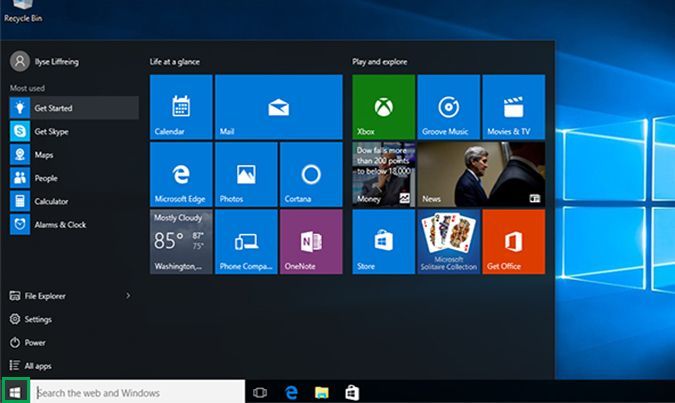
- Click on the Start button (Windows logo) located at the bottom left corner of the screen.
- Select the Settings icon (a gear-shaped icon).
- In the Settings window, click on the “Personalization” option.
Changing The Background Image
- In the Personalization window, click on the “Background” tab.
- Click on the “Image” button and select an image from your collection or browse to find one online.
- Once you’ve chosen an image, click “OK” to apply it as the new background.
Setting The Background Image For The Lock Screen
- In the Personalization window, click on the “Lock screen” tab.
- Select the “Background” option and choose an image from your collection or browse to find one online.
- Once you’ve chosen an image, click “OK” to apply it as the new background.
Setting The Background Image For The Taskbar
- In the Personalization window, click on the “Taskbar” tab.
- Select the “Background” option and choose an image from your collection or browse to find one online.
- Once you’ve chosen an image, click “OK” to apply it as the new background.
Tips And Variations
- To set a series of images to alternate as the background, follow the same steps as above, but select the “Presentation” option instead of “Image”.
- To choose a specific color for your background, go to the Personalization window, click on the “Background” tab, and select the “Color” option.
- To set the background image to be displayed in evidence, go to the Personalization window, click on the “Block screen” tab, and select the “Contained in evidence” option.
Conclusion
Changing the background image on your Windows 10 PC is a simple and fun process that can help personalize your computer. With so many beautiful images available online, you’re sure to find one that suits your style. Whether you prefer a classic look or something more modern, changing the background image is a great way to give your desktop a fresh new look.
Frequently Asked Questions (FAQs)
Q: Where can I find new background images for free?
A: You can find new background images on websites such as Unsplash, WallHaven, DeviantArt, WallpapersWide, and Desktopography.
Q: How do I change the background image on my Windows 10 PC?
A: To change the background image, go to the Settings window, click on Personalization, and select the Background tab. Then, choose an image from your collection or browse to find one online.
Q: Can I set a series of images to alternate as the background?
A: Yes, you can set a series of images to alternate as the background by selecting the “Presentation” option in the Settings window.
Q: How do I set the background image for the lock screen and taskbar?
A: To set the background image for the lock screen and taskbar, go to the Personalization window, click on the Lock screen or Taskbar tab, and select the Background option.


