
How to Erase The Chronology of Google
Are you tired of Google storing your search history? Do you want to keep your online activities private? Look no further! In this article, we will guide you through the process of erasing the chronology of Google on various devices and browsers.
Why Should You Care About Erasing Your Search History?
Google stores your search history to provide personalized results and suggestions. However, this can also compromise your online privacy. By erasing your search history, you can prevent Google from tracking your activities and displaying targeted ads based on your search history.
Erasing The Chronology of Google on PC
To erase the chronology of Google on a PC, follow these steps:
- Go to the Google account settings page by clicking on the gear icon in the top right corner of the screen.
- Click on “Data and personalization” from the menu that appears.
- Scroll down to the “Activity controls” section and click on the three-dot menu next to it.
- Select “Manage activity” from the dropdown menu.
- Click on the “Delete” button at the top of the page to delete all activity data.
Erasing The Chronology of Google on Android
To erase the chronology of Google on an Android device, follow these steps:
- Open the Google app on your device.
- Tap on the three horizontal lines in the top left corner of the screen.
- Select “Your data in Search” from the menu that appears.
- Scroll down to the “Activity” section and tap on it.
- Tap on the “Delete” button at the bottom of the page to delete all activity data.
Erasing The Chronology of Google on Iphone
To erase the chronology of Google on an iPhone, follow these steps:
- Open the Google app on your device.
- Tap on the three horizontal lines in the top left corner of the screen.
- Select “Your data” from the menu that appears.
- Scroll down to the “Activity” section and tap on it.
- Tap on the “Delete” button at the bottom of the page to delete all activity data.
Erasing The Local Chronology of Google
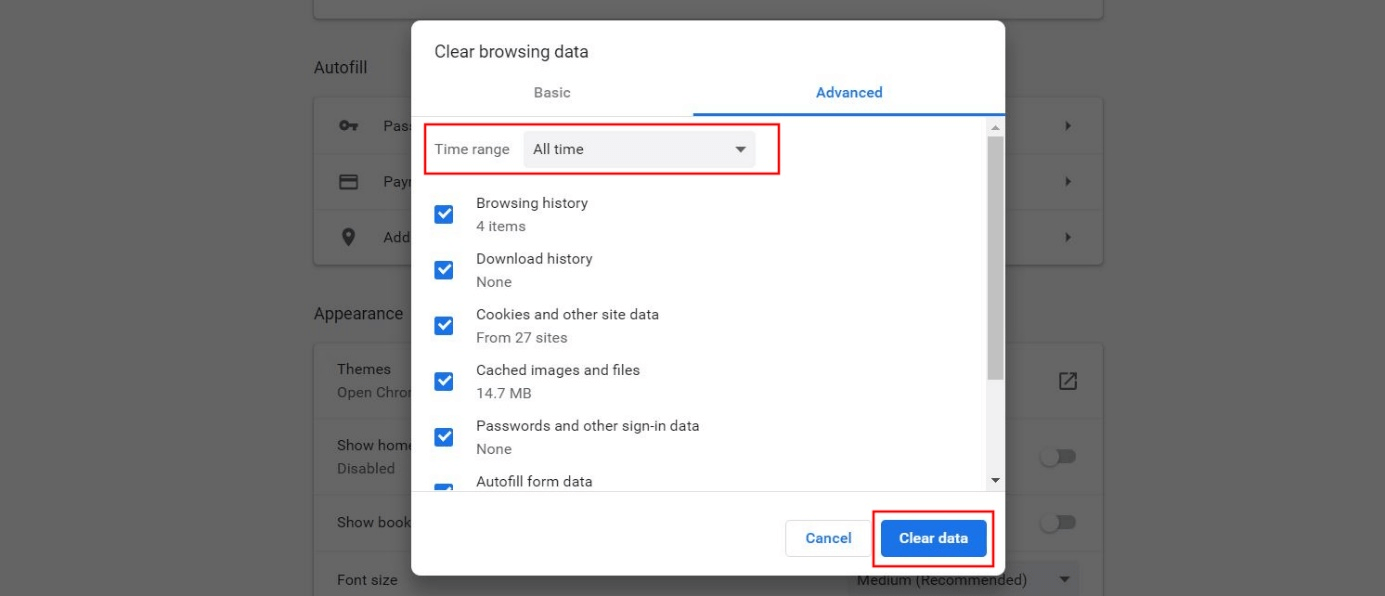
To erase the local chronology of Google, you can follow these steps:
- Go to the browser settings (e.G., Chrome, Edge, Firefox).
- Look for the “History” or “Chronology” section.
- Select the option to delete browsing history.
Erasing The Chronology on Specific Browsers
Here’s how to erase the chronology on specific browsers:
- Google Chrome: Go to the settings page and select “Data and personalization.” Scroll down to the “Activity controls” section and click on the three-dot menu next to it. Select “Manage activity” from the dropdown menu.
- Microsoft Edge: Go to the settings page and select “Privacy, search, and services.” Click on the “Address bar and search” option and toggle off the switch for “Show suggestions.”
- Mozilla Firefox: Go to the settings page and select “Search and history.” Remove the checkmark from the box next to “Show suggestions.”
Conclusion
Erasing your Google chronology is a simple process that can be done on various devices and browsers. By following these steps, you can maintain your online privacy and prevent Google from tracking your activities.
Frequently Asked Questions (FAQs)
- Q: How do I Erase my Google Search History on a Mac?
A: To erase your Google search history on a Mac, go to the Safari browser settings and select “Search and history.” Remove the checkmark from the box next to “Include suggestions in search results.” - Q: Can I Still Use Google Services if I Erase my Chronology?
A: Yes, you can still use Google services even after erasing your chronology. - Q: Will Erasing my Chronology Affect my Personalized Ads on Google?
A: Erasing your chronology may not immediately stop personalized ads from appearing on Google. - Q: How do I Prevent Google From Storing my Search History in The Future?
A: To prevent Google from storing your search history, make sure to delete your activity data regularly and toggle off the switch for “Save activity” in the settings page. - Q: Can I Erase Only Specific Data From my Chronology?
A: Yes, you can erase specific data from your chronology by selecting the “Manage activity” option and then clicking on the three-dot menu next to it. - Q: Will Erasing my Chronology Affect my Google Account Settings?
A: Erasing your chronology will not affect your Google account settings. - Q: Can I Erase my Chronology on Multiple Devices at Once?
A: Yes, you can erase your chronology on multiple devices by following the steps outlined above. - Q: How Often Should I Erase my Chronology to Maintain Online Privacy?
A: It’s recommended to erase your chronology regularly (e.G., Every 3-6 months) to maintain online privacy.


