
How to Disable Wi-fi on Your Devices: A Comprehensive Guide
Are you tired of having your devices connected to Wi-Fi all the time? Do you want to save battery life or simply disable wireless connectivity? Look no further! In this article, we will guide you through the process of disabling Wi-Fi on various devices, including computers, smartphones, tablets, and routers.
Why Disable Wi-fi?
Before we dive into the steps, let’s talk about why you might want to disable Wi-Fi. Here are some reasons:
- Save Battery Life: Wireless connectivity can drain your device’s battery quickly.
- Security: Disabling Wi-Fi can help prevent unauthorized access to your network.
- Conserve Data: If you have a limited data plan, disabling Wi-Fi can help you avoid unnecessary data consumption.
Disabling Wi-fi on Computers
Windows
To disable Wi-Fi on Windows devices:
- Click on The Wi-fi Symbol in the system tray (bottom right corner of the screen).
- Right-click on the Wi-Fi icon and select “Turn Wi-Fi off.”
- Or, open Settings > Network & Internet > Wi-Fi, and toggle the switch to Off.
Mac
To disable Wi-Fi on Mac devices:
- Click on The Wi-fi Symbol in the top right corner of the screen.
- Select Turn Wi-fi Off from the menu.
- Or, go to System Preferences > Network > Wi-Fi, and uncheck the box next to “Wi-Fi.”
Disabling Wi-fi on Smartphones And Tablets
Android
To disable Wi-Fi on Android devices:
- Go to Settings > Connections > Wi-Fi.
- Toggle The Switch to Off.
Ios (iPhone And Ipad)
To disable Wi-Fi on iOS devices:
- Go to Settings > Wi-Fi.
- Tap The Toggle next to “Wi-Fi” to turn it off.
- Note: If you want to temporarily disable Wi-Fi, you can use the “Ask to Join Networks” feature.
Disabling Wi-fi on Routers
Most Routers
To disable Wi-Fi on most routers:
- Find The Wi-fi Button, usually located on the rear or top of the router.
- Press And Hold the button until it turns off.
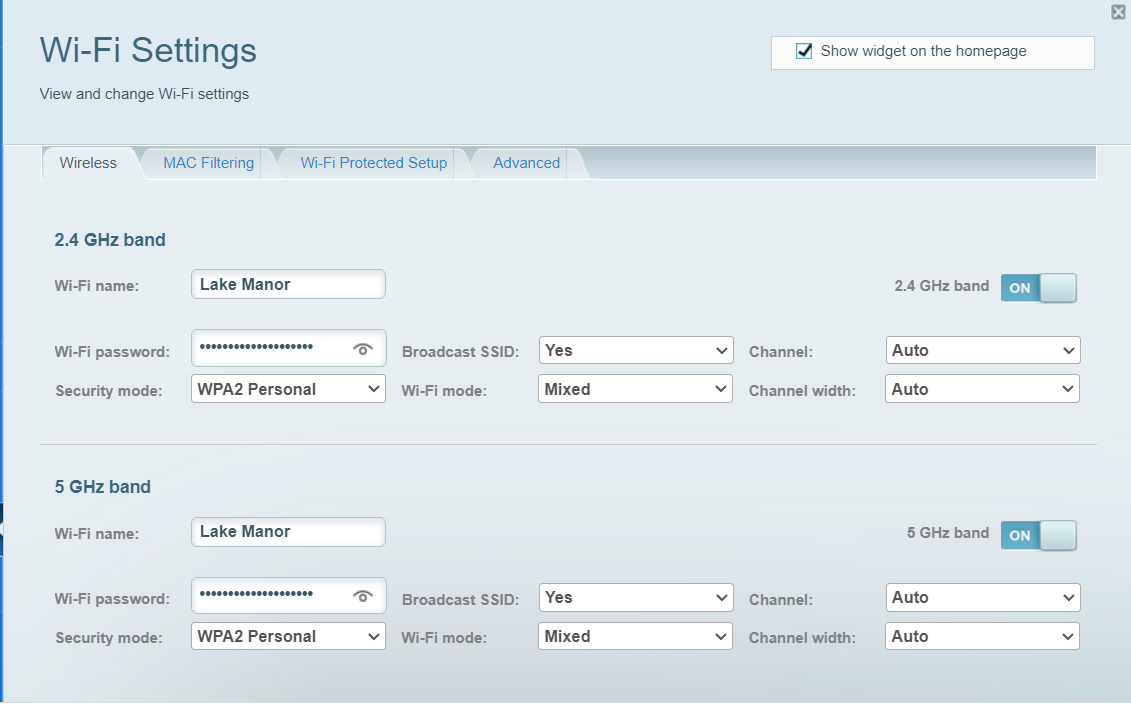
- Or, access your router’s web interface (usually by typing its IP address in a web browser), navigate to the Wireless settings, and toggle the switch to Off.
Specific Router Instructions
- For TP-Link routers, go to Settings > Wireless > Disable.
- For D-Link routers, go to Settings > Wi-Fi > Toggle off.
Disabling Unused Wi-fi Connections
If you want to delete unused Wi-Fi connections on your devices:
- Windows: Go to Settings > Network & Internet > Wi-Fi, and click the “Manage known networks” button. Select the unused network and click “Forget this network.”
- Mac: Go to System Preferences > Network > Wi-Fi, and select the unused network. Click the minus (-) button to delete it.
- Android: Go to Settings > Connections > Wi-Fi, and long press on the unused network. Select “Delete” or “Forget network.”
- Ios: Go to Settings > Wi-Fi, tap the info icon next to the unused network, and select “Forget this network.”
Disabling Wi-fi Direct
To disable Wi-Fi Direct on your devices:
- Windows: Go to Settings > Network & Internet > Wi-Fi, and toggle the switch next to “Wi-Fi Direct” off.
- Android: Go to Settings > Connections > Wi-Fi, and toggle the switch next to “Wi-Fi Direct” off.
Conclusion
Disabling Wi-Fi on your devices can be a simple process if you follow these steps. Remember to also delete unused Wi-Fi connections to keep your network tidy. If you have any specific questions or need further assistance, feel free to ask!
Frequently Asked Questions (FAQs)
- Q: Why Should I Disable Wi-fi?
A: Disabling Wi-Fi can save battery life, improve security, and conserve data. - Q: How do I Enable Wi-fi Again After Disabling It?
A: Simply toggle the switch back to On or click on the Wi-Fi icon to reconnect. - Q: Can I Disable Wi-fi on my Router?
A: Yes, most routers have a physical button that can be pressed and held to turn off wireless connectivity. -
Q: How do I Delete Unused Wi-fi Connections?
A: Follow the instructions provided for your device’s operating system. -
Q: What is Wi-fi Direct, And How do I Disable It?
A: Wi-Fi Direct allows devices to connect directly without a router. To disable it, follow the steps provided for your device’s operating system. -
Q: Why Can’t I Find The Wi-fi Button on my Router?
A: The location of the Wi-Fi button may vary depending on your router model. Consult your user manual or manufacturer’s website for assistance. -
Q: Can I Disable Wi-fi on All Devices Connected to my Network?
A: Yes, you can disable Wi-Fi on all devices connected to your network by following the steps provided for each device’s operating system. - Q: What Are The Benefits of Disabling Wi-fi on my Router?
A: Disabling Wi-Fi on your router can improve security and conserve data.
We hope this guide has been helpful! If you have any further questions or concerns, don’t hesitate to ask.


