
How to See Who Has Silenced Your Account on Instagram
Are you wondering why your posts are not getting as many likes and comments as they used to? Have you noticed a decrease in the number of people following you, but can’t figure out who or what is causing it? You’re not alone. In this article, we’ll explore how to see who has silenced your account on Instagram.
Understanding The Silenced Account Function
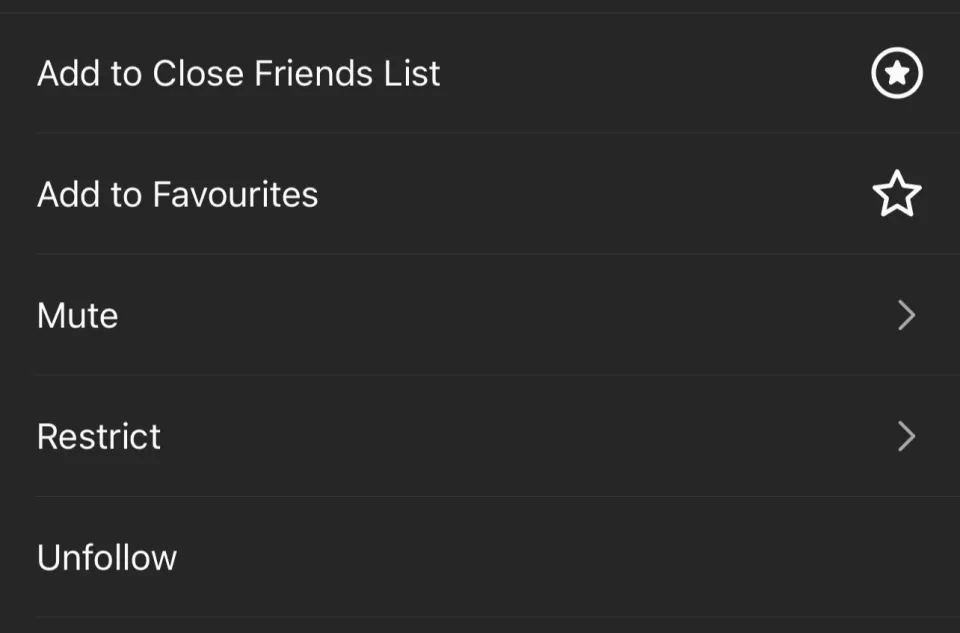
Before we dive into the steps, let’s understand how the silenced account function works. The silenced account feature allows users to silence specific accounts without unfollowing or blocking them. This means that the user will not see the posts and stories from the silenced account, but it won’t affect their follow count.
Why Instagram Doesn’t Notify Users of Silencing
It’s essential to know that Instagram doesn’t send notifications to users when they are silenced. This makes it difficult for users to detect if someone has silenced them. However, by analyzing certain metrics, you can try to determine who might have silenced your account.
Analyzing Likes And Comments
The first step in determining who has silenced your account is to analyze the likes and comments on your posts. If an user was previously interacting with your content but no longer does so, it could be a sign that they have silenced you.
How to Analyze Likes on Mobile
To analyze likes on mobile, follow these steps:
- Open Instagram and go to the profile icon in the bottom right corner.
- Tap on the three horizontal lines (or the miniature of your photo if you’ve added other accounts).
- Select “Posts” from the menu.
- Choose a post that has not received many likes recently.
- Tap on the “Like to [username]” button and search for the user’s name in the comments section.
How to Analyze Likes on PC
To analyze likes on PC, follow these steps:
- Open Instagram and click on your profile picture in the top right corner.
- Scroll down to the last post you’ve issued.
- Click on the “Like to [username]” button and search for the user’s name in the comments section.
Analyzing Comments
Another way to determine who has silenced your account is by analyzing comments. If a user was previously commenting on your posts but no longer does so, it could be a sign that they have silenced you.
How to Analyze Comments on Mobile
To analyze comments on mobile, follow these steps:
- Open Instagram and go to the profile icon in the bottom right corner.
- Tap on the three horizontal lines (or the miniature of your photo if you’ve added other accounts).
- Select “Posts” from the menu.
- Choose a post that has not received many comments recently.
- Tap on the “Visualise all” button and scroll through the comments section.
How to Analyze Comments on PC
To analyze comments on PC, follow these steps:
- Open Instagram and click on your profile picture in the top right corner.
- Scroll down to the last post you’ve issued.
- Click on the “Visualise all” button and scroll through the comments section.
Analyzing Story Views
You can also analyze story views to determine if someone has silenced your account. If a user was previously viewing your stories but no longer does so, it could be a sign that they have silenced you.
How to Analyze Story Views on Mobile
To analyze story views on mobile, follow these steps:
- Open Instagram and go to your profile icon in the bottom right corner.
- Tap on “Stories” from the menu.
- Select an archived story or scroll through recent stories.
- Tap on the “Visualisations” button and search for the user’s name.
How to Analyze Story Views on PC
To analyze story views on PC, follow these steps:
- Open Instagram and click on your profile picture in the top right corner.
- Scroll down to the archived stories section or scroll through recent stories.
- Click on the “Visualised” button and search for the user’s name.
Conclusion
While it’s not possible to have absolute certainty that someone has silenced you, by analyzing likes, comments, and story views, you can try to determine who might be responsible. Remember that even if someone has silenced you, your post count and engagement metrics will still reflect their interactions with your content.


