
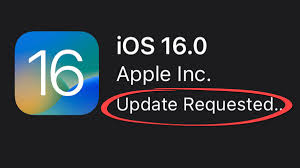
How to Download And Install Ios 16 on Your Iphone
Are you excited about the new features and improvements that Apple’s latest operating system, iOS 16, has to offer? If so, you’re in the right place! In this tutorial, we’ll guide you through the process of downloading and installing iOS 16 on your iPhone.
Requisiti to Install Ios 16
Before we dive into the steps, make sure that your iPhone meets the minimum requirements to install iOS 16. Apple has confirmed that the following devices are compatible:
- IPhone 14
- IPhone 14 Plus
- IPhone 14 Pro
- IPhone 14 Pro Max
- IPhone 13
- IPhone 13 Mini
- IPhone 13 Pro
- IPhone 13 Pro Max
- IPhone 12
- IPhone 12 Mini
- IPhone 12 Pro
- IPhone 12 Pro Max
- IPhone 11
- IPhone 11 Pro
- IPhone 11 Pro Max
- IPhone XS
- IPhone XS Max
- IPhone XR
- IPhone X
- IPhone 8
- IPhone 8 Plus
Operazioni Preliminari
Before you start the installation process, take a few minutes to perform some preliminary operations:
- Backup Your Iphone: Go to Settings > [Your Name] > iCloud > iCloud Backup and tap “Back Up Now” to create a backup of your device.
- Connect Your Iphone to Wi-fi: Make sure that your iPhone is connected to the internet via Wi-Fi, as you’ll need a stable connection for the update to download.
- Charge Your Iphone: Ensure that your iPhone has at least 50% battery life, as the installation process may take some time.
Downloading And Installing Ios 16
Now that you’ve completed the preliminary operations, it’s time to download and install iOS 16:
Procedure Standard
To start the installation process, follow these steps:
- Access The Settings App: Go to the Home screen and tap on the Settings icon (a wheel of cog).
- Tap on General: Scroll down and tap on the “General” section.
- Tap on Software Update: Tap on “Software Update.”
- Check For Updates: Wait for the system to check for available updates.
- Download And Install Ios 16: If an update is available, tap “Download and Install.” Enter your passcode to proceed with the installation.
Procedure Alternativa
Alternatively, you can download and install iOS 16 using iTunes on your computer:
- Connect Your Iphone to Your Computer: Use a USB cable to connect your iPhone to your computer.
- Open Itunes: Open iTunes on your computer.
- Select Your Iphone: Click on the icon representing your iPhone in iTunes.
- Check For Updates: Wait for iTunes to check for available updates.
- Download And Install Ios 16: If an update is available, click “Download and Update” to begin the installation process.
Installation Pulita
If you want to install a fresh copy of iOS 16 on your iPhone without any existing data or settings, you can perform a clean installation:
- Disable Find My Iphone: Go to Settings > [Your Name] > iCloud > Find My iPhone and toggle it off.
- Connect Your Iphone to Itunes: Connect your iPhone to your computer using a USB cable.
- Open Itunes: Open iTunes on your computer.
- Select Your Iphone: Click on the icon representing your iPhone in iTunes.
- Restore Your Iphone: Wait for iTunes to restore your iPhone to its factory settings.
Leading Functionality of Ios 16
Now that you’ve installed iOS 16, let’s explore some of the exciting new features and improvements:
Schermata di Blocco
The lock screen has been redesigned with a fresh look and feel. You can customize it by adding widgets, colors, and characters for date and schedule.
- Personalize Your Lock Screen: Go to Settings > [Your Name] > General > Lock Screen and tap on “Add New Background.”
- Customize The Home Screen: Tap on the “+” icon in the top-right corner of the screen to add a new widget or customize the existing ones.
Full Immersion
The full immersion feature allows you to avoid distractions by customizing your iPhone’s behavior in certain situations:
- Enable Full Immersion: Go to Settings > General > Full Immersion and toggle it on.
- Configure Your Settings: Select a mode from the list or create a new one by tapping on the “+” icon.
Active Text And Visual Search
Apple has enhanced the active text and visual search features, making them more convenient and intuitive:
- Recognize Text in Videos: Tap on the text in a video to activate the recognition feature.
- Translate Text: Use the translation menu to convert text into your preferred language.
Messaggi And Mail
The messaging app has been updated with new features, including the ability to modify or delete forwarded messages:
- Modify Forwarded Messages: Tap on the message you want to edit and select “Edit.”
- Delete Forwarded Messages: Tap on the message you want to delete and select “Delete.”
Other Functions
IOS 16 introduces several other exciting features, such as:
- Health: The Health app now includes a Medicines section that helps you manage your medications.
- Safari: Apple has introduced a new login method called PassKey, which provides end-to-end encryption and protection against phishing attacks.
- Dictation: You can now dictate messages in the Messages app without disabling dictation.
Faqs
- What devices are compatible with iOS 16?
- The following iPhone models are compatible: IPhone 14, iPhone 14 Plus, iPhone 14 Pro, iPhone 14 Pro Max, iPhone 13, iPhone 13 Mini, iPhone 13 Pro, iPhone 13 Pro Max, iPhone 12, iPhone 12 Mini, iPhone 12 Pro, iPhone 12 Pro Max, iPhone 11, iPhone 11 Pro, iPhone 11 Pro Max, iPhone XS, iPhone XS Max, iPhone XR, iPhone X, iPhone 8, and iPhone 8 Plus.
- How do I download iOS 16?
- Go to Settings > General > Software Update and tap on “Download and Install.”
- Can I install iOS 16 without a computer?
- Yes, you can install iOS 16 directly from your iPhone by going to Settings > General > Software Update.
- How do I back up my iPhone before installing iOS 16?
- Go to Settings > [Your Name] > iCloud > iCloud Backup and tap on “Back Up Now.”
- Can I restore my iPhone to its factory settings using iTunes?
- Yes, you can perform a clean installation of iOS 16 by connecting your iPhone to iTunes and following the prompts.
Conclusion
Installing iOS 16 is a straightforward process that requires some basic steps. Make sure your iPhone meets the minimum requirements, back up your device, and connect it to Wi-Fi before starting the installation process. With this tutorial, you should be able to download and install iOS 16 on your iPhone without any issues.
Feel free to ask me any further questions you may have about the process!


