
The Ultimate Guide to Searching a Word on Microsoft Word
Are you tired of searching for a specific word on Microsoft Word? Do you find yourself scrolling through pages and pages of text, only to miss the word you’re looking for? Look no further! In this comprehensive guide, we’ll show you how to search a word on Microsoft Word, whether you’re using the desktop version or the online version.
Searching a Word on Desktop Microsoft Word
If you’re using the desktop version of Microsoft Word, searching for a specific word is a breeze. Here’s how:
- Open Microsoft Word: Launch Microsoft Word on your computer.
- Open a Document: Open the document that contains the word you want to search for.
- Click on The “Home” Tab: Click on the “Home” tab in the ribbon at the top of the screen.
- Click on “Find”: Click on the “Find” button, which is located in the far right corner of the ribbon.
- Type in Your Search Term: Type in the word you’re looking for in the search bar that appears.
- Press Enter: Press Enter to begin your search.
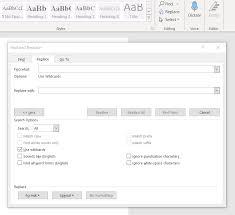
The word you’re searching for will be highlighted in yellow throughout the document. You can also use the “Find and Replace” feature to replace the word with a different term.
Searching a Word on Online Microsoft Word
If you’re using online Microsoft Word, searching for a specific word is just as easy. Here’s how:
- Open Microsoft Word Online: Launch Microsoft Word online from your browser.
- Sign In: Sign in to your Microsoft account to access your documents.
- Open a Document: Open the document that contains the word you want to search for.
- Click on The “Home” Tab: Click on the “Home” tab in the ribbon at the top of the screen.
- Click on “Modify”: Click on the “Modify” button, which is located in the far right corner of the ribbon.
- Type in Your Search Term: Type in the word you’re looking for in the search bar that appears.
- Press Enter: Press Enter to begin your search.
The word you’re searching for will be highlighted in yellow throughout the document.
Searching a Word on Mobile Microsoft Word
If you’re using mobile Microsoft Word, searching for a specific word is also easy. Here’s how:
- Open Microsoft Word: Launch Microsoft Word on your smartphone or tablet.
- Open a Document: Open the document that contains the word you want to search for.
- Tap on The Search Bar: Tap on the search bar at the top of the screen.
- Type in Your Search Term: Type in the word you’re looking for.
- Press Enter: Press Enter to begin your search.
The word you’re searching for will be highlighted in yellow throughout the document.
Searching Words Highlighted on Microsoft Word
If you have a document that has words highlighted, searching for those words is also easy. Here’s how:
- Open Microsoft Word: Launch Microsoft Word.
- Open a Document: Open the document that contains the highlighted words.
- Click on The “Home” Tab: Click on the “Home” tab in the ribbon at the top of the screen.
- Click on “Find”: Click on the “Find” button, which is located in the far right corner of the ribbon.
- Check “Highlighted”: Check the box that says “Highlighted” to search only for highlighted words.
Searching Words Repeated on Microsoft Word
If you want to search for words that have been repeated in a document, here’s how:
- Open Microsoft Word: Launch Microsoft Word.
- Open a Document: Open the document that contains the repeated words.
- Click on The “Home” Tab: Click on the “Home” tab in the ribbon at the top of the screen.
- Click on “Find”: Click on the “Find” button, which is located in the far right corner of the ribbon.
- Type in Your Search Term: Type in the word you’re looking for.
- Press Enter: Press Enter to begin your search.
Searching Equal Words on Microsoft Word
If you want to search for words that are equal in a document, here’s how:
- Open Microsoft Word: Launch Microsoft Word.
- Open a Document: Open the document that contains the equal words.
- Click on The “Home” Tab: Click on the “Home” tab in the ribbon at the top of the screen.
- Click on “Find”: Click on the “Find” button, which is located in the far right corner of the ribbon.
- Type in Your Search Term: Type in the word you’re looking for.
- Check “Highlight”: Check the box that says “Highlight” to highlight all instances of the word.
Tips And Tricks
- To search for words that have been repeated, use the “Find and Replace” feature.
- To search for equal words, use the “Find” feature and check the box that says “Equal”.
- To search for highlighted words, use the “Find” feature and check the box that says “Highlighted”.
Conclusion
Searching a word on Microsoft Word is easy and straightforward. Whether you’re using the desktop version or the online version, the process is similar. By following these simple steps, you can find any word in your document quickly and easily.
Faqs
Q: How do I search for a word on Microsoft Word?
A: To search for a word on Microsoft Word, click on the “Find” button and type in the word you’re looking for.
Q: How do I search for words that have been repeated?
A: To search for words that have been repeated, use the “Find and Replace” feature.
Q: How do I search for equal words?
A: To search for equal words, use the “Find” feature and check the box that says “Equal”.
Q: How do I search for highlighted words?
A: To search for highlighted words, use the “Find” feature and check the box that says “Highlighted”.
Q: Can I search for words on mobile Microsoft Word?
A: Yes, you can search for words on mobile Microsoft Word by tapping on the search bar.
Q: How do I replace a word with a different term?
A: To replace a word with a different term, use the “Find and Replace” feature.


