
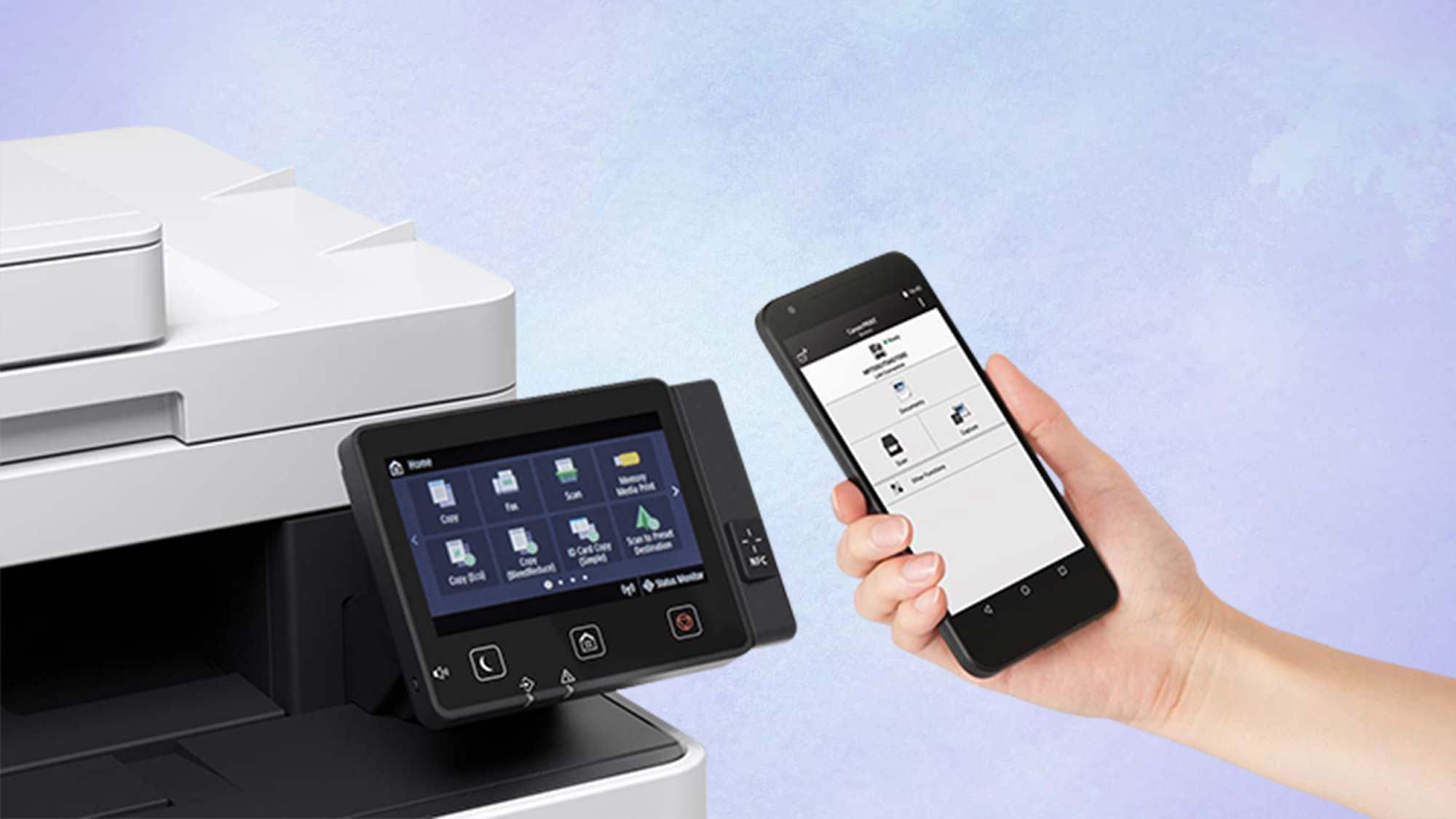
The Ultimate Guide to Printing From Android: A Step-by-step Tutorial
Are you tired of not being able to print documents or photos from your Android smartphone? Look no further! This comprehensive guide will walk you through the process of printing from Android, covering various scenarios and printer types.
Introduction
Printing from Android can seem like a daunting task, but with the right guidance, it’s easier than ever. In this article, we’ll cover the different ways to print from Android, including printing on wireless printers, USB-connected printers, and shared printers on your local network.
Preliminary Information
Before we dive into the nitty-gritty of printing from Android, it’s essential to ensure that your printer is correctly configured. Although the process may vary slightly depending on the type of printer you have, following these steps will help you get started:
- Check if your printer has a wireless connection or can be connected via USB.
- Ensure that your printer is properly installed and configured on your local network.
- Familiarize yourself with the Android settings menu and the print options available.
Printing on Wireless Printers
If you have a modern printer that supports Wi-Fi connectivity, printing from Android is a breeze. These printers are equipped with the necessary drivers to communicate with Android devices, making it easy to discover and connect to them.
To print wirelessly, follow these steps:
- Install the printer’s app on your Android device.
- Ensure that the printer is turned on and connected to the same network as your Android device.
- Open the printer’s app and select the document or photo you want to print.
- Choose the print settings and click “Print” to start the printing process.
Printing on Wireless Printers With Wi-fi Direct
If your printer doesn’t have a wireless connection, but supports Wi-Fi Direct, you can still print from Android. To do this:
- Enable Wi-Fi Direct on your printer.
- On your Android device, go to Settings > Connections > Printers.
- Select the printer’s name and follow the prompts to establish a direct connection.
- Once connected, select the document or photo you want to print.
Printing on Usb-connected Printers
If your printer doesn’t have a wireless connection, but can be connected via USB, you can still print from Android. To do this:
- Ensure that your printer is properly installed and configured on your local network.
- Connect the printer to your Android device using a USB cable.
- On your Android device, go to Settings > Connections > Printers.
- Select the printer’s name and follow the prompts to establish a connection.
Printing on Shared Printers
If you have multiple devices connected to your local network, you can share printers among them. To do this:
- Share the printer from your PC or laptop by going to Settings > Devices > Printer Sharing.
- On your Android device, go to Settings > Connections > Printers.
- Select the shared printer’s name and follow the prompts to establish a connection.
Printing With Usb Cables
If you don’t have a wireless connection but want to print from your Android device using a cable, you’ll need to get a USB OTG (On-The-Go) adapter. This adapter will allow your Android device to communicate with your printer via a USB cable.
To print with a USB cable:
- Connect the printer to your Android device using a USB cable and an OTG adapter.
- On your Android device, go to Settings > Connections > Printers.
- Select the printer’s name and follow the prompts to establish a connection.
- Choose the document or photo you want to print.
Conclusion
Printing from Android is no longer a complicated process. With this comprehensive guide, you should be able to print wirelessly, using USB-connected printers, shared printers on your local network, and even with a USB cable. Remember to always ensure that your printer is properly configured and connected before attempting to print.
Frequently Asked Questions (FAQs)
- Q: Can I Print From Android Without an Internet Connection?
A: Yes, you can print wirelessly or using a USB-connected printer without an internet connection. - Q: How do I Share my Printer on my Local Network?
A: To share your printer, go to Settings > Devices > Printer Sharing on your PC or laptop. - Q: Can I Use Any Type of Usb Cable to Connect my Android Device And Printer?
A: No, you’ll need a special OTG adapter to connect your Android device and printer via a USB cable. - Q: How do I Establish a Wi-fi Direct Connection Between my Android Device And Printer?
A: To establish a Wi-Fi Direct connection, enable Wi-Fi Direct on your printer and follow the prompts on your Android device. - Q: Can I Print From Android Using an Older Printer Without Wireless Connectivity?
A: Yes, you can still print from Android using an older printer that doesn’t have wireless connectivity by connecting it via USB or sharing it on your local network. - Q: How do I Troubleshoot Printing Issues From my Android Device?
A: Try restarting your printer and Android device, ensuring proper connections, and checking the printer’s app for any updates. - Q: Can I Use Multiple Printers With my Android Device?
A: Yes, you can connect multiple printers to your Android device using a USB cable or wirelessly via Wi-Fi Direct. - Q: How do I Manage Print Settings on my Android Device?
A: To manage print settings, go to Settings > Connections > Printers and select the printer’s name to access its settings.
By following this guide, you should be able to successfully print from your Android device using various methods. Happy printing!


