
How to Contact Face ID on App: A Step-by-step Guide
Are you tired of typing in your password every time you want to access an app? Do you wish there was a way to unlock your device with just one glance? Look no further than Face ID, the revolutionary facial recognition technology developed by Apple. In this article, we’ll show you how to contact Face ID on various apps, including Intesa Sanpaolo, WhatsApp, and more.
What is Face Id?
Face ID is a biometric authentication system that uses advanced algorithms to recognize your face and unlock your device. It’s fast, secure, and convenient – no more typing in passwords or PINs!
How to Contact Face ID on App: A General Guide
While the specific steps may vary depending on the app, here are some general guidelines for contacting Face ID:
- Open the app you want to protect with Face ID.
- Go to the settings menu and select “Face ID” or “Authentication.”
- Tap on “Setup Face ID” or “Add Face ID.”
- Follow the prompts to scan your face and create a new Face ID record.
- Once setup is complete, you’ll be able to use Face ID to unlock the app.
How to Contact Face ID on Intesa Sanpaolo
If you’re an Intesa Sanpaolo user, follow these steps:
- Open the Intesa Sanpaolo app on your iPhone or iPad.
- Tap on “Settings” and select “Face ID.”
- Choose “Setup Face ID” and follow the prompts to scan your face.
- Once setup is complete, you’ll be able to use Face ID to unlock the app.
How to Contact Face ID on Whatsapp
To contact Face ID on WhatsApp:
- Open the WhatsApp app on your iPhone or iPad.
- Tap on “Settings” and select “Face ID.”
- Choose “Setup Face ID” and follow the prompts to scan your face.
- To protect specific chats, go to “Chats,” tap on the conversation you want to secure, and select “Padlock chat.” Then, choose “Protect this chat with Face ID.”
How to Contact Face ID on Other Apps
If you’re using an app other than Intesa Sanpaolo or WhatsApp, follow these general steps:
- Open the app.
- Go to settings and look for a section related to Face ID or authentication.
- Follow the prompts to set up Face ID.
How to Contact Face ID on App Store
To use Face ID when downloading apps from the App Store:
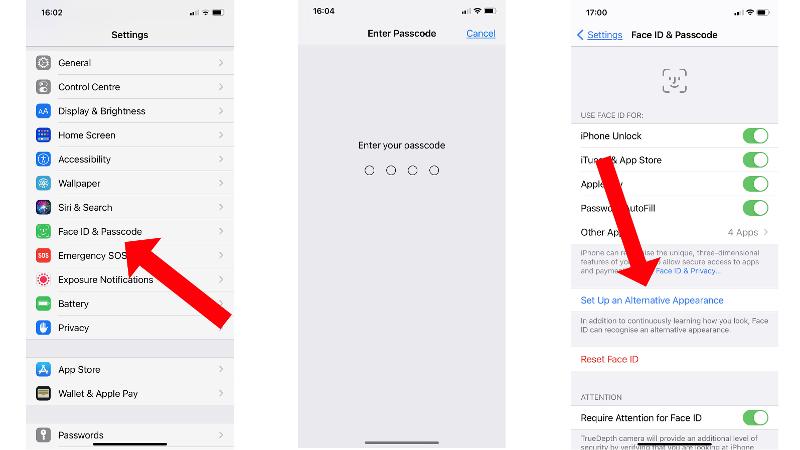
- Go to Settings > Face ID & Passcode.
- Tap on “iTunes Store and App Store.”
- Enter your Apple ID password to confirm the setup.
- Once setup is complete, you’ll be able to download apps using Face ID.
Tips And Variations
Some apps may have slightly different steps for setting up Face ID. Don’t worry – we’ve got you covered! Here are some tips and variations:
- If an app doesn’t support Face ID, check if it has a built-in password manager or authentication system.
- For apps that do support Face ID, follow the prompts to set up the feature.
- To remove Face ID from an app, go back to settings and disable the feature.
Conclusion
Contacting Face ID on various apps is easier than you think! By following these step-by-step guides, you can unlock your device with just one glance. Remember to always follow the specific instructions for each app, as they may vary slightly. With Face ID, you’ll enjoy fast and secure access to your favorite apps – no more typing in passwords or PINs!
Frequently Asked Questions
Q: How do I set up Face ID on my iPhone?
A: To set up Face ID, go to Settings > Face ID & Passcode.
Q: Which apps support Face ID?
A: Most modern apps, including Intesa Sanpaolo, WhatsApp, and the App Store, support Face ID.
Q: Can I use Face ID with multiple accounts?
A: Yes – you can use Face ID with multiple accounts on your device.
Q: How do I remove Face ID from an app?
A: Go back to settings and disable the Face ID feature for the specific app.
Q: Is Face ID secure?
A: Yes – Face ID uses advanced algorithms to recognize your face, ensuring fast and secure access.
Q: Can I use Face ID with other biometric authentication systems?
A: No – Face ID is a proprietary technology developed by Apple.
Q: How do I troubleshoot issues with Face ID?
A: Check the official Apple website or contact their support team for assistance.


