
How to Clean Your PC of Unnecessary Files: A Step-by-step Guide
Are you tired of your computer running slowly due to a full disc? Do you want to free up some space without compromising the performance of your operating system? In this article, we will show you how to clean your PC of unnecessary files and keep it running smoothly.
What Are Unnecessary Files?
Unnecessary files are those that take up space on your computer’s hard drive but are no longer needed or used. These can include temporary files created by applications, outdated software versions, and other data that is no longer relevant.
Why is it Important to Clean Your PC of Unnecessary Files?
Cleaning your PC of unnecessary files can help improve its performance by freeing up space on the hard drive and reducing the load on system resources. This can lead to faster loading times, improved responsiveness, and overall better user experience.
Method 1: Using Sensor Memory in Windows 10/11
If you’re using Windows 10 or 11, you can use the built-in feature called Sensor Memory to clean up unnecessary files. Here’s how:
- Click on the Start button and select Settings.
- Go to System > Storage > Configure sensor memory.
- Choose when to automatically delete temporary files, such as daily, weekly, or monthly.
- Select the types of files you want to delete, such as temporary internet files, system files, and application data.
Method 2: Using Tips For Cleaning in Windows 11
Windows 11 also has a feature called Tips for cleaning that allows you to quickly clean up unnecessary files. Here’s how:
- Open the Start menu and click on Settings.
- Go to System > Storage > Tips for cleaning.
- Select the types of files you want to delete, such as temporary internet files, system files, and application data.
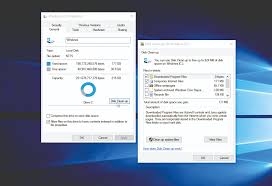
Method 3: Using Cleaning Disc in Windows
You can also use the built-in feature called Cleaning disc in Windows to clean up unnecessary files. Here’s how:
- Open File Explorer and navigate to This PC or Computer.
- Right-click on the drive you want to clean (usually C:) And select Properties.
- Click on the Cleaning disc button.
- Select the types of files you want to delete, such as temporary internet files, system files, and application data.
Method 4: Using Bleachbit
If you’re not comfortable using the built-in features or want a more advanced cleaning tool, you can use BleachBit. This free, open-source software is specifically designed for cleaning up unnecessary files in Windows. Here’s how to use it:
- Download and install BleachBit from its official website.
- Launch BleachBit and select the types of files you want to delete.
- Click on the Clean button and confirm that you want to proceed.
Method 5: Using Windirstat
Another tool you can use is WinDirStat, which is a free program that helps you identify and clean up unnecessary files. Here’s how:
- Download and install WinDirStat from its official website.
- Launch WinDirStat and select the drive you want to analyze (usually C:).
- Wait for the analysis to complete, then select the types of files you want to delete.
Method 6: Using Cleanmymac X on Mac
If you’re using a Mac, you can use CleanMyMac X to clean up unnecessary files. Here’s how:
- Download and install CleanMyMac X from its official website.
- Launch CleanMyMac X and select the types of files you want to delete.
- Click on the Clean button and confirm that you want to proceed.
Conclusion
Cleaning your PC of unnecessary files is an essential task to keep it running smoothly. By following these methods, you can easily clean up unwanted data and free up space on your hard drive. Remember to always be cautious when deleting files, especially if they are system-critical or related to important applications.
Faqs
Here are some frequently asked questions about cleaning your PC of unnecessary files:
- What types of files can I delete using these methods?
- Temporary internet files
- System files
- Application data
- Will deleting these files affect my system performance?
- No, deleting these files will not affect your system performance.
- Are there any risks associated with cleaning my PC of unnecessary files?
- Yes, if you’re not careful, you might delete important files or damage your system.
- Can I use these methods to clean up my Mac?
- Yes, the methods described above can also be used on a Mac using CleanMyMac X.
Note: Always back up your data before cleaning your PC of unnecessary files, and be cautious when deleting files to avoid any potential risks.


