
Display Percentage Battery Iphone: A Step-by-step Guide
Are you tired of wondering how much battery life is left on your iPhone? Do you wish you could see the exact percentage of charge in real-time? Look no further! In this article, we’ll guide you through a step-by-step process to display the percentage battery iPhone on various devices.
Why Display Percentage Battery Iphone?
Having an accurate representation of your battery life is crucial, especially when you’re on-the-go. Imagine getting caught off guard with a dead phone at the worst possible moment. By displaying the percentage battery iPhone, you’ll be able to:
- Avoid unexpected shutdowns
- Plan your day accordingly
- Make the most out of your battery life
Display Percentage Battery Iphone: Face ID Vs. Home Button
The process of displaying the percentage battery iPhone varies depending on whether your device has Face ID or a Home button.
Iphone X And Successive Models (Face Id)
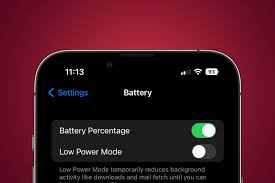
For iPhone X and successive models, you can display the percentage battery iPhone by following these simple steps:
- Open the Settings app
- Tap on Battery
- Toggle on the switch next to Percentage Battery
- The percentage battery will now be visible in the top-right corner of your screen
Iphone With Home Button
If you have an iPhone with a Home button, follow these steps to display the percentage battery:
- Open the Settings app
- Tap on Battery
- Toggle on the switch next to Percentage Battery
- The percentage battery will now be visible in the top-right corner of your screen
Display Percentage Battery Iphone: Apple Watch
If you have an Apple Watch, you can display the percentage battery iPhone by installing a third-party app called Battery Life.
- Download and install the Battery Life app on your iPhone
- Open the app and follow the setup instructions
- The app will now display the percentage battery of your iPhone on your Apple Watch
Display Percentage Battery Iphone: Computer
You can also display the percentage battery iPhone on your computer using an application called iMazing.
- Download and install iMazing on your computer (Windows or macOS)
- Connect your iPhone to your computer
- Open iMazing and follow the setup instructions
- The app will now display the percentage battery of your iPhone
Display Percentage Battery Iphone: Other Devices
You can also use other applications, such as Batteries for Mac, to display the percentage battery iPhone on your computer.
Conclusion
Displaying the percentage battery iPhone is a simple process that can be completed in just a few steps. By following this guide, you’ll be able to keep track of your battery life and avoid unexpected shutdowns. Whether you have an iPhone with Face ID or a Home button, an Apple Watch, or a computer, there’s an app for you!
Frequently Asked Questions
-
How do I Display The Percentage Battery Iphone on my Iphone X?
To display the percentage battery iPhone on your iPhone X, follow these steps: Open the Settings app > Tap on Battery > Toggle on the switch next to Percentage Battery. -
Can I Use a Third-party App to Display The Percentage Battery Iphone?
Yes, you can use a third-party app called Battery Life to display the percentage battery iPhone on your Apple Watch or computer. -
How do I Install Imazing to Display The Percentage Battery Iphone on my Computer?
To install iMazing, download and install it on your computer (Windows or macOS) > Connect your iPhone to your computer > Open iMazing and follow the setup instructions. -
What Are Some Other Applications That Can Display The Percentage Battery Iphone?
Other applications that can display the percentage battery iPhone include Batteries for Mac and Battery Life. -
Can I Use Face ID to Unlock my Iphone While Displaying The Percentage Battery?
Yes, you can use Face ID to unlock your iPhone while displaying the percentage battery iPhone. -
How do I Toggle On/off The Percentage Battery Feature?
To toggle on/off the Percentage Battery feature, follow these steps: Open the Settings app > Tap on Battery > Toggle on/off the switch next to Percentage Battery. -
Can I Display The Percentage Battery Iphone on my Apple Watch Without Installing an Additional App?
No, you will need to install a third-party app called Battery Life to display the percentage battery iPhone on your Apple Watch. -
How do I Update The Imazing Application to Ensure It’s Compatible With The Latest Ios Version?
To update the iMazing application, follow these steps: Open iMazing > Click on the menu icon (three horizontal lines) > Select “Check for updates” > Follow the setup instructions to update the app.


