
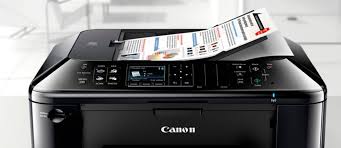
Resetting Your Canon Pixma Printer: A Step-by-step Guide
Are you experiencing problems with your trusty Canon PIXMA printer? Has it suddenly stopped working, or is it stuck in a loop? Don’t worry; I’m here to help! In this article, we’ll explore the steps to reset your Canon PIXMA printer and get it up and running again.
Understanding The Problem
Firstly, let’s understand that not all problems require a complete system reset. Sometimes, updating drivers or restarting the spooler can resolve issues. However, if your printer is stuck in a loop, we’ll need to take more drastic measures.
Step 1: Update Drivers
The first step is to update your Canon PIXMA printer’s drivers. You can do this by visiting the official Canon website and selecting your printer model. From there, follow these steps:
- Click on “Drivers” in the top menu bar.
- Select your operating system (Windows or macOS).
- Choose the correct driver version for your printer model.
- Download and install the updated drivers.
Step 2: Reset Printer Settings
If updating drivers doesn’t resolve the issue, we’ll need to reset your printer settings. To do this:
- Go to your printer’s menu (usually accessed by pressing the “Settings” or “Maintenance” button).
- Select “Reset” or “Restore Default Settings.”
- Follow the on-screen instructions to complete the process.
Step 3: Restart Spooler (Windows)
If your problem persists, we might need to restart the spooler in Windows. To do this:
- Press the Windows key + R to open the Run dialog box.
- Type “services.Msc” and press Enter.
- Scroll down and find the “Print Spooler” service.
- Right-click on it and select “Stop.”
- Wait for 10-15 seconds, then right-click again and select “Start.”
Step 4: Restart Printer System (macOS)
If you’re using a Mac, we can try restarting the printer system:
- Click on the Apple logo in the top left corner.
- Select “System Preferences.”
- Click on “Printers & Scanners.”
- Click on the minus (-) button at the bottom left corner to remove any printers.
- Restart your Mac and add the printer again.
Step 5: Reset Printer in Loop
If your printer is still stuck in a loop, we might need to try resetting it. This will erase all settings and data:
- Press and hold the “Stop” button for about 10 seconds.
- Release the “Stop” button and let the printer restart.
What If My Printer Still Doesn’t Work?
If none of these steps resolve the issue, it’s possible that there’s a hardware problem with your printer. In this case, I recommend contacting Canon support for further assistance. You can do this by visiting their website and following the prompts to initiate a repair service.
Conclusion
Resetting your Canon PIXMA printer is a relatively simple process that can help resolve common issues. By following these steps, you should be able to get your printer up and running again in no time! If you’re still experiencing problems, don’t hesitate to reach out for further assistance.
Here are eight unique FAQs about the topic:
Q: How do I Update my Canon Pixma Printer’s Drivers?
A: To update your Canon PIXMA printer’s drivers, visit the official Canon website and select your printer model. From there, follow the prompts to download and install the updated drivers.
Q: Can I Reset my Canon Pixma Printer Using The Menu?
A: Yes, you can try resetting your Canon PIXMA printer using the menu. To do this:
- Go to your printer’s menu (usually accessed by pressing the “Settings” or “Maintenance” button).
- Select “Reset” or “Restore Default Settings.”
- Follow the on-screen instructions to complete the process.
Q: How do I Restart The Spooler in Windows?
A: To restart the spooler in Windows:
- Press the Windows key + R to open the Run dialog box.
- Type “services.Msc” and press Enter.
- Scroll down and find the “Print Spooler” service.
- Right-click on it and select “Stop.”
- Wait for 10-15 seconds, then right-click again and select “Start.”
Q: Can I Reset my Canon Pixma Printer Using Macos?
A: Yes, you can try resetting your Canon PIXMA printer using macOS:
- Click on the Apple logo in the top left corner.
- Select “System Preferences.”
- Click on “Printers & Scanners.”
- Click on the minus (-) button at the bottom left corner to remove any printers.
- Restart your Mac and add the printer again.
Q: How do I Reset my Canon Pixma Printer if It’s Stuck in a Loop?
A: If your printer is still stuck in a loop, we might need to try resetting it. This will erase all settings and data:
- Press and hold the “Stop” button for about 10 seconds.
- Release the “Stop” button and let the printer restart.
Q: What if my Canon Pixma Printer Still Doesn’t Work After Trying These Steps?
A: If none of these steps resolve the issue, it’s possible that there’s a hardware problem with your printer. In this case, I recommend contacting Canon support for further assistance.
Q: Can I Try to Fix my Canon Pixma Printer Myself?
A: While it’s tempting to try to fix your own printer, it’s usually best to consult the manufacturer or a professional for help.
Q: How Long Does it Take to Reset my Canon Pixma Printer?
A: The time it takes to reset your Canon PIXMA printer will depend on the specific steps you’re taking. However, in most cases, it should only take a few minutes to complete.


