
How to Access Skype: A Comprehensive Guide
Are you looking to stay connected with friends and family who have moved abroad? Do you want to access Skype without any hassle? Look no further! This article will guide you through the process of accessing Skype, whether you’re using a mobile device, computer, or web browser.
Getting Started With Skype
Before we dive into the nitty-gritty details, let’s cover some basic information. To use Skype, you need to have an active Microsoft account. If you don’t already have one, don’t worry! You can create a new account using the instructions provided in this guide.
Accessing Skype on Mobile Devices
If you want to access Skype on your mobile device, follow these steps:
- Initiate the official app of Skype on your Android or iOS device.
- Type your name, phone number, or email address associated with your Skype account in the “Skype,” phone, or email text field.
- Tap the “Sign In” button to log in.
If you can’t remember your password, tap the “Forgot Password?” link and follow the on-screen instructions to recover your account information.
Accessing Skype on Computers
To access Skype on a computer, follow these steps:
- Initiate the official client of Skype or connect to the web version using your browser.
- Type your name, phone number, or email address associated with your Skype account in the “Skype,” phone, or email text field.
- Click the “Sign In” button to log in.
If you can’t remember your password, click the “Forgot Password?” link and follow the on-screen instructions to recover your account information.
Accessing Skype on Windows
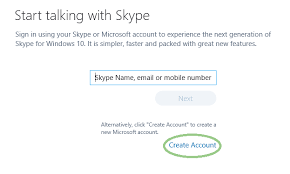
To access Skype on a Windows device, follow these steps:
- Initiate the official client of Skype.
- Click the “Start” button and then select “Access” or “Create Account.”
- Type your name, phone number, or email address associated with your Skype account in the text field.
- Click the “Next” button to continue.
If you can’t remember your password, click the “Forgot Password?” link and follow the on-screen instructions to recover your account information.
Accessing Skype on Mac
To access Skype on a Mac device, follow these steps:
- Initiate the official client of Skype.
- Type your name, phone number, or email address associated with your Skype account in the text field.
- Click the “Sign In” button to log in.
If you can’t remember your password, click the “Forgot Password?” link and follow the on-screen instructions to recover your account information.
Accessing Skype Without an Account
You can also access Skype without creating an account! Simply visit the web version of Skype, click the “Create a free meeting” button, and you’ll receive a link to initiate a chat or video call directly from your browser. Anyone can join the conversation by clicking on the link and entering a name.
Accessing Skype With Another Account
Want to access Skype using another account? No problem! Simply log out of your current account, click on the “+” button next to “Use another account,” and enter the login details for the new account you want to use.
Accessing Skype For Business
If you’re interested in accessing Skype for Business, you’ll need to sign up for an Office 365 plan that includes Skype. This will cost approximately €6.70 Per month. Once signed up, create a Skype for Business account and download the dedicated client to access the service.
Conclusion
Accessing Skype is easier than ever! Whether you’re using a mobile device, computer, or web browser, this guide has provided step-by-step instructions on how to get started with Skype. Remember to have an active Microsoft account to use the service, but don’t worry if you’ve forgotten your password – simply follow the recovery process to regain access.
Frequently Asked Questions
- Q: How do I Create a New Skype Account?
A: To create a new Skype account, visit the Skype website and click on “Sign Up” to initiate the registration process. - Q: What if I Forgot my Skype Password?
A: If you’ve forgotten your Skype password, simply click on the “Forgot Password?” link and follow the on-screen instructions to recover your account information. - Q: Can I Access Skype Without Creating an Account?
A: Yes! You can access Skype without creating an account by visiting the web version of Skype and clicking on the “Create a free meeting” button. - Q: How do I Switch Between Multiple Skype Accounts?
A: To switch between multiple Skype accounts, log out of your current account, click on the “+” button next to “Use another account,” and enter the login details for the new account you want to use. - Q: Is There a Cost Associated With Using Skype For Business?
A: Yes! Accessing Skype for Business requires an Office 365 plan that includes Skype, which costs approximately €6.70 Per month.
Hope this guide has been helpful in answering your questions about accessing Skype!


