
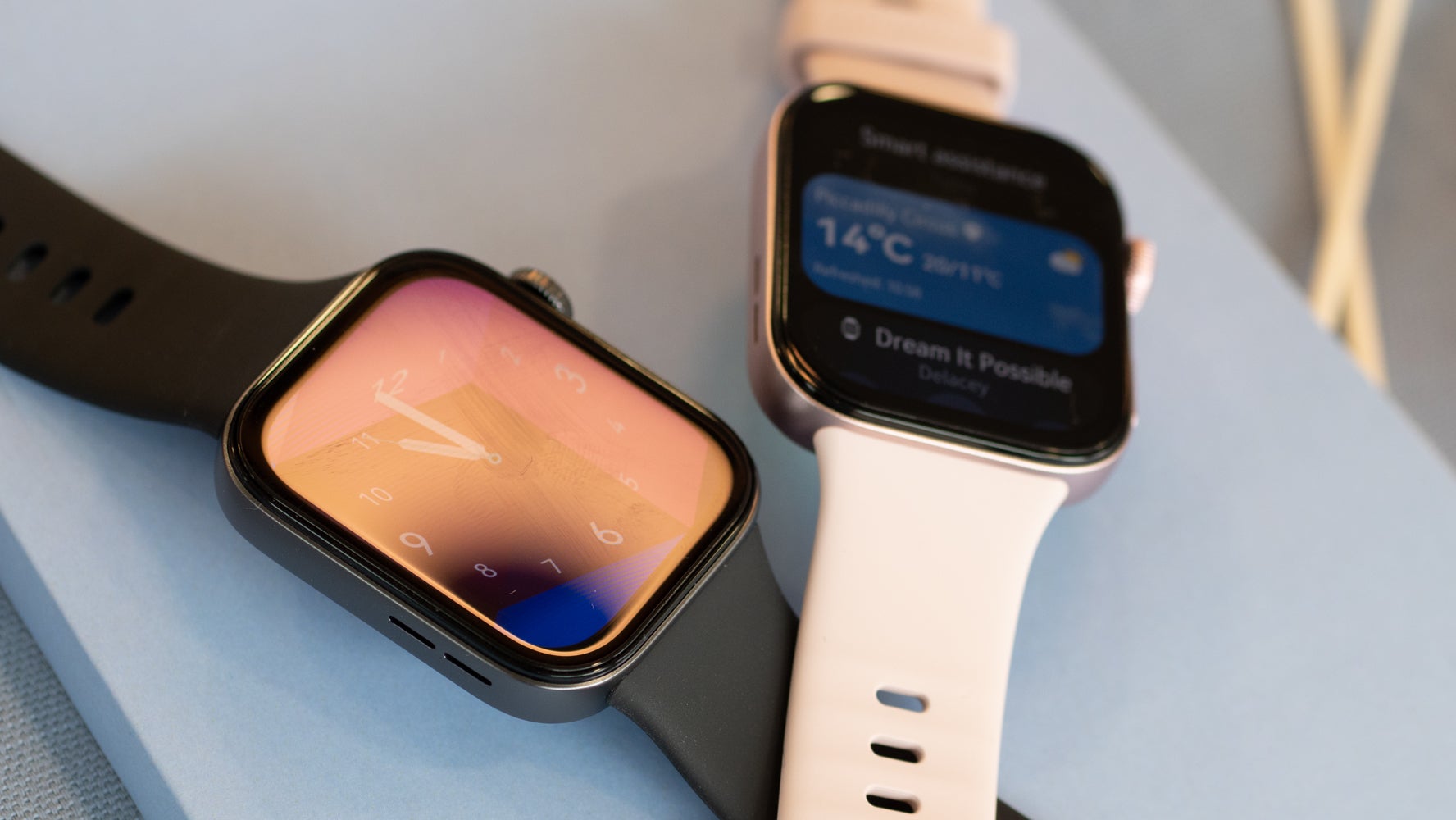
How to Displace The Clock on Huawei Smartphone Screen
Are you tired of having your clock display where it doesn’t suit your preferences? Look no further! In this article, we will guide you through the process of displacing the clock on your Huawei smartphone screen.
Understanding The Problem
You’ve probably tried adjusting the settings on your phone to change the clock’s position, but sometimes even that might not be enough. That’s why we’re here to help you with a more personalized approach.
Solution 1: Using The Topics App
One of the best ways to customize your Huawei smartphone screen is by using the built-in Topics app. This app allows you to choose from various topics and themes that can be applied to your phone’s interface, including changing the clock’s position.
To access this feature:
- Open the Topics app on your phone.
- Select “Categories” at the top of the screen.
- Browse through the available topics and select one that suits your taste.
- Tap on the topic you like and download it for free.
- Once downloaded, tap on the “Apply” button to apply the changes.
Solution 2: Enabling Always On Display (AOD)
Another way to have more control over your clock display is by enabling the Always On Display (AOD) feature. This function allows you to keep certain information, such as the time and date, always visible on your screen, even when the phone is locked.
To enable AOD:
- Go to Settings > Display > Always On Display.
- Toggle the switch next to “Always On Display” to turn it on.
- Customize the settings to suit your preferences.
Conclusion
Displacing the clock on your Huawei smartphone screen doesn’t have to be a difficult task. By using the Topics app or enabling AOD, you can achieve the desired look for your phone’s interface.
Remember to always follow the steps carefully and ensure that you’re not compromising any features of your phone in the process.
Frequently Asked Questions
Q: Can I change the clock’s position on my Huawei smartphone?
A: Yes, you can use the Topics app or enable AOD to customize the clock’s position.
Q: How do I access the Topics app?
A: You can find the Topics app on your phone’s home screen. If not, try searching for it in the App drawer.
Q: What are the benefits of using AOD?
A: AOD allows you to keep certain information always visible on your screen, even when the phone is locked.
Q: Can I use both Solutions 1 and 2 simultaneously?
A: Yes, you can enable both the Topics app and AOD features at the same time for a more customized look.
Q: Will changing the clock’s position affect my phone’s performance?
A: No, adjusting the clock’s position should not impact your phone’s performance or battery life.
Q: Can I change other elements on my phone’s interface using the Topics app?
A: Yes, you can customize various aspects of your phone’s interface using the Topics app.
Q: How do I reset my phone’s settings if I’ve customized them too much?
A: You can restart your phone or reset it to its default settings by going to Settings > System > Reset options.
Q: Can I use other apps besides the Topics app to customize my phone’s interface?
A: Yes, there are various apps available that allow you to customize your phone’s look and feel.


