
How to Connect Onedrive or Google Drive as a Network Drive
Are you tired of using clients like Dropbox or Google Drive, but still want to access your files directly from your computer? Look no further! In this article, we’ll show you how to connect OneDrive or Google Drive as a network drive on both Windows and macOS.
What is a Cloud Storage Service?
Before we dive into the tutorial, let’s quickly discuss what cloud storage services are. Cloud storage services like OneDrive, Google Drive, and Dropbox allow you to store your files online, so they can be accessed from anywhere. They also provide a way to share files with others.
Why Use a Network Drive?
Using a network drive allows you to access your files directly from your computer, without having to use the client software provided by the cloud storage service. This can be useful if you want to:
- Access your files quickly and easily
- Share files with others on your network
- Use your files in applications like Microsoft Office
Collegare Onedrive or Google Drive as a Network Drive
In this section, we’ll show you how to connect OneDrive or Google Drive as a network drive on Windows and macOS.
Collegare Onedrive Like Disc of Rete (Windows)
To connect OneDrive as a network drive on Windows:
- Sign in to Your Microsoft Account: Go to the OneDrive website and sign in with your Microsoft account.
- Click on The “Settings” Icon: Click on the settings icon next to the file you want to access.
- Select “Connect to This Pc”: Select “Connect to this PC” from the menu.
- Copy The Link: Copy the link that appears in the “Connect to this PC” window.
- Open File Explorer: Open File Explorer and click on the network icon (represented by a computer).
- Click on “Map Network Drive”: Click on “Map network drive”.
- Select “Drive Letter”: Select the drive letter you want to assign to OneDrive.
- Enter The Link: Enter the link you copied earlier in step 4.
- Click “Finish”: Click “Finish” to connect OneDrive as a network drive.
Collegare Onedrive Like Disc of Rete (macOS)
To connect OneDrive as a network drive on macOS:
- Download Cloudmounter: Download the CloudMounter software from the App Store.
- Launch Cloudmounter: Launch CloudMounter and select “OneDrive” from the list of cloud storage services.
- Sign in to Your Microsoft Account: Sign in with your Microsoft account credentials.
- Copy The Link: Copy the link that appears on the screen.
- Open Finder: Open Finder and click on the “Go” menu.
- Select “Connect to Server”: Select “Connect to server”.
- Enter The Link: Enter the link you copied earlier in step 4.
- Click “OK”: Click “OK” to connect OneDrive as a network drive.
Collegare Google Drive Like Disc of Rete (Windows)
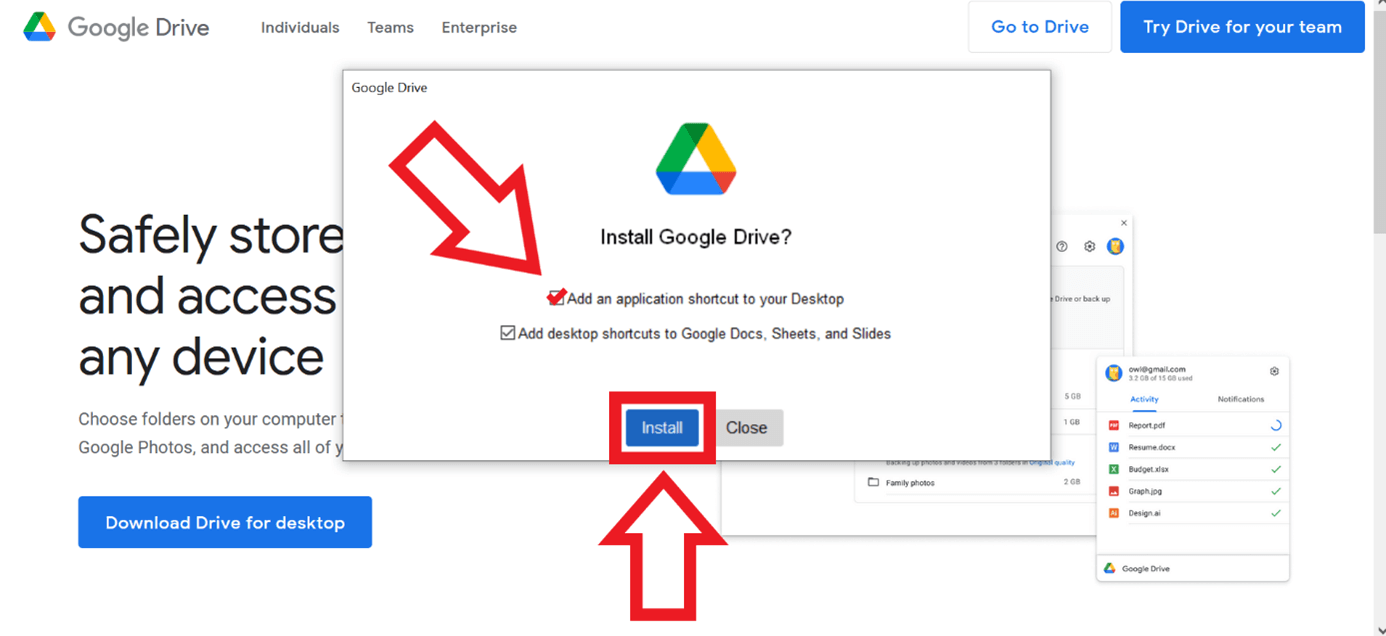
To connect Google Drive as a network drive on Windows:
- Download Netdrive: Download the NetDrive software from the official website.
- Launch Netdrive: Launch NetDrive and select “Google Drive” from the list of cloud storage services.
- Sign in to Your Google Account: Sign in with your Google account credentials.
- Copy The Link: Copy the link that appears on the screen.
- Open File Explorer: Open File Explorer and click on the network icon (represented by a computer).
- Click on “Map Network Drive”: Click on “Map network drive”.
- Select “Drive Letter”: Select the drive letter you want to assign to Google Drive.
- Enter The Link: Enter the link you copied earlier in step 4.
- Click “Finish”: Click “Finish” to connect Google Drive as a network drive.
Collegare Google Drive Like Disc of Rete (macOS)
To connect Google Drive as a network drive on macOS:
- Download Cloudmounter: Download the CloudMounter software from the App Store.
- Launch Cloudmounter: Launch CloudMounter and select “Google Drive” from the list of cloud storage services.
- Sign in to Your Google Account: Sign in with your Google account credentials.
- Copy The Link: Copy the link that appears on the screen.
- Open Finder: Open Finder and click on the “Go” menu.
- Select “Connect to Server”: Select “Connect to server”.
- Enter The Link: Enter the link you copied earlier in step 4.
- Click “OK”: Click “OK” to connect Google Drive as a network drive.
Conclusion
In this article, we’ve shown you how to connect OneDrive or Google Drive as a network drive on both Windows and macOS. This can be useful if you want to access your files quickly and easily, share files with others on your network, or use your files in applications like Microsoft Office.
Faqs
- What is The Difference Between Using a Client Software And Using a Network Drive?
Using a client software allows you to access your files online, while using a network drive allows you to access your files directly from your computer. - Can I Use Both Onedrive And Google Drive as Network Drives at The Same Time?
Yes, you can use both OneDrive and Google Drive as network drives simultaneously. - How do I Disconnect my Cloud Storage Service From The Network Drive?
To disconnect your cloud storage service from the network drive, simply go to the “Network” folder in File Explorer (Windows) or Finder (macOS), right-click on the cloud storage service icon, and select “Disconnect”. - Can I Use a Network Drive With Other Cloud Storage Services Like Dropbox or Icloud?
Yes, you can use a network drive with other cloud storage services like Dropbox or iCloud. - How do I Troubleshoot Connectivity Issues With my Cloud Storage Service?
To troubleshoot connectivity issues with your cloud storage service, try restarting your computer and re-establishing the connection to your cloud storage service.
We hope this article has been helpful in showing you how to connect OneDrive or Google Drive as a network drive on both Windows and macOS. If you have any further questions or need additional assistance, please don’t hesitate to contact us!


