
How to Modify File Extensions: A Step-by-step Guide
Are you struggling to modify file extensions on your Windows, Mac, Android, or iPhone device? Do you want to understand the process of changing a file’s extension without making it inaccessible? Look no further! In this comprehensive guide, we will walk you through the steps to modify file extensions on various operating systems.
Understanding File Extensions
Before we dive into the step-by-step guide, let’s briefly explain what file extensions are. A file extension is the suffix at the end of a file name that tells the computer which program to use to open it. For example, a file with the extension “.Txt” can be opened with a text editor, while a file with the extension “.Docx” can be opened with Microsoft Word.
Modifying File Extensions on Windows
How to Modify File Extensions on Windows 11
To modify file extensions on Windows 11, follow these steps:
- Open File Explorer and navigate to the folder containing the file you want to modify.
- Click on the three dots (…) in the upper-right corner of the window.
- Select “Options” from the dropdown menu.
- In the Options window, select the “View” tab.
- Uncheck the box next to “Hide extensions for known file types.”
- Close the Options window and navigate back to the folder.
How to Modify File Extensions on Windows 10
To modify file extensions on Windows 10, follow these steps:
- Open File Explorer and navigate to the folder containing the file you want to modify.
- Click on the three dots (…) in the upper-right corner of the window.
- Select “Show” from the dropdown menu.
- Check the box next to “File name extensions.”
- Close the File Explorer window.
How to Modify File Extensions on Windows 7
To modify file extensions on Windows 7, follow these steps:
- Open My Computer or This PC and navigate to the folder containing the file you want to modify.
- Click on the “Organize” button in the upper-right corner of the window.
- Select “Folder and Search Options.”
- In the Folder Options window, select the “View” tab.
- Uncheck the box next to “Hide extensions for known file types.”
- Close the Folder Options window.
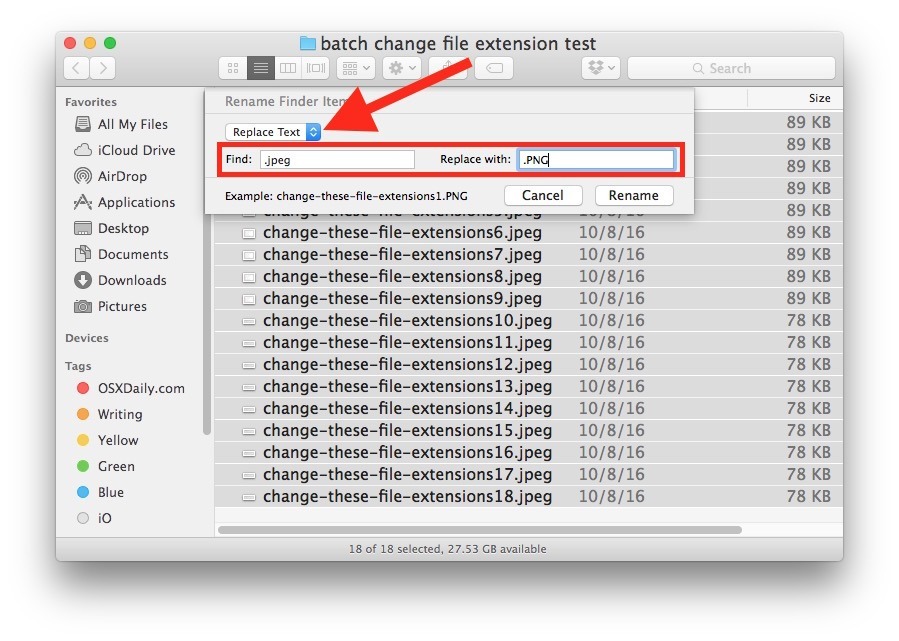
Modifying File Extensions on Mac
To modify file extensions on a Mac, follow these steps:
- Open Finder and navigate to the folder containing the file you want to modify.
- Click on the Apple logo in the upper-left corner of the screen.
- Select “Preferences” from the dropdown menu.
- In the Preferences window, select “Advanced.”
- Check the box next to “Show all filename extensions.”
Modifying File Extensions on Android
To modify file extensions on an Android device, follow these steps:
- Open the Google Files app on your device.
- Tap on the three dots (…) in the upper-right corner of the window.
- Select “Continue” and then “Consent.”
- In the leading screen of the app, tap on the “Browse” button.
- Navigate to the file you want to modify and select it.
Modifying File Extensions on Iphone
To modify file extensions on an iPhone, follow these steps:
- Open the Files app on your device.
- Tap on the three dots (…) in the upper-right corner of the window.
- Select “Settings.”
- In the Settings window, tap on “General” and then “About.”
- Scroll down to the bottom of the screen and tap on “Version.”
Conclusion
Modifying file extensions can be a simple process if you follow these step-by-step guides. Whether you’re using Windows, Mac, Android, or iPhone, understanding how to change a file’s extension is essential for many tasks. We hope this guide has been helpful in explaining the process and providing you with the necessary information to modify file extensions on your device.
Frequently Asked Questions (FAQs)
- Q: What is a File Extension?
A: A file extension is the suffix at the end of a file name that tells the computer which program to use to open it. - Q: Why do I Need to Modify File Extensions?
A: Modifying file extensions can be necessary for various reasons, such as changing the format of a file or making it compatible with different devices. - Q: How do I Modify File Extensions on Windows 11?
A: To modify file extensions on Windows 11, follow the steps outlined in the “How to Modify File Extensions on Windows 11” section above. - Q: Can I Modify File Extensions on a Mac?
A: Yes, you can modify file extensions on a Mac by following the steps outlined in the “Modifying File Extensions on Mac” section above. - Q: How do I Modify File Extensions on Android?
A: To modify file extensions on an Android device, follow the steps outlined in the “Modifying File Extensions on Android” section above. - Q: Can I Modify File Extensions on Iphone?
A: Yes, you can modify file extensions on an iPhone by following the steps outlined in the “Modifying File Extensions on iPhone” section above. - Q: Why do I Need to Convert a Video File Instead of Modifying Its Extension?
A: Converting a video file is often necessary because modifying its extension alone may not make it playable or compatible with different devices.


