
Setting Up Automatic Response on Gmail: A Step-by-step Guide
As a busy professional or entrepreneur, managing your inbox can be a daunting task. With the constant influx of emails, it’s easy to get overwhelmed and struggle to keep up with responses. That’s where automatic response comes in – a feature that allows you to set up pre-written messages to be sent automatically to incoming emails. In this article, we’ll show you how to set up automatic response on Gmail using your computer or mobile device.
Why Set Up Automatic Response on Gmail?
Before we dive into the step-by-step guide, let’s briefly discuss why setting up automatic response on Gmail is a great idea:
- Saves time: With automatic response, you can save time by not having to manually respond to every email.
- Enhances productivity: By automating your responses, you’ll have more time to focus on high-priority tasks and projects.
- Improves customer experience: Automatic response ensures that customers receive timely and personalized replies, even when you’re busy or away.
Setting Up Automatic Response on Gmail Using Your Computer
To set up automatic response on Gmail using your computer, follow these steps:
- Access Your Gmail Account: Log in to your Gmail account using your Google credentials.
- Click on The Gear Icon: In the top right corner of the screen, click on the gear icon to access settings.
- Select General Settings: From the drop-down menu, select “General settings”.
- Scroll Down to Automatic Response: Scroll down to the “Automatic response” section.
- Check The Box: Check the box next to “Send automatic reply” to enable this feature.
- Enter Your Message: Enter a pre-written message that you’d like to send as an automatic response.
- Choose When to Send: Select whether you want to send the automatic response for all emails or only those from specific contacts.
- Save Changes: Click on “Save changes” to save your settings.
Setting Up Automatic Response on Gmail Using Your Mobile Device
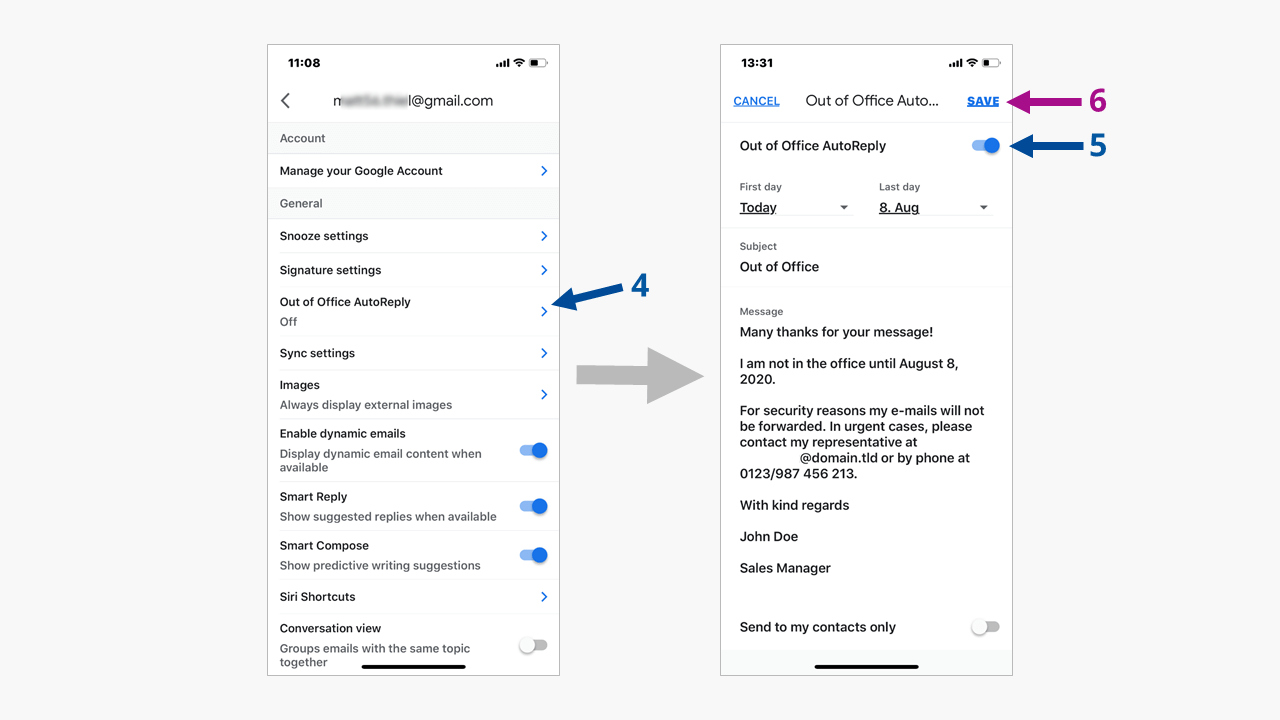
To set up automatic response on Gmail using your mobile device, follow these steps:
- Open The Gmail App: Open the Gmail app on your Android or iOS device.
- Tap on The Menu Icon: Tap on the menu icon (three horizontal lines) in the top left corner of the screen.
- Select Settings: Select “Settings” from the drop-down menu.
- Scroll Down to Automatic Response: Scroll down to the “Automatic response” section.
- Check The Box: Check the box next to “Send automatic reply” to enable this feature.
- Enter Your Message: Enter a pre-written message that you’d like to send as an automatic response.
- Choose When to Send: Select whether you want to send the automatic response for all emails or only those from specific contacts.
- Save Changes: Tap on “Save” to save your settings.
Troubleshooting Common Issues
If you’re experiencing issues with automatic response, here are some troubleshooting tips:
- Check if The Feature is Enabled: Make sure that automatic response is enabled in your Gmail account settings.
- Verify The Message Format: Ensure that the message you’ve entered is formatted correctly and doesn’t contain any special characters or attachments.
- Try Restarting Your Device: Restarting your device can sometimes resolve issues with the Gmail app.
Conclusion
Setting up automatic response on Gmail is a simple yet effective way to manage your inbox and save time. By following these step-by-step guides, you’ll be able to set up automatic response using your computer or mobile device. If you encounter any issues, don’t worry – we’ve got you covered with some troubleshooting tips.
Frequently Asked Questions
Here are some frequently asked questions about setting up automatic response on Gmail:
- Q: What is Automatic Response?
A: Automatic response is a feature that allows you to set up pre-written messages to be sent automatically to incoming emails. - Q: How do I Enable Automatic Response on Gmail?
A: To enable automatic response on Gmail, follow the step-by-step guide provided above. - Q: Can I Customize The Message Format?
A: Yes, you can customize the message format by adding or removing text as needed. - Q: Will Automatic Response Work if I’m Offline?
A: No, automatic response will not work if you’re offline. However, you can schedule automatic responses to be sent at a later time.
By following these guides and troubleshooting tips, you’ll be able to set up automatic response on Gmail using your computer or mobile device. Remember to save time, enhance productivity, and improve customer experience with this useful feature!


