
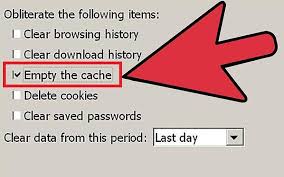
Protect Your Online Privacy: A Step-by-step Guide to Deleting Browser History
Are you concerned about your online privacy? Do you want to delete browser history on various devices, including computers, smartphones, and tablets? Look no further! In this article, we’ll guide you through the process of deleting browser history on Google Chrome, Mozilla Firefox, Safari, Microsoft Edge, and Internet Explorer.
Why Delete Browser History?
Deleting browser history is essential for maintaining your online privacy. When you browse the internet, your browser stores a record of all websites you visit, search queries, and other activities. This information can be accessed by various entities, including advertisers, hackers, and government agencies. By deleting browser history, you can:
- Prevent unauthorized access to your browsing data
- Protect sensitive information, such as passwords and credit card numbers
- Improve your online security
Deleting Browser History on Google Chrome
To delete browser history on Google Chrome:
- Open Google Chrome: Click on the Chrome icon or open a new tab.
- Click on The Three Vertical Dots: Located in the upper right corner of the browser window.
- Select “Settings”: From the drop-down menu.
- Scroll Down to “Advanced”: And click on it.
- Click on “Clear Browsing Data”: A pop-up window will appear.
- Choose What You Want to Delete: Select the type of data you want to erase, such as browsing history, cookies, and cached images and files.
- Set a Time Range: Choose how far back you want to clear your browser history.
Deleting Browser History on Mozilla Firefox
To delete browser history on Mozilla Firefox:
- Open Mozilla Firefox: Click on the Firefox icon or open a new tab.
- Click on The Three Horizontal Lines: Located in the upper right corner of the browser window.
- Select “Options”: From the drop-down menu.
- Click on “Privacy & Security”: A tab will appear on the left side of the screen.
- Scroll Down to “Clear Your Browsing History”: And click on it.
- Choose What You Want to Delete: Select the type of data you want to erase, such as browsing history, cookies, and cached images and files.
Deleting Browser History on Safari
To delete browser history on Safari:
- Open Safari: Click on the Safari icon or open a new tab.
- Click on “Safari”: Located in the top menu bar.
- Select “Preferences”: From the drop-down menu.
- Click on The “Advanced” Tab: A tab will appear on the left side of the screen.
- Scroll Down to “Show Develop Menu in Menu Bar”: And check the box.
- Click on “Develop”: Located in the top menu bar.
- Select “Empty Caches”: A pop-up window will appear.
Deleting Browser History on Microsoft Edge
To delete browser history on Microsoft Edge:
- Open Microsoft Edge: Click on the Edge icon or open a new tab.
- Click on The Three Horizontal Dots: Located in the upper right corner of the browser window.
- Select “Settings”: From the drop-down menu.
- Scroll Down to “Clear Browsing Data”: And click on it.
- Choose What You Want to Delete: Select the type of data you want to erase, such as browsing history, cookies, and cached images and files.
Deleting Browser History on Internet Explorer
To delete browser history on Internet Explorer:
- Open Internet Explorer: Click on the IE icon or open a new tab.
- Click on “Tools”: Located in the top menu bar.
- Select “Internet Options”: From the drop-down menu.
- Click on The “General” Tab: A tab will appear on the left side of the screen.
- Scroll Down to “Clear Browsing History”: And click on it.
Deleting Google Activity History
To delete Google activity history:
- Open Google Account: Sign in to your Google account.
- Click on “My Account”: Located in the top right corner of the screen.
- Select “Data & Personalization”: From the drop-down menu.
- Scroll Down to “Activity”: And click on it.
- Click on “Delete Activity by Date”: A pop-up window will appear.
Conclusion
Deleting browser history is an essential step in maintaining your online privacy. By following the steps outlined above, you can delete browser history on various devices, including computers, smartphones, and tablets. Remember to always clear your browsing data regularly to protect sensitive information and improve your online security.
Frequently Asked Questions (FAQs)
- What is Browser History?
Browser history refers to the record of all websites you visit, search queries, and other activities while using a web browser.
- Why Delete Browser History?
Deleting browser history helps protect your online privacy by preventing unauthorized access to your browsing data, sensitive information, and improving your online security.
- How do I Delete Browser History on Google Chrome?
To delete browser history on Google Chrome, follow the steps outlined above in the “Deleting Browser History on Google Chrome” section.
- Can I Delete Browser History on Multiple Devices?
Yes, you can delete browser history on multiple devices by following the same steps for each device.
- Will Deleting Browser History Affect my Online Security?
No, deleting browser history will not affect your online security. In fact, it will improve it by preventing unauthorized access to your browsing data and sensitive information.
- How Often Should I Delete Browser History?
It’s recommended to clear your browsing data regularly, such as every week or month, depending on how frequently you use the internet.
- Can I Delete Google Activity History?
Yes, you can delete Google activity history by following the steps outlined above in the “Deleting Google Activity History” section.


