
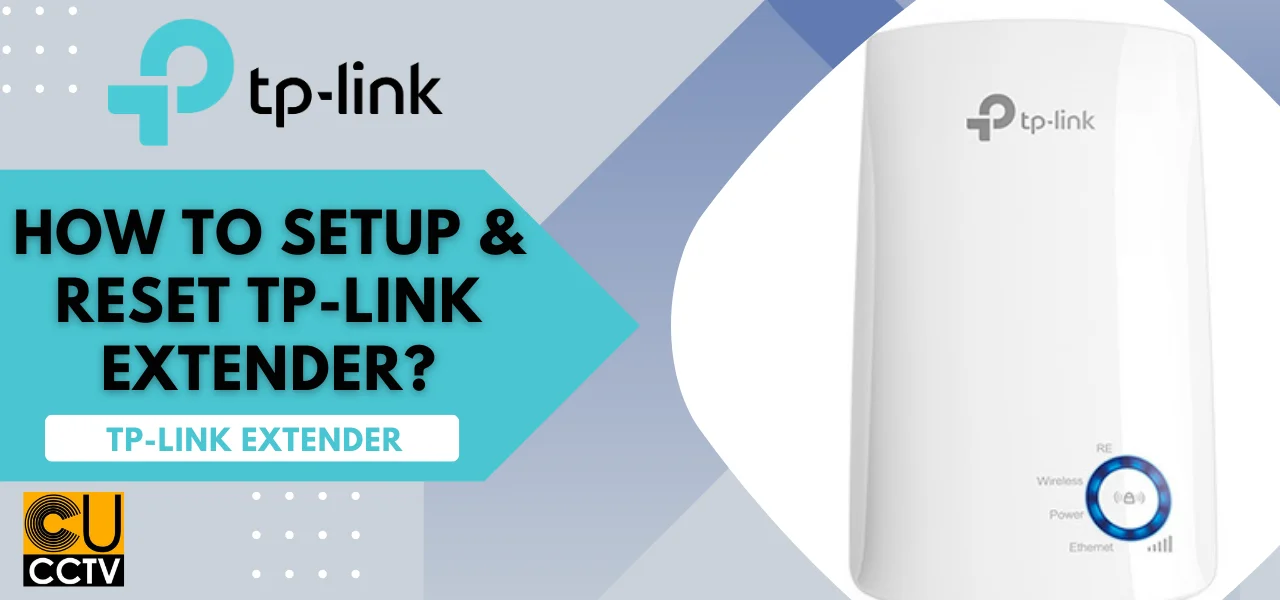
Reset tp Link Modem: A Step-by-step Guide
If your tp-link modem has stopped working or you need to reset it, this guide is for you. In this article, I will explain how to physically and virtually reset your tp-link modem.
Introduction
The TP-Link modem is an essential device for accessing the internet. However, sometimes it may stop working or require a reset. In this case, you have two options: Physically reset the modem or use the tp-link tether application.
How to Physically Reset The Tp-link Modem
If your tp-link modem does not respond to the command or has stopped working completely, you can try to physically reset it. Here’s how to do it:
-
Make Sure Your Modem is Turned Off. Verify that the modem is turned off and is no longer transmitting signals.
-
Hold The Reset Button. Use a pointed object, such as a pin or pencil, to press and hold the reset button on the back of the modem.
-
Leave The Reset Button on For 10 Seconds. Keep the reset button pressed for at least 10 seconds.
-
Release The Reset Button. Once the module has been reset, release the reset button.
How to Virtually Reset The Tp-link Modem
If your tp-link modem has not stopped working completely and you can still access its control panel, you can try to virtually reset it using the tp-link tether application. Here’s how to do it:
-
Download The Tp-link Tether Application. Download the tp-link tether application from your mobile device.
-
Login to The Application. Open the application and log in to your user account.
-
Search For Modem. Search for the name of your modem in the list of connected devices.
-
Press The Reset Button. Once you have found your modem, press the reset button to reset the device.
How to Troubleshoot Tp-link Modem
If your tp-link modem is not responding to the command or has stopped working completely, there are a few things you can try to fix the problem:
-
Restart The Modem. Try restarting the modem to see if it can reconnect to the network.
-
Reset The Modem. Try resetting your modem using the tp-link tether application or following the instructions above.
-
Contact Technical Support. If none of these methods work, contact your internet service provider’s technical support for help.
Frequently Asked Questions
- Why do I Need to Reset my Tp-link Modem?
If your TP-Link modem stops working or requires a reset, you can try resetting it using the TP-Link Tether application or by following the instructions above.
- How Can I Access The Control Panel of my Tp-link Modem?
You can access the control panel of your TP-Link modem using the browser of your mobile device or computer, or using the TP-Link Tether application.
- Can I Physically Reset my Tp-link Modem?
Yes, you can physically reset your tp-link modem by following the instructions above.
Conclusion
In this article I explained how to physically and virtually reset your tp-link modem. I hope this information was helpful in troubleshooting your device. If you have any other questions or need further help, please feel free to contact me.


