
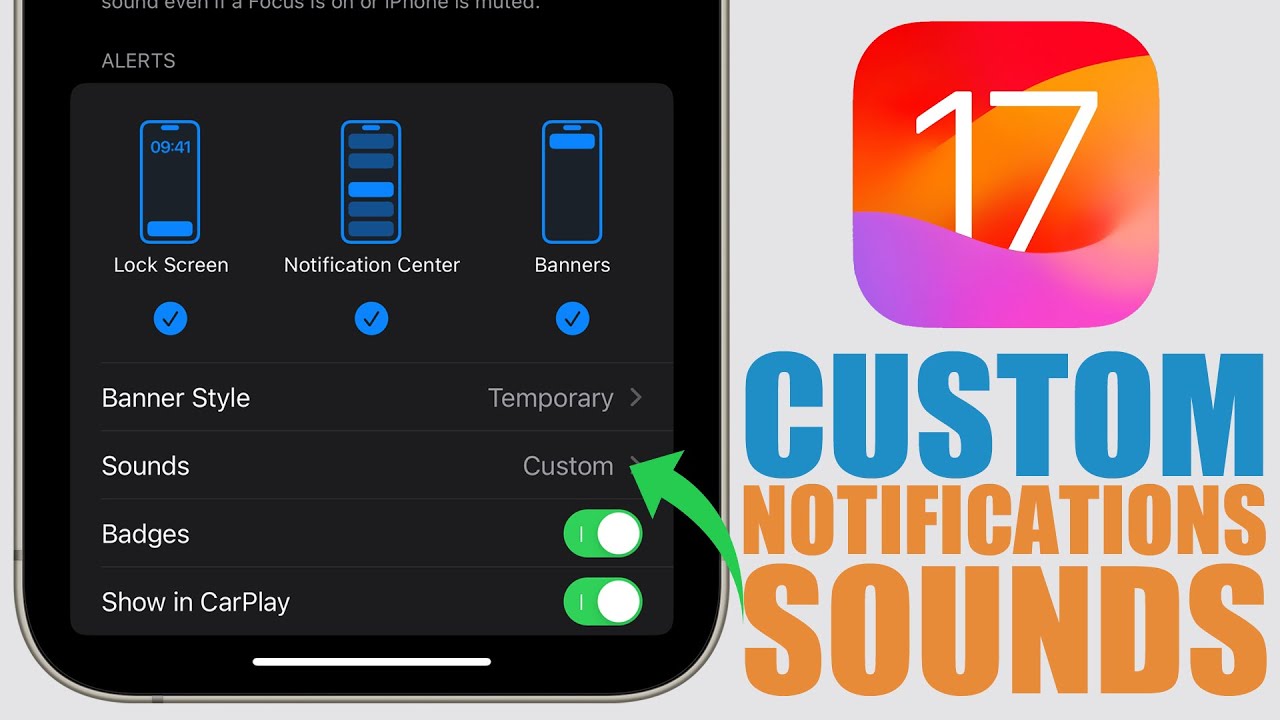
How to Customize Sound Notifications on Iphone
Are you tired of the same old sound notifications on your iPhone? Do you want to personalize them according to your preferences? You’re in luck! With the latest iOS 17.2 Update, you can now customize sound notifications for various activities and apps.
In this guide, we’ll show you how to capsize sound notifications on iPhone, making it easier to manage and prioritize notifications. We’ll also explore other options, such as modifying system sounds and default notification tones.
Why Customize Sound Notifications?
Customizing sound notifications can enhance your overall iPhone experience. By assigning specific sounds to different activities or apps, you can better focus on what’s important to you. Whether it’s a notification from a social media app or an email alert, customizing the sound will help you stay on top of things.
How to Customize System Sound Notifications
To customize system sound notifications, follow these steps:
- Open Settings: Tap on the gear icon on your iPhone’s Home screen or in the Bookshop app.
- Select Sounds And Haptics: Scroll down and tap on “Sounds and Haptics.”
- Choose a Notification Type: Select the type of notification you want to customize, such as “Ring/Silent” or “Alerts.”
- Select a Sound: Choose from various sound options or browse through iTunes Store for new tones.
- Save Changes: Tap on the “Save” button to save your changes.
How to Customize App-specific Sound Notifications
To customize app-specific sound notifications, follow these steps:
- Open Settings: Tap on the gear icon on your iPhone’s Home screen or in the Bookshop app.
- Select Notifications: Scroll down and tap on “Notifications.”
- Choose an App: Select the app you want to customize, such as WhatsApp or Instagram.
- Select a Sound: Choose from various sound options or browse through iTunes Store for new tones.
- Save Changes: Tap on the “Save” button to save your changes.
How to Create Custom Sounds
If you can’t find the perfect sound among existing options, don’t worry! You can create your own custom sounds using various apps and tools.
- Use an Audio Editor App: Apps like GarageBand or Audacity allow you to record and edit audio files.
- Create a New Sound in Itunes Store: Browse through iTunes Store for new tones or create your own by recording or editing audio files.
- Save Custom Sounds: Save your custom sounds on your iPhone or sync them with your computer.
Tips And Tricks
- To easily find the perfect sound, use the search bar within the Settings app to look up specific keywords or phrases.
- Experiment with different sound options and combinations to create a unique notification experience.
- If you’re having trouble finding an app-specific sound option, try looking for it in the Settings app’s “Notifications” section.
Conclusion
Customizing sound notifications on iPhone is easier than ever. With iOS 17.2, You can now personalize system sounds and default notification tones to suit your needs. Whether you want to create custom sounds or modify existing ones, this guide has shown you how to do it. So go ahead and experiment with different options – your ears will thank you!
Frequently Asked Questions (FAQs)
- Q: Why Can’t I Find an App-specific Sound Option?
A: Some apps may not have a built-in sound customization feature. In this case, try looking for the sound in the Settings app’s “Notifications” section. - Q: How do I Create Custom Sounds on Iphone?
A: You can use audio editor apps like GarageBand or Audacity to record and edit audio files. Alternatively, browse through iTunes Store for new tones or create your own by recording or editing audio files. - Q: Can I Save Custom Sounds on my Iphone?
A: Yes! Save your custom sounds on your iPhone or sync them with your computer using iTunes. - Q: Why do Some Apps Not Have Sound Customization Options?
A: Some apps may not prioritize sound customization, focusing instead on other features like push notifications or social sharing. - Q: Can I Customize Default Notification Tones?
A: Yes! With iOS 17.2, You can now customize default notification tones to suit your preferences.
More Resources
- For more information on customizing sound notifications, check out our tutorials and guides on creating custom sounds for WhatsApp and Instagram.
- Visit the Apple Support website or contact Apple’s technical support team for additional assistance with customizing sound notifications.


