
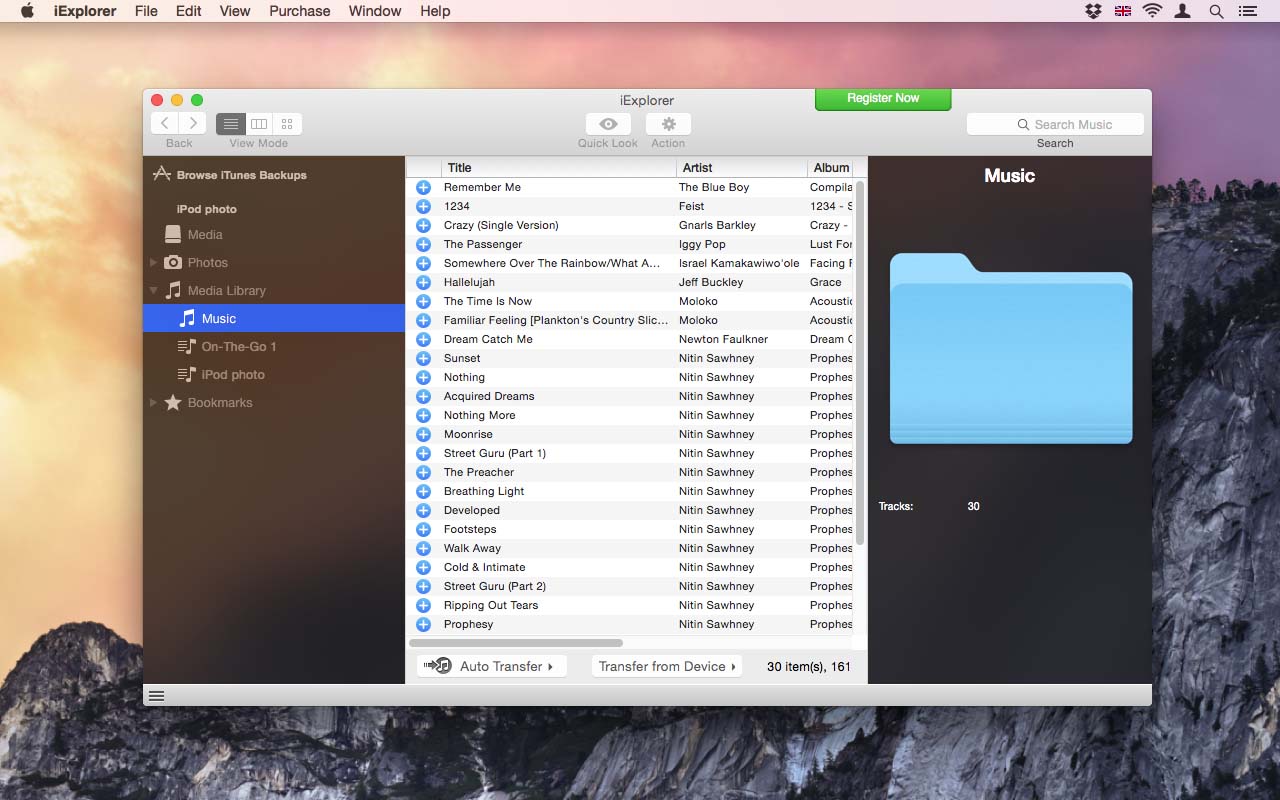
Copy Your Favorite Music From Ipod to Mac: A Step-by-step Guide
Are you tired of losing your favorite music when switching from an iPod to a Mac? Look no further! In this article, we will guide you through the process of copying music from your iPod to your Mac using various methods. Whether you’re a seasoned tech-savvy individual or a beginner, our step-by-step instructions will ensure that you can transfer your music with ease.
What You’ll Need
Before we begin, make sure you have:
- An iPod (classic, nano, shuffle, or touch)
- A Mac computer
- A USB cable to connect the iPod to the Mac
- One of the recommended software programs (Sharepod, iMazing, or another music transfer program)
Step 1: Prepare Your Ipod
To start the process, you need to configure your iPod for external disc mode. This option allows the iPod to be read as a disk on your Mac.
- Connect your iPod to your Mac using the USB cable.
- Open Finder and select the icon of the comic strip smiley face on the Dock.
- Select your iPod’s name from the Devices list in the sidebar.
- Click on the Options tab and ensure that “Use this drive for external storage” is selected. If it’s not, click on the checkbox to activate it.
Step 2: Choose a Music Transfer Program
There are several software programs available that can help you transfer music from your iPod to your Mac. We recommend using Sharepod or iMazing, as they are both free and user-friendly.
- Sharepod: A simple and free program that allows you to copy music from your iPod to your Mac.
- Imazing: A comprehensive program that offers more features than Sharepod, including the ability to transfer data between different Apple devices.
Step 3: Copy Music With Sharepod
To use Sharepod:
- Download and install Sharepod on your Mac.
- Launch Sharepod and select the music you want to copy from your iPod.
- Choose a destination folder on your Mac for the copied music.
- Click “Export Selected Item(s) to Folder” and follow the prompts to complete the transfer.
Step 4: Copy Music With Imazing
To use iMazing:
- Download and install iMazing on your Mac.
- Launch iMazing and select your iPod from the list of connected devices.
- Choose the music you want to copy from your iPod.
- Select a destination folder on your Mac for the copied music.
- Click “Export” and follow the prompts to complete the transfer.
Other Ways to Copy Music
If Sharepod or iMazing are not available, there are other ways to copy music from your iPod to your Mac:
- Apple Music: If you have an iPod touch with Apple Music enabled, you can sync your music library across devices.
- Itunes: Although iTunes is no longer the default music player on macOS, it can still be used to transfer music between devices.
Tips And Tricks
To ensure a smooth music transfer process:
- Make sure your iPod is updated to the latest software.
- Use the correct USB cable to connect your iPod to your Mac.
- Choose a destination folder that has enough free space for the copied music.
- Avoid copying large files or folders, as this can slow down the transfer process.
Conclusion
Copying music from your iPod to your Mac doesn’t have to be a daunting task. With these step-by-step instructions and recommended software programs, you’ll be able to transfer your favorite music in no time. Whether you’re using Sharepod, iMazing, or another music transfer program, we hope this guide has been helpful in making the process smoother.
Frequently Asked Questions
- Q: Can I Copy Videos From my Ipod to my Mac?
A: Yes, most music transfer programs allow you to copy videos as well. - Q: How do I Ensure That my Copied Music is of High Quality?
A: Make sure your iPod and Mac are updated to the latest software, and use a high-quality USB cable to connect them. - Q: Can I Use Sharepod or Imazing on Windows?
A: Yes, both Sharepod and iMazing are available for Windows users as well. - Q: How do I Copy Music From my Ipod Touch With Apple Music Enabled?
A: You can sync your music library across devices using the Apple Music app on your Mac. - Q: Can I Use Itunes to Transfer Music Between Devices?
A: Yes, although iTunes is no longer the default music player on macOS, it can still be used for transferring music.
Recommended Software Programs
- Sharepod (free)
- IMazing (free trial, paid version available)
- Apple Music (free with Apple Music subscription)
We hope this guide has been helpful in making the process of copying music from your iPod to your Mac smoother. If you have any further questions or concerns, feel free to ask!


