
How to Delete a Facebook Account: A Step-by-step Guide
Are you tired of Facebook? Do you want to delete your account but don’t know how? Look no further! In this article, we will guide you through the process of deleting your Facebook account permanently or temporarily.
Why Would You Want to Delete Your Facebook Account?
There are many reasons why you might want to delete your Facebook account. Maybe you’re tired of seeing ads and algorithm-driven news feeds. Perhaps you’ve experienced cyberbullying or online harassment on the platform. Or maybe you simply want to take a break from social media.
Whatever your reason, deleting your Facebook account can be a liberating experience. But before we dive into the steps, let’s talk about why it might not be that easy.
Why Can’t You Just Delete Your Account?
Unfortunately, deleting your Facebook account is not as simple as just clicking “delete” and voilà! There are some things to consider before you take the plunge:
- 30-Day Waiting Period: If you delete your account temporarily, you’ll have 30 days to change your mind. If you delete it permanently, your data will be gone forever.
- Data Recovery: Even after deletion, Facebook may still retain some of your data for up to 90 days. This is why we recommend creating a backup before deleting your account.
- Business Accounts: If you have a business account connected to your personal one, you’ll need to delete the business account separately.
Now that we’ve covered these important details, let’s get started!
How to Delete Your Facebook Account Temporarily
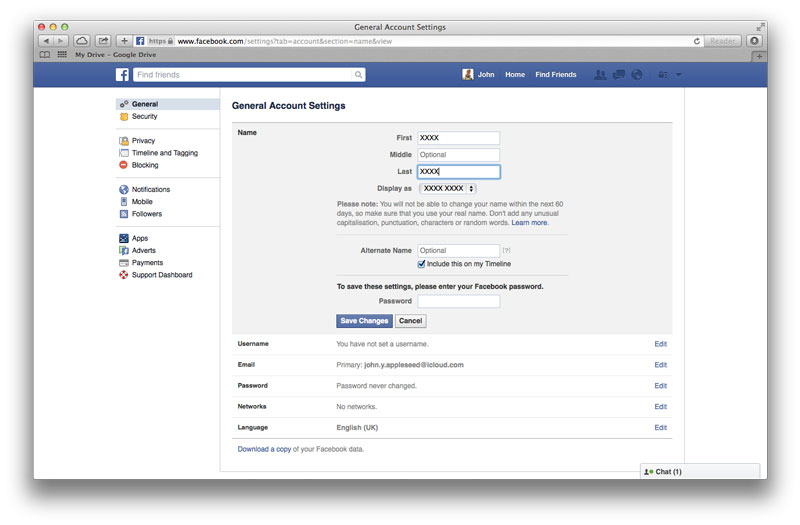
To delete your Facebook account temporarily:
- Log in to your account on mobile or computer.
- Go to Settings and Privacy > Settings > Centre management *account.
- Select Deactivation or elimination.
- Choose the option to deactivate your account.
How to Delete Your Facebook Account Permanently
To delete your Facebook account permanently:
- Log in to your account on mobile or computer.
- Go to Settings and Privacy > Settings > Centre management *account.
- Select Deactivation or elimination.
- Choose the option to delete your account.
How to Delete a Hacked Facebook Account
If your account has been hacked, follow these steps:
- Log in to the official Facebook recovery page.
- Report that your account has been compromised.
- Follow the instructions to recover your account.
- Once recovered, you can delete your account permanently or temporarily.
How to Delete a Blocked Facebook Account
If your account has been blocked:
- Try logging back in after the suspension period ends.
- If it’s still blocked, follow the same steps as deleting a hacked account.
- If it was temporarily suspended, you may be able to reactivate and delete your account.
How to Delete a Business Facebook Account
To delete a business account:
- Log in to Meta Business Suite or Business Manager.
- Go to Settings > Persons > Stir up the portfolio *business.
- Select the option to delete your account.
Conclusion
Deleting your Facebook account can be a liberating experience, but it’s essential to consider the implications before taking the plunge. Take advantage of our step-by-step guide to ensure you make an informed decision.
Frequently Asked Questions (FAQs)
Here are some frequently asked questions and their answers:
- Q: How long will my data remain on Facebook after deletion?
A: Your data may be retained for up to 90 days, even after deletion. - Q: Can I recover my account if I delete it temporarily?
A: Yes, you can reactivate your account within the 30-day waiting period. - Q: What happens to my business account when I delete my personal one?
A: You’ll need to delete the business account separately.
We hope this guide has helped you understand how to delete your Facebook account. If you have any further questions, feel free to ask!


