
Optimizing Your Smartphone’s Ram: A Step-by-step Guide
Are you tired of your smartphone slowing down due to a lack of available RAM? Do you find yourself constantly restarting your device or closing apps just to get it running smoothly again? You’re not alone! In this article, we’ll explore the reasons behind slow smartphones and provide you with practical tips on how to optimize your phone’s RAM.
Understanding Ram And Its Importance
RAM (Random Access Memory) is a type of computer memory that temporarily stores data as it’s being processed. On smartphones, RAM plays a crucial role in storing applications, graphics, and other data-intensive elements that make our devices run smoothly. However, when RAM becomes overloaded, your phone may become sluggish, unresponsive, or even freeze.
The Causes of Slow Smartphones
There are several reasons why your smartphone might be slow due to a lack of available RAM:
- Running too many applications at the same time
- Installing too many apps that consume significant amounts of RAM
- Not closing unused apps properly
- Having insufficient storage space for your phone’s operating system and other files
How to Optimize Your Smartphone’s Ram
Fortunately, there are several ways to free up RAM on your smartphone:
1. Close Unused Apps
Close all unnecessary apps running in the background to free up RAM.
- On Android devices:
- Open the Recent Apps screen by pressing and holding the Back button.
- Swipe left or right to find the app you want to close, then swipe it away.
- Alternatively, go to Settings > Battery > Recent apps and select Close all
- On iOS devices:
- Double-click the Home button to open the App Switcher.
- Swipe up on an app’s card to close it.
- Alternatively, press and hold the Sleep/Wake button until the Slide to Power Off menu appears. Then, swipe left or right to find the “Slide to power off” option and slide your finger across it.
2. Disable Automatic App Updates
Disable automatic app updates to prevent apps from consuming unnecessary RAM.
- On Android devices:
- Go to Settings > Apps > [App name] > Uninstall updates
- On iOS devices:
- Open the Settings app and tap on your profile picture or initials.
- Tap on App Store, then toggle off the switch next to “Updates”
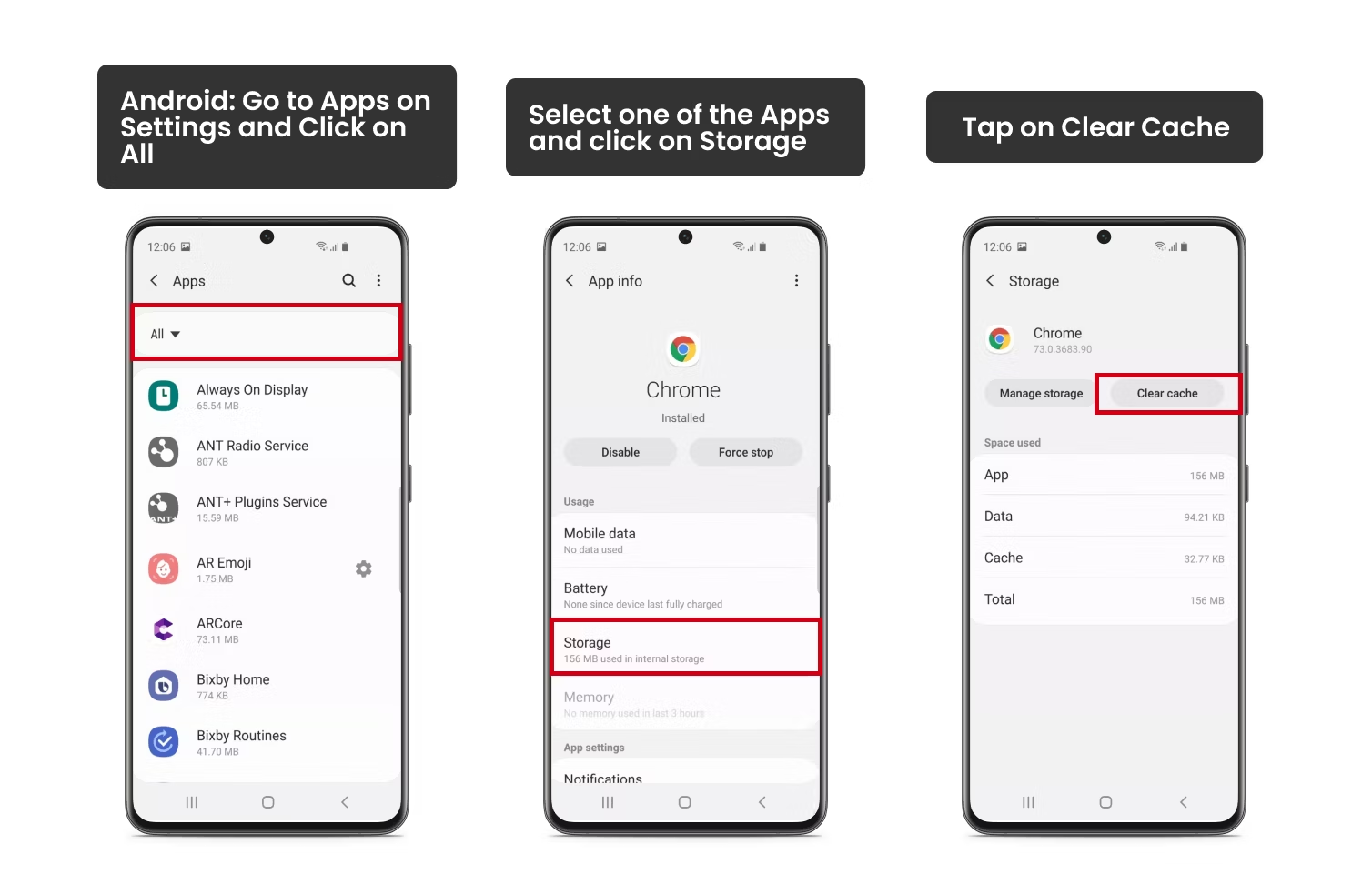
3. Clear App Cache
Clearing app cache can help free up RAM by removing temporary data stored in apps.
- On Android devices:
- Go to Settings > Apps > [App name] > Storage > Clear cache
- On iOS devices:
- Open the Settings app and tap on your profile picture or initials.
- Tap on General, then tap on iPhone Storage. Swipe left or right until you find the app you want to clear.
4. Disable Live Wallpapers
Live wallpapers can consume significant RAM, so disabling them may help improve performance.
- On Android devices:
- Go to Settings > Display > Wallpaper
- Select “None” as your wallpaper option.
- On iOS devices:
- Open the Settings app and tap on General.
- Tap on Accessibility, then toggle off the switch next to “Reduce motion”
5. Update Your Operating System
Keeping your operating system up-to-date can help resolve issues with RAM optimization.
- On Android devices:
- Go to Settings > About phone > Software update
- Select “Update now” or follow instructions to update manually.
- On iOS devices:
- Open the Settings app and tap on General.
- Tap on Software Update, then select “Download and install” if an update is available.
Conclusion
Optimizing your smartphone’s RAM can help improve performance, prevent crashes, and enhance overall user experience. By following these simple tips, you can breathe new life into your device and enjoy faster app loading times, smoother transitions between apps, and a more responsive touchscreen experience.
Frequently Asked Questions (FAQs)
Here are some additional questions and answers to help further:
- Q: How much RAM is ideal for my smartphone?
A: The ideal amount of RAM varies depending on the device and usage. As a general rule, devices with 3-4 GB of RAM can handle basic tasks like browsing and emailing. - Q: Can I still use my phone even if it’s running low on RAM?
A: While your phone may not be as responsive as usual, you should still be able to use it for basic functions. However, performance will likely suffer, and your device might become unresponsive or freeze occasionally. - Q: Will closing unused apps really free up RAM?
A: Yes, closing unused apps can help free up RAM by removing them from memory. However, some apps may continue to run in the background even after you close them. - Q: Can I clear app cache on iOS devices?
A: Unfortunately, clearing app cache is not possible on iOS devices. The only way to remove temporary data is to delete the app itself. - Q: How often should I update my operating system?
A: It’s essential to keep your operating system up-to-date to ensure you have access to security patches and performance improvements. Check for updates regularly, especially after new features are released or bugs are fixed.
By understanding how RAM works on smartphones and implementing these simple tips, you can give your device a much-needed boost in terms of speed and performance.


