
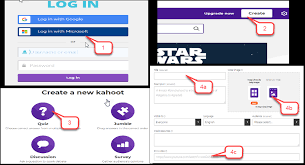
Sharing a Kahoot: A Comprehensive Guide
Are you looking for ways to share your knowledge and engage with others in an interactive way? Look no further than Kahoot!, a popular online platform that allows you to create, share, and play quizzes and surveys.
In this article, we will guide you through the process of sharing a Kahoot on various platforms, including Google Classroom. Whether you want to share a public or private Kahoot, we have got you covered.
Why Share a Kahoot?
Sharing a Kahoot is a great way to:
- Engage with students and colleagues in an interactive and fun way
- Assess knowledge and understanding of a topic
- Create a collaborative learning environment
- Share knowledge and experiences with others
How to Share a Private Kahoot
If you want to share a private Kahoot with specific users, follow these steps:
- Access Your Kahoot Account: Log in to your Kahoot account on the official website or through the mobile app.
- Select The Private Kahoot: Choose the private Kahoot you want to share from your profile page.
- Click on The Share Button: Click on the Share button located at the top right corner of the screen.
- Choose Sharing Options: Select the sharing option, which can be email or a specific user.
- Enter Recipient’s Details: Enter the recipient’s email address or username in the designated field.
- Click on Send: Click on the Send button to share the private Kahoot.
How to Share a Public Kahoot
Sharing a public Kahoot is similar to sharing a private one, with some additional options:
- Access Your Kahoot Account: Log in to your Kahoot account on the official website or through the mobile app.
- Select The Public Kahoot: Choose the public Kahoot you want to share from your profile page.
- Click on The Share Button: Click on the Share button located at the top right corner of the screen.
- Choose Sharing Options: Select the sharing option, which can be social media platforms (Facebook, Twitter, Pinterest), Microsoft Teams, Google Classroom, or other services.
- Customize Sharing Settings: Customize the sharing settings according to your preference.
- Click on Share: Click on the Share button to share the public Kahoot.
How to Share a Kahoot on Google Classroom
Sharing a Kahoot on Google Classroom is a great way to engage with students and colleagues in an interactive way:
- Access Your Kahoot Account: Log in to your Kahoot account on the official website or through the mobile app.
- Select The Kahoot: Choose the Kahoot you want to share from your profile page.
- Click on The Share Button: Click on the Share button located at the top right corner of the screen.
- Choose Google Classroom: Select Google Classroom as the sharing option.
- Enter Classroom Details: Enter the classroom details, including course title and description.
- Click on Publish: Click on the Publish button to share the Kahoot on Google Classroom.
Tips And Variations
- To share a Kahoot with multiple users, simply enter their email addresses or usernames separated by commas.
- To share a Kahoot on social media platforms, select the relevant option from the sharing settings.
- To customize the sharing settings, click on the three dots next to the Share button.
Conclusion
Sharing a Kahoot is a great way to engage with others and create a collaborative learning environment. Whether you want to share a public or private Kahoot, we have provided step-by-step guides to help you achieve your goal. Don’t hesitate to reach out if you need further assistance.
Frequently Asked Questions (FAQs)
- Q: Can I Share a Kahoot With Multiple Users?
A: Yes, you can share a Kahoot with multiple users by entering their email addresses or usernames separated by commas. - Q: How do I Customize The Sharing Settings?
A: You can customize the sharing settings by clicking on the three dots next to the Share button. - Q: Can I Share a Kahoot on Social Media Platforms?
A: Yes, you can share a public Kahoot on various social media platforms, including Facebook, Twitter, and Pinterest. - Q: How do I Share a Kahoot on Google Classroom?
A: To share a Kahoot on Google Classroom, select the relevant option from the sharing settings and enter the classroom details.
References
- Kahoot! Official Website
- Google Classroom Help Center
- Microsoft Teams Help Center


