
How to Format a Usb Drive: A Step-by-step Guide
Are you having trouble formatting your USB drive? Don’t worry, we’ve got you covered! In this article, we’ll guide you through the process of formatting a USB drive on both Windows and Mac.
Why Format Your Usb Drive?
Before we dive into the steps, let’s talk about why you might want to format your USB drive. Formatting your USB drive can help resolve issues such as:
- Corrupted files
- Inability to read or write data
- Slow performance
Formatting your USB drive will erase all data on it, so make sure to back up any important files before proceeding.
How to Format a Usb Drive on Windows
If you’re using a Windows computer, here’s how you can format your USB drive:
Method 1: Using File Explorer
- Connect your USB drive to your computer.
- Click on the Start button and select File Explorer.
- In the left pane, click on This PC.
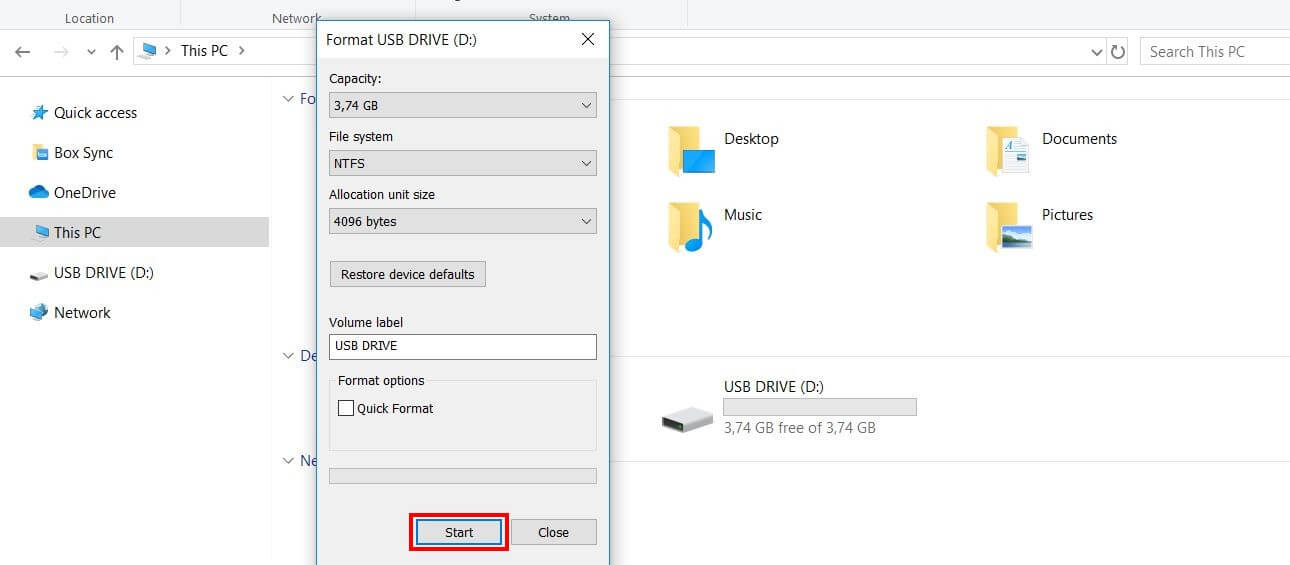
- Right-click on your USB drive and select Format.
- In the Format window, choose the file system you want to use (FAT32, exFAT, or NTFS).
- Select the allocation unit size and file system label as desired.
- Check the box next to Quick Format if you want to format the drive quickly.
- Click on the Start button to begin the formatting process.
Method 2: Using Command Prompt
- Connect your USB drive to your computer.
- Press the Windows key + R to open the Run dialog box.
- Type “cmd” and press Enter to open the Command Prompt.
- Type “diskpart” and press Enter.
- Type “list disk” and press Enter to list all disks connected to your computer.
- Type “select disk X” (replace X with the number of your USB drive) and press Enter.
- Type “list volume” and press Enter to list all volumes on the selected disk.
- Type “select volume Y” (replace Y with the number of your USB drive’s volume) and press Enter.
- Type “format fs=fat32 quick” (or choose another file system) and press Enter.
How to Format a Usb Drive on Mac
If you’re using a Mac computer, here’s how you can format your USB drive:
- Connect your USB drive to your Mac.
- Click on the Launchpad icon in the Dock.
- Click on Utilities and select Disk Utility.
- Select your USB drive from the list of disks on the left.
- Click on the Erase button at the top.
- Choose the file system you want to use (APFS, HFS+, or exFAT).
- Name your USB drive as desired.
- Click on the Security Options button and select Don’t erase data.
- Click on the Erase button to begin the formatting process.
How to Format a Protected Usb Drive
If your USB drive is protected from writing, you’ll need to disable write protection before formatting it. Here’s how:
- On Windows:
- Right-click on This PC and select Properties.
- Select the Storage tab.
- Click on the “Manage” button.
- In the Disk Management window, right-click on your USB drive and select Change Drive Letter and Paths.
- Uncheck the box next to “Allow write-protected drives.”
- On Mac:
- Connect your USB drive to your Mac.
- Click on the Launchpad icon in the Dock.
- Click on Utilities and select Disk Utility.
- Select your USB drive from the list of disks on the left.
- Click on the Erase button at the top.
- Choose the file system you want to use (APFS, HFS+, or exFAT).
- Name your USB drive as desired.
- Click on the Security Options button and select Don’t erase data.
How to Create a Bootable Windows Usb Drive
If you want to install Windows on your computer from a bootable USB drive, here’s how:
- Download the Windows installation media (ISO file) from Microsoft’s website.
- Use an application like Rufus to create a bootable USB drive with the ISO file.
- Follow the instructions in the previous section to format the USB drive.
- Insert the formatted USB drive into your computer and restart it.
Conclusion
Formatting your USB drive can resolve issues such as corrupted files, inability to read or write data, and slow performance. We hope this step-by-step guide has helped you learn how to format a USB drive on both Windows and Mac. Remember to back up any important files before formatting your USB drive!
Frequently Asked Questions
- Q: What is the difference between FAT32 and exFAT?
A: FAT32 is an older file system that has limitations on file size, while exFAT is a more modern file system that allows larger file sizes. - Q: How do I format my USB drive if it’s protected from writing?
A: You’ll need to disable write protection before formatting your USB drive. Follow the instructions in the “How to Format a Protected USB Drive” section. - Q: Can I install Windows on my computer using a bootable USB drive?
A: Yes, you can create a bootable USB drive with the Windows installation media and use it to install Windows on your computer.


