
Connecting Bonnets Bluetooth: A Step-by-step Guide
Are you ready to experience the world of bonnets Bluetooth? In this article, we will guide you through the process of connecting your bonnets Bluetooth to various devices, including smartphones, tablets, PCs, and more.
What Are Bonnets Bluetooth?
Bonnets Bluetooth are wireless earbuds that allow you to connect to your device without cables. They represent a very practical solution for removing the device from your head or ear without any issues within a range of 10 meters.
Connecting Bonnets Bluetooth to Smartphone And Tablet
If you have acquired your first pair of bonnets Bluetooth, it’s time to learn how to connect them to your smartphone or tablet. Follow these easy steps:
- Activate The Bluetooth: Go to the Settings app on your device, tap on the icon of the gearwheel (representing an engine), and select the option “Bluetooth”.
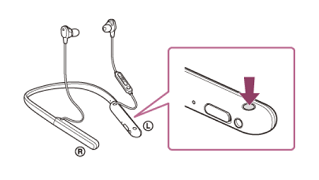
- Pair The Bonnets Bluetooth: Press and hold the power button on the bonnets for a few seconds until they appear in the menu.
- Connect The Devices: Select the name of the bonnets from the list, and wait for a few seconds for the connection to be established.
Connecting Bonnets Bluetooth to Android
If you have an Android device, follow these steps:
- Activate The Bluetooth: Go to Settings, tap on the icon of the gearwheel (representing an engine), and select “Bluetooth”.
- Pair The Bonnets Bluetooth: Press and hold the power button on the bonnets for a few seconds until they appear in the menu.
- Connect The Devices: Select the name of the bonnets from the list, and wait for a few seconds for the connection to be established.
Connecting Bonnets Bluetooth to Iphone
If you have an iPhone or iPad, follow these steps:
- Activate The Bluetooth: Go to Settings, tap on the icon of the gearwheel (representing an engine), and select “Bluetooth”.
- Pair The Bonnets Bluetooth: Press and hold the power button on the bonnets for a few seconds until they appear in the menu.
- Connect The Devices: Select the name of the bonnets from the list, and wait for a few seconds for the connection to be established.
Connecting Bonnets Bluetooth to PC
If you want to connect your bonnets Bluetooth to your PC, follow these steps:
- Activate The Bluetooth: Go to Settings, tap on the icon of the gearwheel (representing an engine), and select “Bluetooth”.
- Pair The Bonnets Bluetooth: Press and hold the power button on the bonnets for a few seconds until they appear in the menu.
- Connect The Devices: Select the name of the bonnets from the list, and wait for a few seconds for the connection to be established.
Connecting Bonnets Bluetooth to Mac
If you have a Mac, follow these steps:
- Activate The Bluetooth: Go to System Preferences, tap on the icon of the gearwheel (representing an engine), and select “Bluetooth”.
- Pair The Bonnets Bluetooth: Press and hold the power button on the bonnets for a few seconds until they appear in the menu.
- Connect The Devices: Select the name of the bonnets from the list, and wait for a few seconds for the connection to be established.
Connecting Bonnets Bluetooth to TV
If you have a Smart TV, follow these steps:
- Activate The Bluetooth: Go to Settings, tap on the icon of the gearwheel (representing an engine), and select “Audio” or “Bluetooth”.
- Pair The Bonnets Bluetooth: Press and hold the power button on the bonnets for a few seconds until they appear in the menu.
- Connect The Devices: Select the name of the bonnets from the list, and wait for a few seconds for the connection to be established.
Connecting Bonnets Bluetooth to Console (PS4)
If you have a PS4 console, follow these steps:
- Activate The Bluetooth: Go to Settings, tap on the icon of the gearwheel (representing an engine), and select “Devices” or “Audio”.
- Pair The Bonnets Bluetooth: Press and hold the power button on the bonnets for a few seconds until they appear in the menu.
- Connect The Devices: Select the name of the bonnets from the list, and wait for a few seconds for the connection to be established.
Conclusion
Connecting bonnets Bluetooth to various devices is a straightforward process that can enhance your listening experience. With these step-by-step guides, you should now be able to connect your bonnets Bluetooth to your smartphone, tablet, PC, Mac, TV, or console (PS4).
Frequently Asked Questions (FAQs)
- Q: How do I Activate The Bluetooth on my Device?
A: Go to Settings and select “Bluetooth”. - Q: How do I Pair The Bonnets Bluetooth With my Device?
A: Press and hold the power button on the bonnets for a few seconds until they appear in the menu. - Q: How Long Does it Take to Connect The Devices?
A: A few seconds for the connection to be established. - Q: Can I Connect Multiple Pairs of Bonnets Bluetooth to One Device?
A: Yes, on some advanced devices with Bluetooth 5.0 Technology. - Q: Can I Use my Bonnets Bluetooth With Other Devices?
A: Yes, follow the instructions for each device separately. - Q: What if I Have Problems Connecting my Bonnets Bluetooth to my Device?
A: Refer to the manufacturer’s instructions or contact their support team. - Q: Are There Any Specific Adapters Required For Certain Devices?
A: Yes, some devices may require a specific adapter to connect with the bonnets Bluetooth. - Q: Can I Use my Bonnets Bluetooth With an Xbox Console?
A: No, the Xbox console does not support Bluetooth technology.
Disclaimer
This article is for informational purposes only and should not be considered as professional advice. The instructions provided are general guidelines, and it’s always recommended to consult the manufacturer’s instructions or contact their support team if you encounter any issues.


