
Sharing Password Wifi: A Comprehensive Guide
Are you tired of having to share your WiFi password with others every time they come over? Do you want to make it easier for friends and family to access the internet without having to remember a complex password? Look no further! In this article, we will guide you through the process of sharing your WiFi password on various devices.
Why Share Your Wifi Password?
Sharing your WiFi password can be beneficial in many ways. It allows others to access the internet without having to ask for the password every time, making it convenient for both parties. Additionally, it can help you establish a more relaxed atmosphere when guests are over, as they won’t have to worry about accessing the internet.
Sharing Password Wifi on PC
To share your WiFi password on PC, follow these steps:
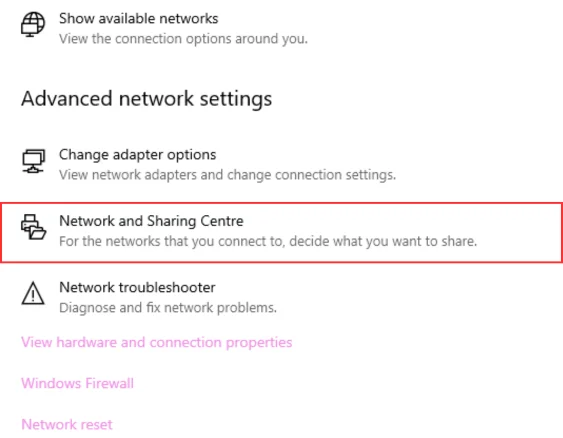
- Open the Start menu and type “Network and Sharing Center” in the search bar.
- Click on the result to open the Network and Sharing Center window.
- In the left-hand column, click on “Change adapter settings.”
- Right-click on the network adapter (e.G., Wi-Fi) and select “Properties.”
- In the Properties window, click on the “Security” tab.
- Click on the “Show characters” checkbox to reveal the password.
- Select the password by clicking on it, then right-click and select “Copy.”
Sharing Password Wifi on Mac
To share your WiFi password on Mac, follow these steps:
- Click on the Apple logo in the top-left corner of the screen and select “System Preferences.”
- Click on “Network” and select the Wi-Fi network from the list.
- Click on the “Advanced” button at the bottom of the window.
- In the Advanced window, click on the “TCP/IP” tab.
- Click on the “DNS” dropdown menu and select “Manually set DNS.”
- Enter your password in the “Password” field.
- Select the password by clicking on it, then right-click and select “Copy.”
Sharing Password Wifi on Android
To share your WiFi password on Android, follow these steps:
- Go to Settings > Wi-Fi
- Long-press on the network name (SSID)
- A dialog box will appear with a QR code containing the password.
- Scan the QR code using another device to access the network.
Sharing Password Wifi on Iphone
To share your WiFi password on iPhone, follow these steps:
- Go to Settings > Wi-Fi
- Tap on the “i” icon next to the network name (SSID)
- Tap on the “Share Password” button.
- A prompt will appear asking if you want to share the password with the other device.
- Select “Share Password” and follow the instructions.
Other Ways to Share Your Wifi Password
If you don’t have a Mac or an iPhone, there are still ways to share your WiFi password. You can use a cloud-based password manager like LastPass or 1Password to store and share your passwords across devices. Additionally, you can create a shared WiFi network on your router and add other devices to it.
Conclusion
Sharing your WiFi password with others can be convenient and hassle-free. By following the steps outlined in this article, you can easily share your password with friends and family on various devices. Remember to always prioritize security when sharing sensitive information online.
Faqs
Q: Why do I need to share my WiFi password?
A: Sharing your WiFi password allows others to access the internet without having to ask for it every time, making it convenient for both parties.
Q: Can I share my WiFi password with anyone?
A: No, it’s recommended that you only share your WiFi password with trusted individuals or devices.
Q: How do I secure my shared WiFi network?
A: Make sure to set a strong password and use WPA2 encryption on your router to prevent unauthorized access.
Q: Can I use a third-party app to share my WiFi password?
A: Yes, you can use cloud-based password managers like LastPass or 1Password to store and share your passwords across devices.
Q: How do I change the shared WiFi network settings?
A: You can modify the shared WiFi network settings on your router or by using a third-party app to manage your network.
Q: What are some risks associated with sharing my WiFi password?
A: Sharing your WiFi password may expose you and others to security threats, such as hacking and unauthorized access.


