
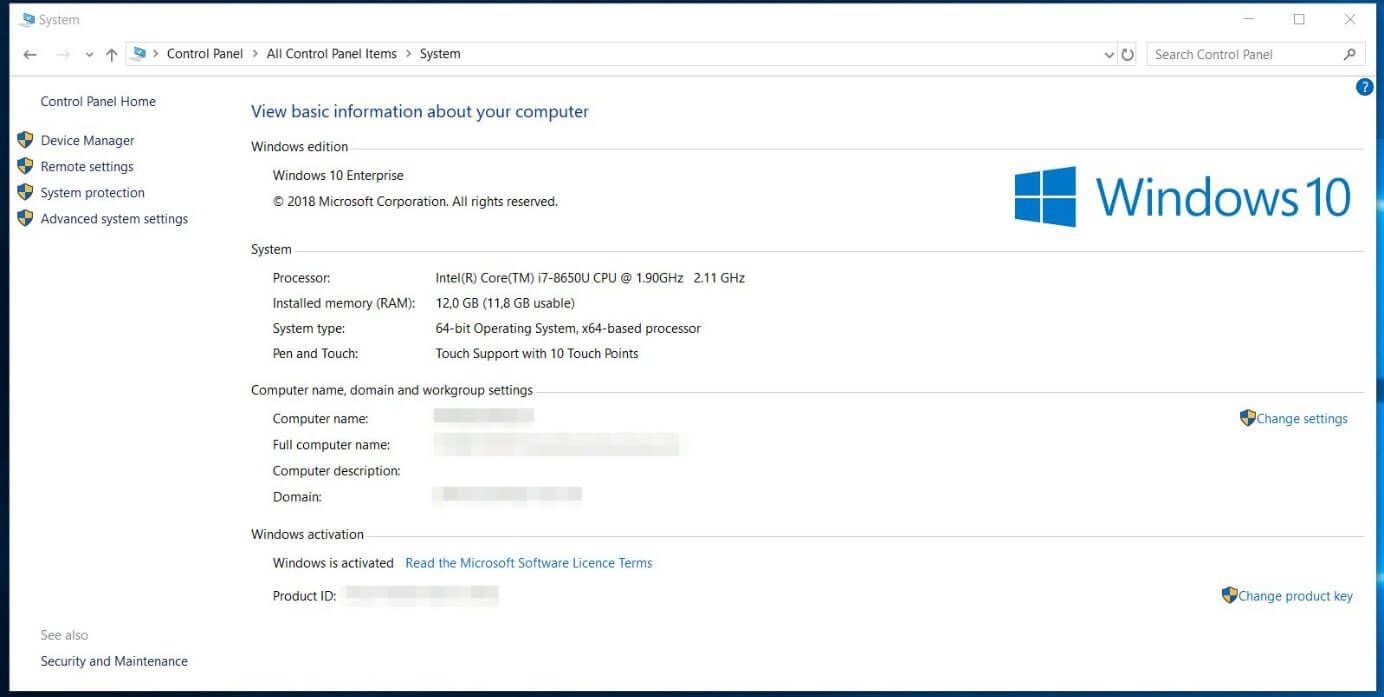
How to Check The Operating System Version on Your Device
As a computer user, you may have encountered situations where you need to check the operating system version on your device. This is often necessary when installing software or troubleshooting issues with your operating system. In this article, we will guide you through the steps to check the operating system version on various devices, including Windows, Mac, Linux, Android, iPhone, and Smart TVs.
Why Check The Operating System Version?
Before diving into the instructions, it’s essential to understand why checking the operating system version is important. Here are a few reasons:
- Installing software requires compatibility with a specific operating system version.
- Troubleshooting issues often involves checking the operating system version to ensure you’re running the latest updates.
- Knowing your operating system version can help you identify potential conflicts or incompatibilities.
Checking The Operating System Version on Windows
If you’re using a Windows device, follow these steps:
- Press the Windows key + R to open the Run dialog box.
- Type
winverand press Enter. - The operating system version will be displayed on the screen.
Alternatively, you can check the operating system version by going to Settings > System > About.
Checking The Operating System Version on Mac
If you’re using a Mac, follow these steps:
- Open the Terminal app.
- Type
sw_versand press Enter. - The operating system version will be displayed on the screen.
Alternatively, you can check the operating system version by going to Apple menu > About This Mac.
Checking The Operating System Version on Linux
If you’re using a Linux device, follow these steps:
- Open the Terminal app.
- Type
hostnamectland press Enter. - The operating system version will be displayed on the screen.
Alternatively, you can check the operating system version by going to Settings > About.
Checking The Operating System Version on Android
If you’re using an Android device, follow these steps:
- Go to Settings > About phone.
- Scroll down to find the operating system version.
Checking The Operating System Version on Iphone
If you’re using an iPhone or iPad, follow these steps:
- Go to Settings > General > About.
- The operating system version will be displayed on the screen.
Checking The Operating System Version on Smart Tvs
The process for checking the operating system version on Smart TVs varies depending on the brand and model. For example:
- On Samsung Smart TVs, go to Settings > Support > Software Version.
- On LG Smart TVs, go to Settings > About > Version.
Conclusion
In conclusion, checking the operating system version is an essential step in ensuring compatibility with software and troubleshooting issues with your device. By following these simple steps, you can easily check the operating system version on various devices, including Windows, Mac, Linux, Android, iPhone, and Smart TVs.
Frequently Asked Questions (FAQs)
Here are some frequently asked questions related to checking the operating system version:
- Q: Why is it necessary to check the operating system version?
- A: Checking the operating system version ensures compatibility with software and troubleshooting issues.
- Q: How do I check the operating system version on Windows?
- A: Press the Windows key + R, type
winver, and press Enter. - Q: How do I check the operating system version on Mac?
- A: Open Terminal, type
sw_vers, and press Enter.
By following these steps and understanding the importance of checking the operating system version, you can ensure a smooth experience with your device.


