
How to Compress Files on Mac: A Step-by-step Guide
Are you tired of searching for ways to compress files on your Mac? Look no further! In this article, we will explore the various methods to compress files on a Mac, including using built-in utilities and third-party applications.
What is Compression?
Compression, also known as zip or archive, is a process that reduces the size of a file by representing its contents in a more compact form. This makes it easier to store and transfer files across devices.
Why Compress Files on Mac?
Compressing files on Mac has several benefits:
- Reduces storage space: By compressing files, you can free up space on your hard drive.
- Easier file sharing: Compressed files are smaller in size, making them easier to share with others via email or cloud storage services.
- Improved transfer speed: Compressed files can be transferred faster than uncompressed ones.
Built-in Utilities For Compression
Mac has several built-in utilities that allow you to compress files:
1. Utility Compression
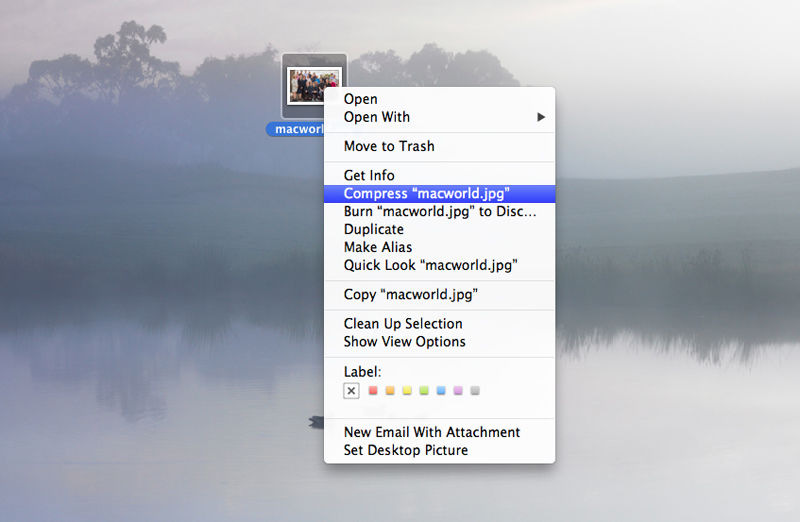
This is the default compression utility on Mac. To use it:
*   Select the file or folder you want to compress.
*   Right-click (or control-click) and choose "Compress Items" from the context menu.
Using Keka For Advanced Compression
Keka is a free, open-source compression tool that offers more advanced features than Utility Compression. To use it:
- Download And Install: Get Keka from its official website.
- Open Keka: Double-click the icon to launch Keka.
- Drag Files Into Keka: Drag the files you want to compress into the Keka window.
- Choose Compression Settings: Select the compression settings, such as file format, password protection, and more.
- Save Compressed File: Click “Save” to save the compressed file.
Other Solutions For Compressing Files on Mac
If Utility Compression or Keka don’t meet your needs, consider these alternatives:
- BetterZip: A paid app that offers more advanced compression features.
- B1 Free Archiver: A free app that supports multiple compression formats.
- IZip Archiver: Another app for compressing and extracting files.
How to Compress Files Online
If you need to compress files on the go or without installing software, consider these online services:
- EzyZip: A free service that allows you to compress files directly from your browser.
- Files2Zip: An HTML5-based service for compressing and extracting files.
- Compress2Go: A web service that enables you to generate compressed files.
How to Compress Pdf Files on Mac
Compressing PDF files is similar to compressing other types of files. You can use the same methods mentioned above or check out our guide on how to compress PDF files specifically.
Conclusion
In conclusion, compressing files on a Mac is a straightforward process that offers several benefits. Whether you choose to use built-in utilities like Utility Compression or Keka, or explore alternative solutions like BetterZip or online services like ezyZip, we hope this guide has helped you find the best method for your needs.
Faqs
- What Are The Benefits of Compressing Files on a Mac?
Compressing files on a Mac reduces storage space, makes file sharing easier, and improves transfer speed. - How do I Use Utility Compression to Compress Files?
Select the file or folder you want to compress, right-click (or control-click), and choose “Compress Items” from the context menu. - What is Keka, And How Does it Differ From Utility Compression?
Keka is a free, open-source compression tool that offers more advanced features than Utility Compression. - How do I Use Online Services Like Ezyzip to Compress Files?
Visit ezyZip’s website, select the file you want to compress, choose the compression settings, and click “Save” to save the compressed file.
Feel free to reach out if you have any further questions or need additional assistance.


