
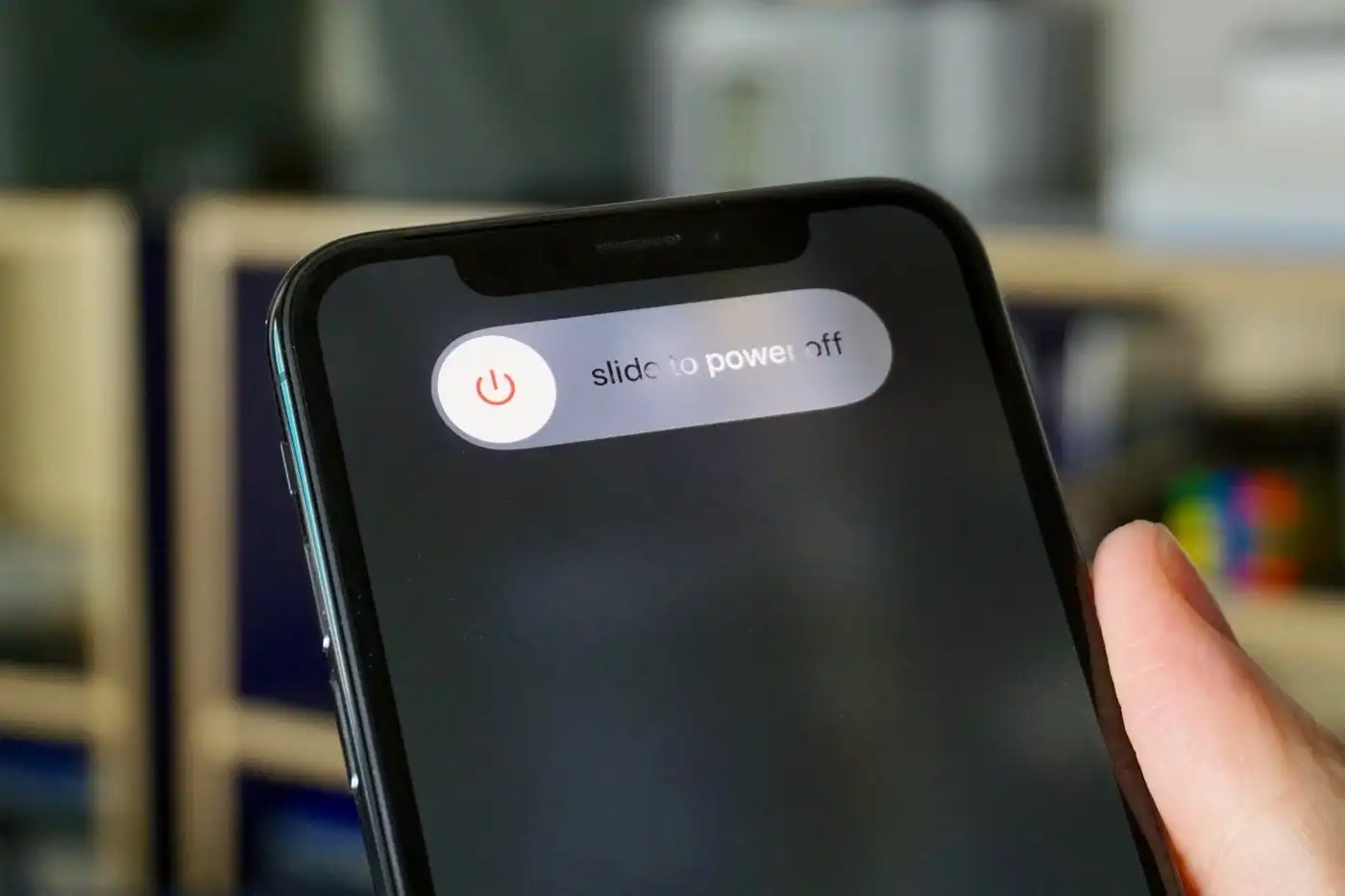
How to Stop Your Iphone Screen From Turning Off Automatically
Are you tired of your iPhone screen turning off automatically after a few minutes of inactivity? Do you find yourself constantly having to wake up the screen to use it again? Well, you’re not alone! Many iPhone users have this problem, but fortunately, there’s an easy solution. In this article, we’ll show you how to stop your iPhone screen from turning off automatically and keep it on for as long as you need.
Why Does My Iphone Screen Turn Off Automatically?
Before we dive into the solution, let’s quickly explain why your iPhone screen might be turning off automatically in the first place. The answer lies in the way iOS is designed to conserve battery life. By default, iOS will turn off the screen after a minute of inactivity to help save power. This is especially useful if you’re not using your phone for an extended period.
However, there are cases where keeping the screen on can be beneficial, such as when watching videos, playing games, or browsing through photo albums. In these situations, it’s frustrating to have the screen turn off automatically, only to have to wake it up again.
How to Stop Your Iphone Screen From Turning Off Automatically
Now that we’ve explained why your iPhone screen might be turning off automatically, let’s get to the solution! To stop your iPhone screen from turning off automatically, you’ll need to go into the Settings app and make a few adjustments. Here’s how:
- Open The Settings App: Tap on the Settings icon on your home screen to open it.
- Scroll Down to Display & Brightness: In the Settings app, scroll down to the “Display & Brightness” section.
- Tap on “Always On”: Tap on the option that says “Always On.” This will prevent your iPhone screen from turning off automatically when you’re using an app.
How to Use Face ID to Keep Your Screen On
Another way to keep your iPhone screen on is by using Face ID. If you have a newer iPhone model with Face ID, you can use this feature to keep your screen on while you’re looking at it. Here’s how:
- Open The Settings App: Tap on the Settings icon on your home screen to open it.
- Scroll Down to Face ID & Code: In the Settings app, scroll down to the “Face ID & Code” section.
- Tap on “Rise on Wake”: Tap on the option that says “Rise on Wake.” This will make your iPhone screen stay on while you’re looking at it.
Tips And Tricks
Here are a few additional tips and tricks to keep in mind when trying to stop your iPhone screen from turning off automatically:
- Use a Screen Protector: Using a screen protector can help prevent the screen from turning off accidentally.
- Adjust Your Screen Timeout: If you don’t want to completely disable the auto-lock feature, you can adjust the screen timeout setting to a longer time period.
- Turn Off Auto-lock in Specific Apps: Some apps, like video players and games, may have their own settings that allow you to turn off auto-lock. Check the app’s settings menu to see if this is an option.
Conclusion
Stopping your iPhone screen from turning off automatically is a simple process that requires just a few taps in the Settings app. By following the steps outlined above, you can keep your screen on for as long as you need and enjoy uninterrupted browsing or gaming sessions.
Whether you’re a casual user or a heavy iPhone enthusiast, we hope this article has been helpful in showing you how to stop your iPhone screen from turning off automatically. Happy browsing!


