
How to Create 3D Photos on Facebook: A Step-by-step Guide
Are you looking for a way to create stunning 3D photos on Facebook? Look no further! In this guide, we will walk you through the process of creating and sharing 3D photos on Facebook using your Android or iOS device.
Requirements For Creating 3D Photos on Facebook
Before we dive into the steps, it’s essential to know that not all devices support 3D photo creation. On the Android side, the following devices are compatible:
- Samsung Galaxy S8, S9+, S10, S10E, S10+, and Galaxy Fold
- Google Pixel and subsequent models
- Smartphones from 2014 onwards (with a dual-chamber configuration)
On the iOS side, all iPhone 6s and later models support 3D photo creation.
Creating 3D Photos on Facebook Using Android
- Open Facebook: Access your Facebook account through the official app.
- Choose a Photo: Select a photo you want to convert into 3D from your gallery or take a new one.
- Tap And Hold: Tap and hold on the photo until it starts uploading to Facebook.
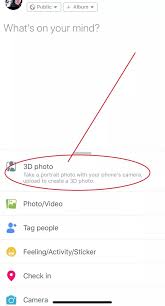
- Click on 3D Button: Click on the “3D” button that appears below the photo.
Creating 3D Photos on Facebook Using Ios
- Open Facebook: Access your Facebook account through the official app.
- Choose a Photo: Select a photo you want to convert into 3D from your gallery or take a new one.
- Click on Photo/video Icon: Click on the “Photo” or “Video” icon in the top-right corner of the screen.
- Tap on Three-dimensional Button: Tap on the three-dimensional button that appears below the photo.
Creating 3D Photos on Facebook Using PC
Note: The process is slightly different on a PC, and we’ll cover it separately later in this guide.
Tips For Creating Great 3D Photos
- Choose a photo with clear subjects and good lighting.
- Use an image with a depth map that’s well-defined.
- Avoid photos with too much background noise or clutter.
How to Create Depth Maps on PC
To create 3D photos using your PC, you’ll need to create a depth map. Here’s how:
- Open Photoshop: Download and install Adobe Photoshop if you haven’t already.
- Load The Image: Load the image you want to convert into 3D into Photoshop.
- Create a New Layer: Create a new layer by going to “Layer” > “New” > “Layer via Copy”.
- Use The Brush Tool: Use the brush tool to select the subject of the photo, leaving the background out.
Tips For Creating Depth Maps
- Select areas with high contrast between the subject and background.
- Avoid selecting areas with too much detail or texture.
- Experiment with different brush sizes and settings to get the best results.
Conclusion
Creating 3D photos on Facebook is a fun and creative process. With these steps, you should be able to create stunning 3D photos using your Android or iOS device. Remember to follow our tips for creating great 3D photos and use the right software tools to create depth maps. Happy snapping!
Frequently Asked Questions (FAQs)
- Q: What Devices Support 3D Photo Creation on Facebook?
A: On Android, compatible devices include Samsung Galaxy S8, S9+, S10, S10E, S10+, and Galaxy Fold, Google Pixel, and smartphones from 2014 onwards with a dual-chamber configuration. - Q: How do I Create Depth Maps on Pc?
A: You’ll need to use software like Adobe Photoshop to create a depth map by selecting areas of high contrast between the subject and background. - Q: Can I Modify or Add Captions to my 3D Photo on Facebook?
A: Unfortunately, no. Once you’ve created your 3D photo, it can’t be modified or captioned on Facebook. - Q: How do I Share my 3D Photo on Facebook?
A: Simply click the “Share” button after creating your 3D photo, and it will be shared with all your friends on Facebook! - Q: Can I Create 3D Videos on Facebook?
A: Unfortunately, no. Facebook only supports 3D photo creation at this time. - Q: How Long Does The 3D Photo Creation Process Take?
A: It usually takes a few seconds to create a 3D photo, depending on your internet connection and device speed. - Q: Can I Use Any Image Editing Software to Create Depth Maps?
A: While other software may work, Adobe Photoshop is recommended for creating high-quality depth maps. - Q: Are There Any Specific Settings or Configurations Required For 3D Photo Creation on Facebook?
A: Yes. Ensure that your device meets the system requirements and has the necessary software installed to create 3D photos.
The End
Hope you enjoyed this comprehensive guide! If you have any questions or need further clarification, feel free to ask in the comments below. Happy snapping and creating those amazing 3D photos on Facebook!


