
How to Contact Amazon Customer Service Via Chat
Are you an Amazon customer looking for assistance? Do you want to know how to contact Amazon’s customer service team via chat? Look no further! In this article, we will guide you through the process of contacting Amazon’s customer service via chat, both on computer and mobile devices.
Why Contact Amazon Customer Service Via Chat?
Contacting Amazon’s customer service via chat is a convenient way to get assistance with your queries. It allows you to communicate with a live agent in real-time, without having to wait for an email response or deal with long phone lines. This feature is available 24/7, making it perfect for customers who need help at any time.
How to Contact Amazon Customer Service Via Chat on Computer
To contact Amazon’s customer service via chat on your computer, follow these steps:
- Access Your Account: First, make sure you are logged in to your Amazon account.
- Click on The Menu Icon: Click on the menu icon (☰) located at the top right corner of the page.
- Select Service Clients: From the dropdown menu, select “Service clients” or “Contact us.”
- Choose Your Reason For Contacting: Select your reason for contacting Amazon’s customer service from the list provided.
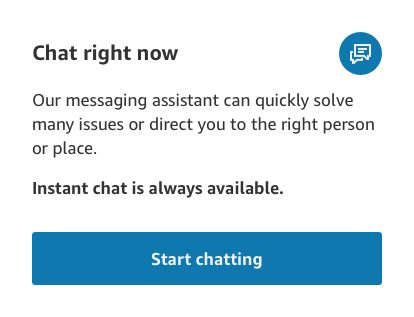
- Initiate a Chat Session: Click on the “Start chat” button to initiate a chat session with a live agent.
How to Contact Amazon Customer Service Via Chat on Mobile Devices
If you prefer using your mobile device, follow these steps:
- Open The Amazon App: Open the Amazon app on your smartphone or tablet.
- Click on The Menu Icon: Click on the menu icon (☰) located at the bottom right corner of the screen.
- Select Service Clients: From the dropdown menu, select “Service clients” or “Contact us.”
- Choose Your Reason For Contacting: Select your reason for contacting Amazon’s customer service from the list provided.
- Initiate a Chat Session: Click on the “Start chat” button to initiate a chat session with a live agent.
Alternative Ways to Contact Amazon Customer Service
If you are unable to contact Amazon’s customer service via chat, don’t worry! There are alternative ways to get assistance:
- Email: You can email Amazon’s customer service team by going to the “Contact us” page and selecting “Inviaci a’ mail.”
- Phone: You can call Amazon’s customer service team by dialing their phone number.
- Social Media: You can also contact Amazon’s customer service team via social media platforms, such as Twitter.
Frequently Asked Questions (FAQs)
Q: How do I initiate a chat session with Amazon’s customer service team?
A: To initiate a chat session, click on the “Start chat” button located on the Contact us page or within the Amazon app.
Q: What are the available hours for contacting Amazon’s customer service via chat?
A: Amazon’s customer service is available 24/7 via chat.
Q: Can I contact Amazon’s customer service team via social media platforms?
A: Yes, you can contact Amazon’s customer service team via Twitter by tweeting @AmazonHelp.
Conclusion
Contacting Amazon’s customer service via chat is a convenient and efficient way to get assistance with your queries. Whether you’re using your computer or mobile device, following the steps outlined in this article will guide you through the process of contacting Amazon’s customer service team via chat. If you have any further questions, feel free to ask!
Bolded Title
How to Contact Amazon Customer Service Via Chat
Table 1: Contacting Amazon Customer Service Via Chat on Computer
| Step | Description |
|---|---|
| 1 | Access your Amazon account |
| 2 | Click on the menu icon (☰) |
| 3 | Select Service clients or Contact us |
| 4 | Choose your reason for contacting |
| 5 | Initiate a chat session |
Table 2: Contacting Amazon Customer Service Via Chat on Mobile Devices
| Step | Description |
|---|---|
| 1 | Open the Amazon app |
| 2 | Click on the menu icon (☰) |
| 3 | Select Service clients or Contact us |
| 4 | Choose your reason for contacting |
| 5 | Initiate a chat session |
Table 3: Alternative Ways to Contact Amazon Customer Service
| Method | Description |
|---|---|
| Inviaci a’ mail | |
| Phone | Dial the customer service phone number |
| Social Media | Tweet @AmazonHelp on Twitter |
I hope this article has been helpful in guiding you through the process of contacting Amazon’s customer service via chat. If you have any further questions, please don’t hesitate to ask!


