
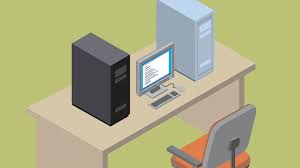
How to Connect Two Pcs: A Step-by-step Guide
Connecting two PCs can be a daunting task, especially if you’re not tech-savvy. However, with the right tools and guidance, it’s possible to establish a connection between two computers for various purposes, such as sharing files, playing multiplayer games, or even creating a local network.
Why Connect Two Pcs?
Before we dive into the how-to section, let’s briefly discuss why you might want to connect two PCs. Some common reasons include:
- Sharing files and folders between computers
- Playing multiplayer games on a local network
- Creating a virtual private network (VPN) for secure communication
- Providing remote assistance or control over a computer
Methods For Connecting Two Pcs
There are several methods to connect two PCs, each with its own advantages and disadvantages. Let’s explore some of the most popular options:
1. Resilio Sync
Resilio Sync is a powerful tool that allows you to share files and folders between computers on a local network or over the internet. It’s available for Windows and macOS.
How to Use Resilio Sync:
- Download and install Resilio Sync on both PCs.
- Create a folder shared on one PC, then open Resilio Sync on the other PC and connect to the shared folder.
- Configure permissions and access settings as needed.
2. Logmein Hamachi
LogMeIn Hamachi is a VPN software that allows you to create a virtual private network between two PCs over the internet. It’s available for Windows and macOS.
How to Use Logmein Hamachi:
- Download and install Hamachi on both PCs.
- Create a new network using the Hamachi interface.
- Connect the second PC to the created network, then configure shared folders or remote control settings as needed.
3. Teamviewer
TeamViewer is a popular remote desktop software that allows you to access and control another computer remotely over the internet. It’s available for Windows and macOS.
How to Use Teamviewer:
- Download and install TeamViewer on both PCs.
- Create an account on the TeamViewer website, then download and install the software.
- Connect the second PC to your TeamViewer account, then configure remote control settings as needed.
4. Cloud Storage Services
Cloud storage services like Dropbox, Google Drive, OneDrive, and iCloud Drive allow you to share files and folders between computers on a local network or over the internet. These services are ideal for small-scale sharing needs.
How to Use Cloud Storage Services:
- Sign up for a cloud storage service of your choice.
- Download and install the software on both PCs.
- Share files and folders as needed, using the cloud storage interface.
5. Direct Network Connection
If you have multiple computers in close proximity, you can connect them directly using an Ethernet crossover cable or Wi-Fi network.
How to Connect Two Pcs Directly:
- Purchase an Ethernet crossover cable or Wi-Fi router.
- Connect one end of the cable to both PCs’ Ethernet ports or configure the Wi-Fi router.
- Configure shared folders or remote control settings as needed.
6. Usb-ethernet Adapter
If you don’t have an Ethernet port on one PC, you can use a USB-Ethernet adapter to connect it directly to the other PC’s Ethernet port.
How to Use a Usb-ethernet Adapter:
- Purchase a USB-Ethernet adapter.
- Connect the adapter to the PC without an Ethernet port.
- Connect the other end of the cable to both PCs’ Ethernet ports or configure the Wi-Fi router.
- Configure shared folders or remote control settings as needed.
Tips And Considerations:
- Make sure both PCs have compatible operating systems and hardware requirements for the chosen method.
- Use strong passwords and authentication methods to secure your connection.
- Be mindful of internet speed and latency when connecting two PCs over the internet.
- Regularly update software and security patches to prevent vulnerabilities.
In conclusion, connecting two PCs is a relatively straightforward process, but it requires careful consideration of the chosen method. By following these step-by-step guides and tips, you’ll be able to establish a secure connection between two computers for various purposes. Remember to always prioritize security and regularly update your software and security patches to prevent vulnerabilities.
Faqs:
- Q: What is the best method for connecting two PCs?
A: The best method depends on your specific needs, such as sharing files or playing multiplayer games. Consider factors like internet speed, latency, and security requirements. - Q: Can I use cloud storage services to connect two PCs?
A: Yes, cloud storage services are ideal for small-scale sharing needs, but they may not be suitable for larger-scale connections or secure remote control. - Q: How do I configure shared folders on Resilio Sync?
A: Follow the step-by-step guide provided earlier for configuring shared folders on Resilio Sync. - Q: Can I use LogMeIn Hamachi to connect two PCs over Wi-Fi?
A: Yes, but make sure both PCs have compatible operating systems and hardware requirements for the chosen method. - Q: What is the maximum number of users allowed on a VPN created with LogMeIn Hamachi?
A: The free version allows up to 5 users, while the paid subscription increases this limit. - Q: Can I use TeamViewer to connect two PCs over Wi-Fi?
A: Yes, but make sure both PCs have compatible operating systems and hardware requirements for the chosen method. - Q: What is the maximum file size allowed on cloud storage services like Dropbox or Google Drive?
A: Refer to the service provider’s documentation for specific file size limits. - Q: Can I use a USB-Ethernet adapter to connect two PCs directly?
A: Yes, but make sure both PCs have compatible operating systems and hardware requirements for the chosen method.


