
How to Recall a Mail: A Step-by-step Guide
Are you tired of accidentally forwarding emails to the wrong person? Do you wish there was a way to recall those pesky messages before they cause any harm? Look no further! In this article, we’ll explore how to recall a mail on various email services, including Gmail, Outlook, Thunderbird, and Libero.
What is Email Recall?
Email recall is the ability to cancel or retract an email that has already been sent. This feature is particularly useful when you’ve accidentally forwarded an email to someone who shouldn’t have seen it. By recalling the email, you can prevent any potential damage or embarrassment.
Recalling a Mail on Gmail
Using Gmail, recalling a mail is a breeze. Here’s how:
From Your Computer
- Open your Gmail account and navigate to the email you want to recall.
- Click on the three dots at the top right corner of the email.
- Select “Cancel” from the dropdown menu.
That’s it! The email will be recalled, and no further action is required.
From Your Smartphone or Tablet
If you’re using Gmail on your mobile device:
- Open the Gmail app and navigate to the email you want to recall.
- Tap on the three dots at the top right corner of the email.
- Select “Cancel” from the dropdown menu.
Recalling a Mail on Outlook
Outlook also allows you to recall an email, but with some limitations.
From Your Computer
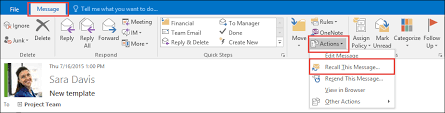
- Open your Outlook account and navigate to the email you want to recall.
- Click on the three dots at the top right corner of the email.
- Select “Recall This Message” from the dropdown menu.
- Choose whether you want to delete the unread copy or replace it with a new message.
Note that Outlook only allows you to recall an email if the recipient has not yet read it.
From Your Smartphone or Tablet
If you’re using Outlook on your mobile device:
- Open the Outlook app and navigate to the email you want to recall.
- Tap on the three dots at the top right corner of the email.
- Select “Recall This Message” from the dropdown menu.
- Choose whether you want to delete the unread copy or replace it with a new message.
Recalling a Mail on Thunderbird
Thunderbird, an open-source email client, does not have a built-in recall feature. However, you can install a free extension called “Check and Send” that allows you to confirm forwardings before sending them.
From Your Computer
- Install the Check and Send extension.
- Open your Thunderbird account and navigate to the email you want to recall.
- Click on the three dots at the top right corner of the email.
- Select “Check and Send” from the dropdown menu.
- Confirm whether you want to send or cancel the message.
Recalling a Mail on Libero
Libero, an Italian email service, does not have a built-in recall feature in its web application. However, you can configure your account to use Gmail’s recall feature by following these steps:
From Your Computer
- Configure your Libero account to use Gmail’s SMTP server.
- Open your Gmail account and navigate to the email you want to recall.
- Click on the three dots at the top right corner of the email.
- Select “Cancel” from the dropdown menu.
Conclusion
Recalling a mail is an essential feature that can save you from embarrassment or damage caused by accidentally forwarded emails. By following this guide, you’ll be able to recall emails on various services, including Gmail, Outlook, Thunderbird, and Libero. Remember to always check your email service’s specific instructions for recalling emails.
Frequently Asked Questions
- Q: Can I Recall an Email if The Recipient Has Already Read It?
A: Unfortunately, most email services do not allow you to recall an email once it has been read by the recipient. - Q: Will Recalling an Email Delete The Message From The Sender’s Inbox?
A: No, recalling an email will only cancel the forward or send of the email and prevent any further action. - Q: Can I Install a Plugin to Recall Emails on Thunderbird?
A: Yes, you can install the Check and Send extension to enable email recall on Thunderbird. - Q: Will Recalling an Email Notify The Recipient That it Was Recalled?
A: Some email services may send a notification to the recipient indicating that the message was canceled or recalled. - Q: Can I Recall Emails Sent Using Mobile Devices?
A: Yes, most email services allow you to recall emails sent from your smartphone or tablet. - Q: Will Recalling an Email Affect my Email Service’s Spam Filters?
A: No, recalling an email will not impact your email service’s spam filters or security settings. - Q: Can I Use a Third-party Email Client to Recall Emails?
A: Yes, you can use a third-party email client like Microsoft Outlook or Mozilla Thunderbird to recall emails. - Q: Will Recalling an Email Restore The Original Message if it Was Modified?
A: No, recalling an email will not automatically restore any modifications made to the original message.
We hope this guide has been helpful in teaching you how to recall a mail on various email services!


