
Deleting Memorized Words on Iphone Keyboard: A Step-by-step Guide
Are you tired of seeing memorized words popping up on your iPhone keyboard? Do you want to delete them without disabling the auto-correction feature? Look no further! In this article, we’ll guide you through a step-by-step process to delete memorized words from your iPhone keyboard.
Understanding Memorized Words
Before we dive into the solution, let’s first understand how memorized words work on your iPhone. The predictive text feature is designed to suggest words based on your typing habits and previous conversations. However, sometimes this feature can be annoying, especially when it suggests words that are not relevant to your current conversation.
Why Delete Memorized Words?
Deleting memorized words can help you:
- Avoid seeing suggested words that are not relevant to your conversation
- Keep your keyboard clean and organized
- Improve your typing experience
Method 1: Restoring The Keyboard Dictionary
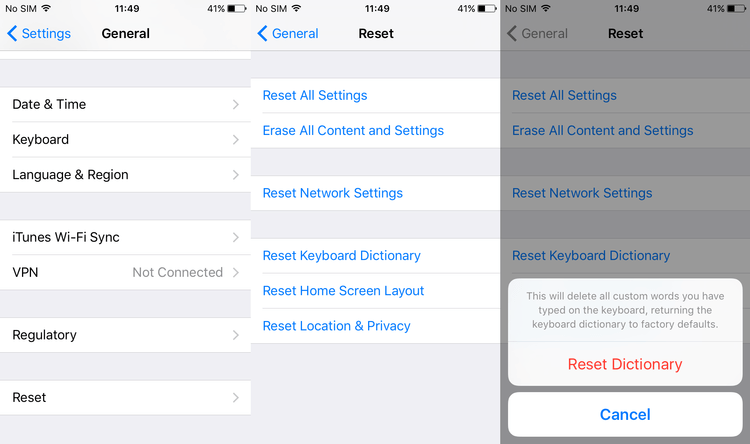
If you want to delete all memorized words from your iPhone keyboard without disabling the auto-correction feature, follow these steps:
- Go to Settings: Open the Settings app on your iPhone.
- General Options: Scroll down and tap on “General.”
- Transfer or Initialize Iphone: Tap on “Transfer or Initialize iPhone.”
- Restore Dictionary: Choose the option to “Restore Dictionary” from the menu.
- Enter Passcode: If prompted, enter the passcode to confirm your action.
This method will restore the keyboard dictionary to its default state, erasing all memorized words.
Method 2: Disabling Predictive Text
If you want to disable predictive text entirely, follow these steps:
- Go to Settings: Open the Settings app on your iPhone.
- General Options: Scroll down and tap on “General.”
- Keyboard Options: Tap on “Keyboard.”
- Text Prediction: Move the switch next to “Predictive Text” to OFF.
By disabling predictive text, you’ll no longer see suggested words popping up on your keyboard.
Method 3: Deleting Specific Memorized Words
If you want to delete specific memorized words without disabling predictive text or restoring the keyboard dictionary, follow these steps:
- Open a Keyboard-based App: Open an app that uses the iPhone keyboard, such as Notes or Mail.
- Tap And Hold on The Suggestion Icon: Tap and hold on the suggestion icon (the smiling face) in the bottom left corner of the keyboard.
- Settings Menu: A menu will appear; tap on “Settings.”
- Delete Word: Select the word you want to delete from the list.
By deleting specific memorized words, you can keep your keyboard organized and clean without disabling predictive text or restoring the dictionary.
Troubleshooting
If you’re experiencing issues with deleting memorized words, try these troubleshooting steps:
- Restart your iPhone
- Check if the issue persists after restarting
- Contact Apple Support for further assistance
Conclusion
Deleting memorized words from your iPhone keyboard is a straightforward process that can improve your typing experience. By following these step-by-step guides, you can delete all memorized words without disabling predictive text or restoring the dictionary.
Frequently Asked Questions (FAQs)
- Q: Why do I See Suggested Words on my Iphone Keyboard?
A: The predictive text feature suggests words based on your typing habits and previous conversations. - Q: How Can I Delete Memorized Words From my Iphone Keyboard?
A: You can either restore the keyboard dictionary, disable predictive text, or delete specific memorized words. - Q: What Happens if I Disable Predictive Text?
A: Disabling predictive text will prevent suggested words from appearing on your keyboard. - Q: Can I Delete Specific Memorized Words Without Disabling Predictive Text?
A: Yes, you can delete specific memorized words by tapping and holding on the suggestion icon in a keyboard-based app. - Q: What if I’m Still Experiencing Issues With Deleting Memorized Words?
A: Try restarting your iPhone or contacting Apple Support for further assistance.
Sources
- Apple Support
- The Messenger


