
Actuating Your Google Account: A Comprehensive Guide
Are you tired of juggling multiple login credentials across different devices? Do you want to take advantage of the numerous benefits that come with having a Google account? Look no further! In this article, we will guide you through the process of actuating your Google account on various platforms, including PC, smartphone, and tablet.
What is a Google Account?
A Google account is a free service provided by Google that allows users to access various Google services such as Gmail, Google Drive, YouTube, and more. With a single Google account, you can sync your data across different devices, making it easier to manage your online presence.
Actuating Your Google Account on PC
To actuate your Google account on a PC, follow these steps:
- Go to the Google homepage (www.Google.Com) and click on the “Create account” button.
- Fill out the required information, including your name, email address, password, and birthday.
- Agree to the terms of service and click on the “Next” button.
- Choose how you want to recover your account in case you forget your password.
- Click on the “Create account” button to complete the process.
Actuating Your Google Account on Windows 10
If you have a PC with Windows 10 operating system, follow these steps:
- Go to the Start menu and click on the “Settings” icon.
- Select the “Accounts” option from the menu.
- Click on the “Add account” button and select “Google”.
- Enter your Google account credentials and follow the prompts to complete the setup process.
Actuating Your Google Account on Mac
If you have a Mac, follow these steps:
- Go to the Apple menu and select “System Preferences”.
- Click on the “Internet Accounts” icon.
- Select “Google” from the list of available accounts.
- Enter your Google account credentials and follow the prompts to complete the setup process.
Actuating Your Google Account in Chrome
If you use Google Chrome as your browser, follow these steps:
- Open Chrome and click on the three vertical dots in the top right corner.
- Select “Settings” from the menu.
- Scroll down to the “Account” section and click on the “Add account” button.
- Select “Google” from the list of available accounts.
- Enter your Google account credentials and follow the prompts to complete the setup process.
Actuating Your Google Account on Smartphone And Tablet
If you have a smartphone or tablet, follow these steps:
- Go to the Settings app and select “Accounts”.
- Tap on “Add account” and select “Google”.
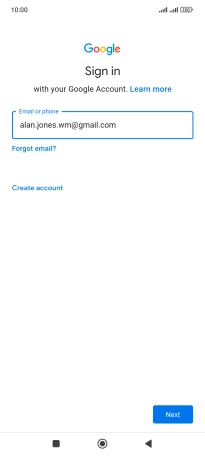
- Enter your Google account credentials and follow the prompts to complete the setup process.
Actuating Your Google Account on Android
If you have an Android device, follow these steps:
- Go to the Settings app and select “Accounts”.
- Tap on “Add account” and select “Google”.
- Enter your Google account credentials and follow the prompts to complete the setup process.
- Make sure that the calendar, contacts, and drive sync options are enabled.
Actuating Your Google Account on Iphone And Ipad
If you have an iPhone or iPad, follow these steps:
- Go to the Settings app and select “Mail”.
- Tap on “Accounts” and select “Add account”.
- Select “Google” from the list of available accounts.
- Enter your Google account credentials and follow the prompts to complete the setup process.
Reactivating a Disabled Google Account
If you have a disabled Google account, follow these steps:
- Go to the Google account recovery page (https://Accounts.Google.Com/recovery).
- Fill out the required information, including your email address and password.
- Follow the prompts to complete the reactivation process.
Conclusion
Actuating your Google account is a straightforward process that can be completed on various devices, including PC, smartphone, and tablet. By following the steps outlined in this article, you can enjoy the benefits of having a single login credential across different platforms. Remember to actuate your account regularly to ensure seamless syncing of your data.
Faqs
- What is The Purpose of a Google Account?
A Google account allows users to access various Google services such as Gmail, Google Drive, YouTube, and more. - How do I Actuate my Google Account on Pc?
To actuate your Google account on PC, go to the Google homepage and click on the “Create account” button. - Can I Actuate my Google Account on Windows 10?
Yes, you can actuate your Google account on Windows 10 by following the steps outlined in this article. - How do I Reactivate a Disabled Google Account?
To reactivate a disabled Google account, go to the Google account recovery page and follow the prompts to complete the reactivation process. - Can I Sync my Data Across Different Devices With a Google Account?
Yes, you can sync your data across different devices by actuating your Google account on each device. - How do I Add a Google Account to my Smartphone or Tablet?
To add a Google account to your smartphone or tablet, go to the Settings app and select “Accounts”. - Can I Use a Google Account on Multiple Devices at The Same Time?
Yes, you can use a Google account on multiple devices at the same time by actuating it on each device. - How do I Recover my Password if I Forget It?
To recover your password, go to the Google account recovery page and follow the prompts to complete the recovery process.


