
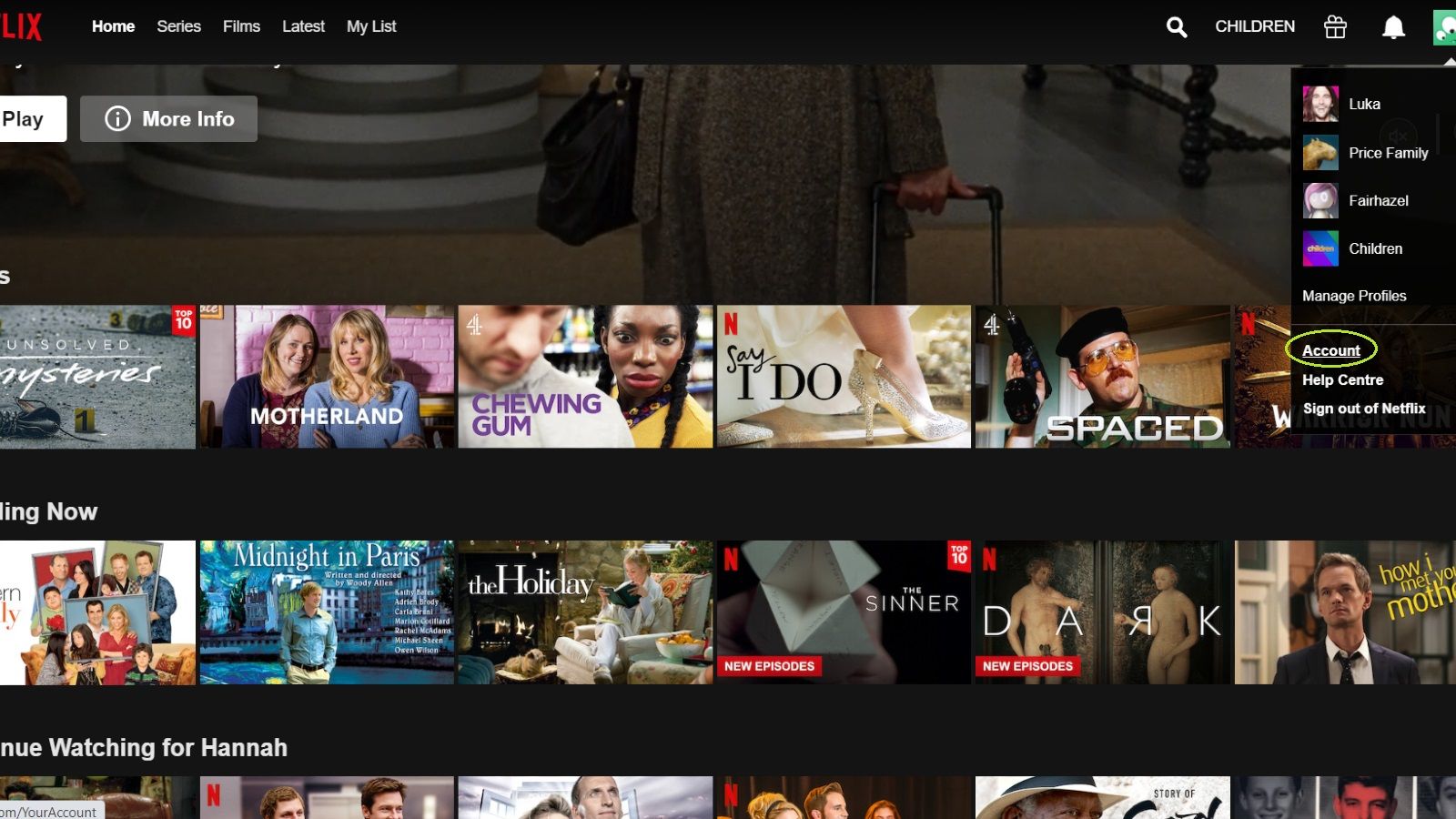
How to Remove Continuous to Look on Netflix: A Step-by-step Guide
Are you tired of seeing unwanted content in your Netflix queue? Do you want to remove continuous to look on Netflix but don’t know how? You’re not alone! In this article, we’ll show you a step-by-step guide on how to remove continuous to look on Netflix using various devices.
Understanding The Continuous Option
Before we dive into the tutorial, let’s understand what the continuous option is. The continuous option allows you to continue watching a title even after it has been discontinued by Netflix. This means that if a show or movie was removed from your queue, you can still keep watching it without having to restart from the beginning.
Why Remove Continuous to Look on Netflix?
There are several reasons why you might want to remove continuous to look on Netflix:
- You’ve finished watching a title and don’t want to see it in your queue anymore.
- A show or movie was removed from Netflix, but you still want to finish watching it.
- You’re trying to declutter your queue and make room for new titles.
Removing Continuous to Look on Netflix: A Step-by-step Guide
Here’s a step-by-step guide on how to remove continuous to look on Netflix using various devices:
How to Remove Continuous to Look on Netflix of Smart Tv
- Open the Netflix app on your Smart TV.
- Select your profile from the top right corner.
- Go to the “Home” section and select the title you want to remove from continuous to look.
- Click on the three dots (⋯) next to the title.
- Select “Remove from Queue”.
- Confirm that you want to remove the title from your queue.
How to Remove Continuous to Look on Netflix of Computer
- Open a web browser and go to the Netflix website.
- Sign in to your account using your email and password.
- Go to the “Home” section and select the title you want to remove from continuous to look.
- Click on the three dots (⋯) next to the title.
- Select “Remove from Queue”.
- Confirm that you want to remove the title from your queue.
How to Remove Continuous to Look on Netflix of Smartphone And Tablet
- Open the Netflix app on your smartphone or tablet.
- Tap on the profile icon (⭐️) at the top right corner.
- Go to the “Home” section and select the title you want to remove from continuous to look.
- Tap on the three dots (⋯) next to the title.
- Select “Remove from Queue”.
- Confirm that you want to remove the title from your queue.
Tips And Variations
- If you’re using a Smart TV, make sure to select the correct profile before removing continuous to look.
- If you’re using a computer or smartphone/tablet, make sure to sign in to your account using your email and password.
- If you’re not sure which device to use, try using the Netflix app on your mobile device first.
Conclusion
Removing continuous to look on Netflix is a simple process that can be done using various devices. By following these steps, you can remove unwanted content from your queue and declutter your viewing experience. Whether you’re trying to finish watching a title or simply want to clear out your queue, this guide has got you covered.
Faqs
- Q: Why do I See Continuous to Look on Netflix?
A: Continuous to look is an option that allows you to continue watching a title even after it has been discontinued by Netflix. - Q: How do I Remove Continuous to Look on Netflix?
A: To remove continuous to look on Netflix, follow the step-by-step guide above. - Q: Can I Delete a Title From my Queue Without Removing Continuous to Look?
A: Yes, you can delete a title from your queue without removing continuous to look. - Q: How do I Remove Multiple Titles at Once?
A: You can remove multiple titles at once by selecting them and then clicking on “Remove from Queue”. - Q: Can I Restore a Deleted Title to my Queue?
A: Yes, you can restore a deleted title to your queue by going to the “Account” section and selecting “History”.


