
Displaying Hidden Files on Various Operating Systems
Have you ever left your friend’s computer and returned to find that Windows is no longer displaying the folders and files you had saved on the hard disk? Don’t worry, this is a common issue that can be easily resolved by following these steps.
Understanding The Problem
When Windows is not displaying hidden files, it means that the operating system is hiding them from view. This can happen due to various reasons such as changes in settings or malware infection. In this article, we will guide you on how to display hidden files on different versions of Windows, macOS, Ubuntu, Android, and iPhone.
Displaying Hidden Files on Windows 11
If you are using Windows 11, follow these steps:
- Click on The Start Menu: This will open the Start menu.
- Select File Explorer: Click on File Explorer to open it.
- Click on The Three Dots: In the top right corner of the window, click on the three dots to access the Options menu.
- Select Show Hidden Files And Folders: From the dropdown menu, select Show hidden files and folders.
- Confirm Your Changes: Click on Apply and then OK to confirm your changes.
Displaying Hidden Files on Windows 10
If you are using Windows 10, follow these steps:
- Open File Explorer: Press the Windows key + E to open File Explorer.
- Click on The Three Dots: In the top right corner of the window, click on the three dots to access the Options menu.
- Select Show Hidden Files And Folders: From the dropdown menu, select Show hidden files and folders.
- Confirm Your Changes: Click on Apply and then OK to confirm your changes.
Displaying Hidden Files on Windows 8.X/7/Vista
If you are using Windows 8.X, 7, or Vista, follow these steps:
- Open a Folder: Open any folder on your computer.
- Click on The Organize Button: In the top right corner of the window, click on the Organize button.
- Select Folder And Search Options: From the dropdown menu, select Folder and search options.
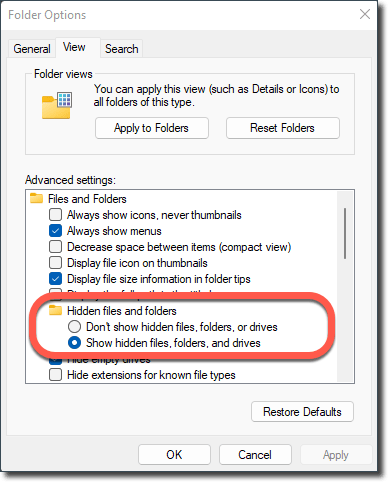
- Click on The View Tab: In the Folder Options window, click on the View tab.
- Select Show Hidden Files And Folders: From the dropdown menu, select Show hidden files and folders.
- Confirm Your Changes: Click on Apply and then OK to confirm your changes.
Displaying Hidden Files on Windows XP
If you are using Windows XP, follow these steps:
- Open a Folder: Open any folder on your computer.
- Click on The Tools Menu: In the top left corner of the window, click on the Tools menu.
- Select Folder Options: From the dropdown menu, select Folder options.
- Click on The View Tab: In the Folder Options window, click on the View tab.
- Select Show Hidden Files And Folders: From the dropdown menu, select Show hidden files and folders.
- Confirm Your Changes: Click on Apply and then OK to confirm your changes.
Displaying Hidden Files on Macos
If you are using a Mac, follow these steps:
- Open Finder: Press Command + Shift + (dot) to open Finder.
- Click on The Three Dots: In the top right corner of the window, click on the three dots to access the Options menu.
- Select Show Hidden Files And Folders: From the dropdown menu, select Show all files.
- Confirm Your Changes: Click on OK to confirm your changes.
Displaying Hidden Files on Ubuntu
If you are using Ubuntu, follow these steps:
- Open File Manager: Press Ctrl + Shift + (dot) to open File Manager.
- Click on The Three Dots: In the top right corner of the window, click on the three dots to access the Options menu.
- Select View: From the dropdown menu, select View.
- Check Show Hidden Files And Folders: From the dropdown menu, check Show hidden files and folders.
- Confirm Your Changes: Click on Apply and then OK to confirm your changes.
Displaying Hidden Files on Android
If you are using an Android device, follow these steps:
- Download Google Files: Download and install Google Files from the Play Store.
- Open Google Files: Open Google Files app.
- Tap on Settings: Tap on the three lines in the top left corner to access the Settings menu.
- Select Display Hidden Files: From the dropdown menu, select Show all files.
- Confirm Your Changes: Tap on OK to confirm your changes.
Displaying Hidden Files on Iphone
Unfortunately, it is not possible to display hidden files on an iPhone or iPad using the standard File app.
However, you can view and manage hidden photos and videos in the Photos app. To do this:
- Open Photos: Open the Photos app.
- Tap on Albums: Tap on the Album tab at the bottom of the screen.
- Select Hidden: Select the Hidden album from the list.
- View Your Hidden Media: View and manage your hidden photos and videos in the Hidden album.
Conclusion
Displaying hidden files is a simple process that can be done on various operating systems, including Windows, macOS, Ubuntu, Android, and iPhone. By following these steps, you can view and manage your hidden files with ease.
Frequently Asked Questions (FAQs)
- Q: How do I Display Hidden Files on Windows?
A: To display hidden files on Windows, follow the steps outlined in this article. - Q: Can I Display Hidden Files on Macos?
A: Yes, you can display hidden files on macOS by following the steps outlined in this article. - Q: How do I Display Hidden Files on Ubuntu?
A: To display hidden files on Ubuntu, follow the steps outlined in this article. - Q: Can I Display Hidden Files on Android?
A: Yes, you can display hidden files on Android by downloading and installing Google Files from the Play Store. - Q: How do I Display Hidden Files on Iphone?
A: Unfortunately, it is not possible to display hidden files on an iPhone or iPad using the standard File app. - Q: What Happens if I Modify System Files?
A: Modifying system files can cause serious problems with your operating system. It’s recommended to avoid making changes to these files unless absolutely necessary. - Q: Can I Conceal New Rows And Folders on Windows Xp?
A: Yes, you can conceal new rows and folders on Windows XP by following the steps outlined in this article. - Q: How do I Display Hidden Files on a Mac?
A: To display hidden files on a Mac, follow the steps outlined in this article.
I hope this helps! If you have any further questions or concerns, please don’t hesitate to ask.


