
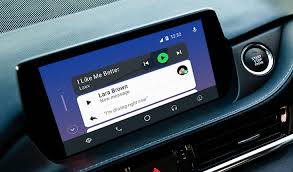
Updating Android Car on Your Machine: A Step-by-step Guide
As a proud owner of an Android Car-equipped vehicle, you’re probably aware of the convenience it offers in terms of navigation, entertainment, and comfort features. However, like any software application, Android Car requires periodic updates to ensure optimal performance and compatibility with new devices and systems. In this article, we’ll delve into the process of updating Android Car on your machine, exploring its ecosystem, requirements, and step-by-step procedures.
Understanding The Ecosystem
Before we dive into the update process, it’s essential to understand the relationship between Android Car, your smartphone, and the vehicle’s infotainment system. Android Car is an application that connects your smartphone to the car’s display and infotainment system, enabling seamless interaction and data exchange. While the infotainment system doesn’t require updates, your smartphone does, which in turn updates the Android Car app.
Why Update Android Car?
Updating Android Car ensures:
- Compatibility: New versions of Android Car ensure compatibility with updated smartphone operating systems and devices.
- Security: Regular updates patch security vulnerabilities and protect your personal data.
- New Features: Updates often introduce new features, functions, and improvements to the user experience.
Checking For Updates
To update Android Car on your machine, follow these steps:
- Access The Google Play Store: Open the Google Play Store app on your smartphone.
- Search For Android Car: Type “Android Car” in the search bar and select the result from the Google Play Store.
- Check For Updates: Look for an “Update” button; if available, tap it to download and install the latest version.
Manual Update Process
If automatic updates are disabled or unavailable:
- Open The Google Play Store: Launch the app on your smartphone.
- Search For Android Car: Type “Android Car” in the search bar and select the result from the Google Play Store.
- Check For Updates: If an update is available, tap the “Update” button to download and install it.
Using The Virtual Copilot
To take advantage of the virtual copilot developed by Google, follow these steps:
- Enable Voice Assistant: Activate the Google Assistant on your smartphone.
- Launch Android Car: Open the app on your smartphone or machine.
- Use Voice Commands: Utilize voice commands to interact with Android Car and enjoy features like navigation, music control, and more.
System Update Check
To check if your vehicle’s infotainment system has been updated:
- Access The Settings Menu: Open the settings menu on your car’s display.
- System Updates: Look for an option that checks for system updates; follow any prompts to download and install new software.
Conclusion
Updating Android Car on your machine is a straightforward process that ensures compatibility, security, and access to new features. By following these steps, you’ll be able to keep your Android Car experience up-to-date and enjoy the benefits of improved performance and convenience.
Frequently Asked Questions (FAQs)
- Q: How Often Should I Update Android Car?
A: Regularly check for updates every 2-3 months or whenever a new version is released. - Q: Do I Need to Update my Vehicle’s Infotainment System Separately?
A: No, the infotainment system updates are usually handled automatically by the car manufacturer. - Q: Can I Update Android Car on a Different Machine Than Mine?
A: Yes, as long as you have access to the Google Play Store and the correct permissions. - Q: What Happens if I Don’t Update Android Car?
A: Your app may become outdated, and some features might not work correctly or at all. - Q: How do I Troubleshoot Issues After Updating Android Car?
A: Check online forums, contact the car manufacturer’s support team, or visit a local dealership for assistance. - Q: Are There Any Specific Requirements For Updating Android Car on my Machine?
A: Ensure your smartphone is running the latest operating system and has sufficient storage space to accommodate updates. - Q: Can I Roll Back to an Older Version of Android Car?
A: It’s generally not recommended, but you can try; however, be aware that some features might not work correctly or at all. - Q: Do I Need a Specific Smartphone Model or Operating System to Use Android Car?
A: No, but your device should meet the minimum requirements specified by Google for running Android Car.
Additional Resources
- Check out our article on “The Benefits of Using Android Car” for more information on this convenient and innovative feature.
- Visit the official Google support page for Android Car to find answers to common questions and troubleshooting tips.


