
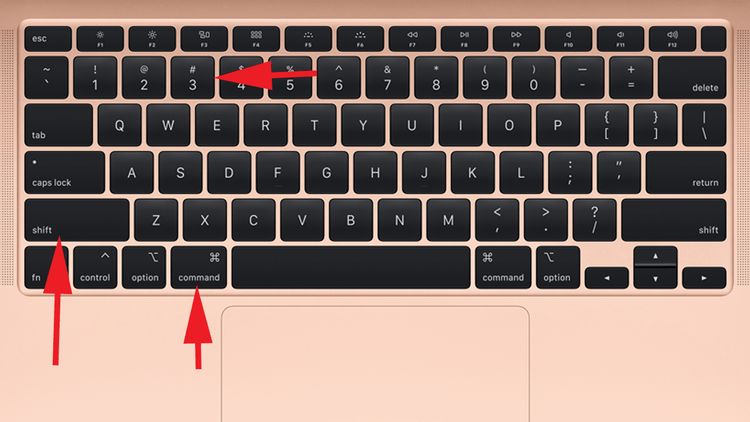
How to Take a Screenshot on Your Mac: A Step-by-step Guide
Are you tired of searching for ways to take a screenshot on your Mac? Look no further! In this article, we will guide you through the process of taking a screenshot on your Mac using various methods.
Why Take a Screenshot on Your Mac?
Taking a screenshot on your Mac can be useful in many situations. Whether you want to capture a specific window, a portion of the screen, or the entire monitor, screenshots can help you remember important information, create tutorials, or simply share your favorite moments with others.
Method 1: Taking a Screenshot Using Keyboard Shortcuts
The most straightforward way to take a screenshot on your Mac is by using keyboard shortcuts. Here are the steps:
- Press Command + Shift + 3 to capture the entire screen.
- If you want to capture a specific window or portion of the screen, press Command + Shift + 4, and then select the area you want to capture using your mouse.
Method 2: Using The Screenshot App
Alternatively, you can use the built-in Screenshot app on your Mac. Here’s how:
- Open the Launchpad and click on the Screenshot icon.
- Select “Capture the entire screen” or choose a specific window or portion of the screen.
- Click on the “Options” menu to customize settings like adding a timer, showing the mouse pointer, or choosing a different file format.
Method 3: Using Third-party Apps
If you’re looking for more advanced features or want to capture entire web pages, consider using third-party apps like CleanShot X, Shottr, or Monosnap. These apps often come with additional editing tools and cloud storage options.
Frequently Asked Questions (FAQs)
Q: How do I Edit a Screenshot on my Mac?
A: You can use the built-in Preview app to edit screenshots. Alternatively, you can use third-party apps like CleanShot X or Shottr that offer advanced editing features.
Q: Can I Save a Screenshot Directly to Google Drive or Dropbox?
A: Yes, some third-party apps like Monosnap allow you to upload your screenshots directly to cloud storage services like Google Drive or Dropbox.
Q: How do I Take a Screenshot of an Entire Web Page?
A: You can use the Screenshot app’s “Capture the entire screen” option and then edit the image to remove unnecessary parts. Alternatively, consider using third-party apps like CleanShot X that specifically allow you to capture entire web pages.
Q: Can I Add a Timer to my Screenshot?
A: Yes, some third-party apps like CleanShot X offer a timer feature that allows you to delay your screenshot by a few seconds.
Q: How do I Share a Screenshot With Others?
A: You can use the Share menu in the Screenshot app or third-party apps like Shottr to easily share your screenshots with others via email, messaging apps, or social media platforms.


