
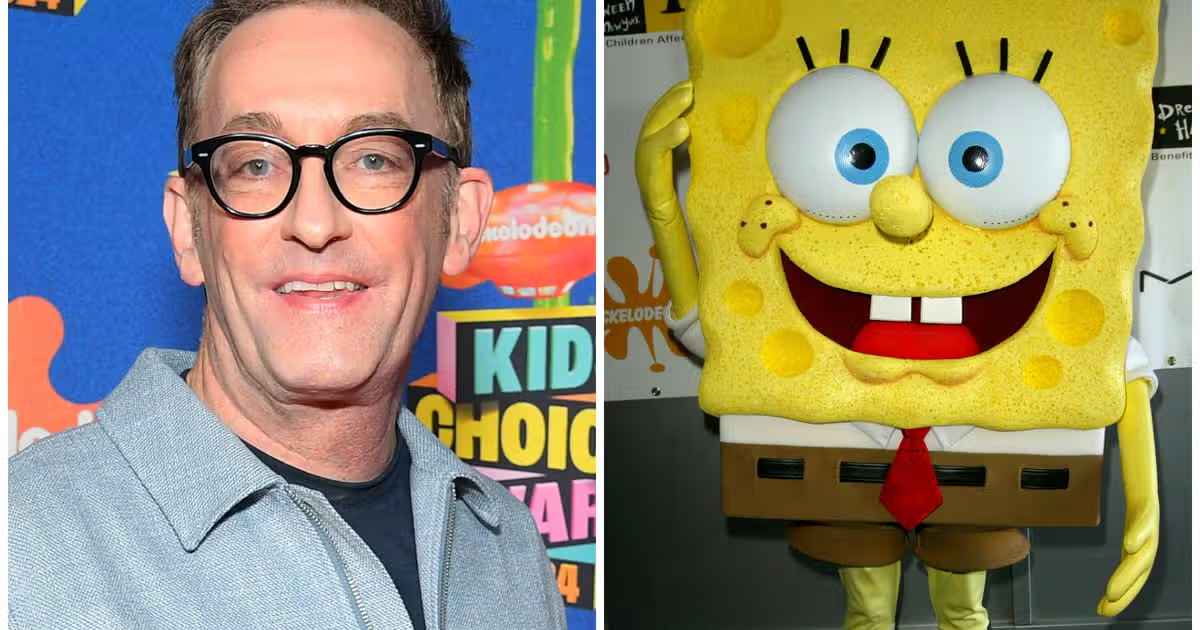
How to Get Spongebob’s Voice on Tiktok: A Step-by-step Guide
Are you tired of using your own voice on TikTok videos? Do you want to add a fun twist to your content by making it sound like Spongebob Squarepants’? Look no further! In this article, we’ll show you how to get Spongebob’s voice on TikTok in just a few easy steps.
What is The Spongebob Voice Filter on Tiktok?
The Spongebob voice filter is a popular audio effect that allows users to add a humorous and nostalgic touch to their videos. By applying the filter, your video will feature an annoyingly catchy sound that will make everyone laugh – especially if you’re a fan of the iconic cartoon character.
How Do I Get The Spongebob Voice Filter on Tiktok?
Getting the Spongebob voice filter is easier than you think! Here’s what you need to do:
- Open Tiktok: First, open the TikTok app on your device (either Android or iOS). If you don’t have the app installed, download it from the App Store or Google Play Store.
- Create a New Video: Tap the “+” icon in the bottom left corner of the screen to create a new video. You can either record a new clip or upload an existing one from your gallery.
- Edit Your Video: Once you’ve created your video, tap the “Edit” button to access the editing menu. From here, you’ll be able to apply various filters and effects to your video.
- Find The Spongebob Voice Filter: Scroll through the list of available filters until you find the “Burlone” (or “Trickster”) filter. This is the one that will make your voice sound like Spongebob’s!
- Apply The Filter: Tap the “Burlone” filter to apply it to your video. You may need to wait for a few seconds while TikTok processes the audio.
Tips And Tricks
If you’re having trouble finding the Spongebob voice filter, try these tips:
- Make sure your TikTok app is updated to the latest version.
- Try changing the type of connection you’re using (e.G., Wi-Fi or mobile data).
- Clear your cache and try again.
- If all else fails, try reinstalling the app!
Using The Spongebob Voice Filter on PC
Unfortunately, it’s not currently possible to apply the Spongebob voice filter directly from a PC. However, there are some workarounds you can use:
- Use a third-party video editor that allows you to add audio effects.
- Record your video using a camera or smartphone and then edit it on a computer.
Conclusion
Getting Spongebob’s voice on TikTok is easier than ever! By following these simple steps, you’ll be able to create hilarious videos that will make everyone laugh. Don’t forget to share them with your friends and family!
Frequently Asked Questions
- Q: What is The Spongebob Voice Filter?
A: The Spongebob voice filter is a popular audio effect on TikTok that makes users’ voices sound like Spongebob Squarepants’. - Q: How do I Get The Spongebob Voice Filter on Tiktok?
A: To get the Spongebob voice filter, open TikTok and create a new video. Then, edit your video and find the “Burlone” (or “Trickster”) filter. - Q: Can I Use The Spongebob Voice Filter on Pc?
A: Unfortunately, it’s not currently possible to apply the Spongebob voice filter directly from a PC. However, you can try using third-party video editors or workarounds. - Q: Why am I Having Trouble Finding The Spongebob Voice Filter?
A: If you’re having trouble finding the Spongebob voice filter, try updating your TikTok app, changing your connection type, clearing your cache, and reinstalling the app. - Q: Can I Use Other Audio Effects on Tiktok?
A: Yes! You can explore other audio effects on TikTok by scrolling through the list of available filters. - Q: How do I Share my Videos With Friends And Family?
A: To share your videos, tap the “Share” button and select the platforms you want to share them on (e.G., Instagram, Facebook, Twitter). - Q: Can I Use The Spongebob Voice Filter For Commercial Purposes?
A: We recommend checking TikTok’s terms of service before using the Spongebob voice filter for commercial purposes.


