
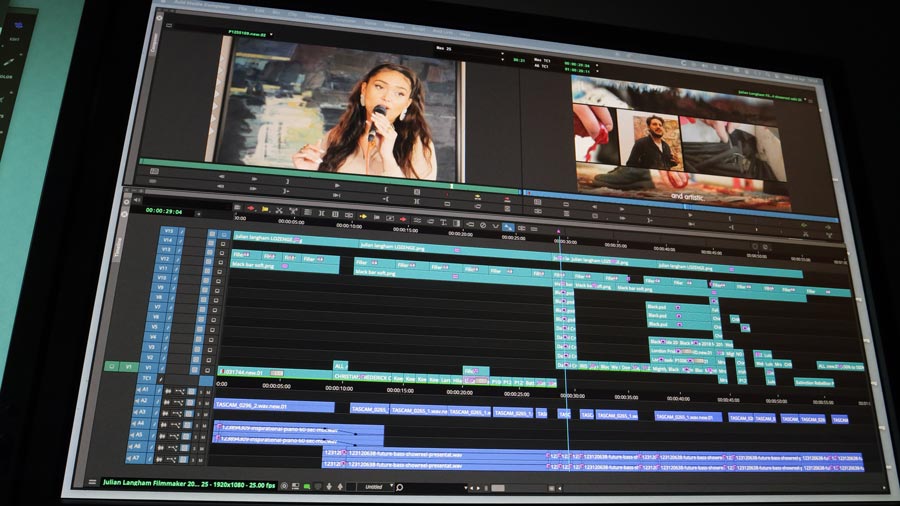
How to Modify a Video on Your PC
Are you tired of watching videos that are out of focus or have poor sound quality? Do you want to make your favorite videos look more professional? Look no further! In this article, we will guide you through the process of modifying a video on your PC.
Why Modify a Video?
Modifying a video can be a fun and creative way to enhance the viewing experience. Whether you’re a student making a project, a YouTuber looking to improve their videos, or just someone who wants to make their favorite movies look better, modifying a video is a great way to do so.
Which Program to Use?
There are several programs available that can help you modify a video on your PC. Some of the most popular options include:
- Photo: This is a free program that comes pre-installed with Windows 10. It allows you to edit and modify videos, as well as add effects and filters.
- Avidemux: This is a free program that supports all types of video formats and has various instruments and filters to help you edit your videos.
- Windows Movie Maker: This is a free program that allows you to create and edit videos.
How to Use Photo
To use Photo, simply follow these steps:
- Open the Photo program on your PC.
- Click on the video file you want to modify.
- Select the “Edit” option from the menu bar.
- Choose the type of modification you want to make (e.G. Crop, rotate, etc.).
- Make the desired changes and save the edited video.
How to Use Avidemux
To use Avidemux, simply follow these steps:
- Download and install Avidemux on your PC.
- Open the program and select the video file you want to modify.
- Choose the type of modification you want to make (e.G. Cut, join, etc.).
- Make the desired changes and save the edited video.
How to Use Windows Movie Maker
To use Windows Movie Maker, simply follow these steps:
- Download and install Windows Movie Maker on your PC.
- Open the program and select the video file you want to modify.
- Choose the type of modification you want to make (e.G. Add transitions, effects, etc.).
- Make the desired changes and save the edited video.
Conclusion
Modifying a video on your PC is a fun and easy process that can enhance the viewing experience. With the right program and some basic knowledge, you can create professional-looking videos that will impress your friends and family. Whether you’re a student making a project or just someone who wants to make their favorite movies look better, modifying a video is a great way to do so.
Frequently Asked Questions
- Q: What is The Best Program to Use For Modifying Videos?
A: The best program to use for modifying videos depends on your personal preference and what you want to achieve. Photo is a good option if you just want to make basic modifications, while Avidemux is better suited for more advanced editing. - Q: How do I Download And Install a Video Editing Program?
A: To download and install a video editing program, simply follow the instructions provided by the program’s manufacturer. Make sure to read the system requirements and ensure that your PC meets them before downloading. - Q: Can I Use a Video Editing Program on my Mac?
A: Yes, you can use a video editing program on your Mac. Some popular options include iMovie and Avidemux. - Q: How do I Export a Modified Video From a Video Editing Program?
A: To export a modified video from a video editing program, simply follow the instructions provided by the program’s manufacturer. Make sure to select the correct format and resolution before exporting.
Bonus Tip
If you’re looking for a more advanced video editing experience, consider using Adobe Premiere Pro or Final Cut Pro X. These programs offer a wide range of features and tools that can help you create professional-looking videos.
How to Modify a Video on Mac
Are you tired of watching videos that are out of focus or have poor sound quality? Do you want to make your favorite videos look more professional? Look no further! In this article, we will guide you through the process of modifying a video on your Mac.
Why Modify a Video on Mac?
Modifying a video on Mac can be a fun and creative way to enhance the viewing experience. Whether you’re a student making a project, a YouTuber looking to improve their videos, or just someone who wants to make their favorite movies look better, modifying a video is a great way to do so.
Which Program to Use?
There are several programs available that can help you modify a video on your Mac. Some of the most popular options include:
- Imovie: This is a free program that comes pre-installed with macOS.
- Avidemux: This is a free program that supports all types of video formats and has various instruments and filters to help you edit your videos.
How to Use Imovie
To use iMovie, simply follow these steps:
- Open the iMovie program on your Mac.
- Click on the video file you want to modify.
- Select the “Edit” option from the menu bar.
- Choose the type of modification you want to make (e.G. Crop, rotate, etc.).
- Make the desired changes and save the edited video.
How to Use Avidemux
To use Avidemux, simply follow these steps:
- Download and install Avidemux on your Mac.
- Open the program and select the video file you want to modify.
- Choose the type of modification you want to make (e.G. Cut, join, etc.).
- Make the desired changes and save the edited video.
Conclusion
Modifying a video on your Mac is a fun and easy process that can enhance the viewing experience. With the right program and some basic knowledge, you can create professional-looking videos that will impress your friends and family. Whether you’re a student making a project or just someone who wants to make their favorite movies look better, modifying a video is a great way to do so.
Frequently Asked Questions
- Q: What is The Best Program to Use For Modifying Videos on Mac?
A: The best program to use for modifying videos on Mac depends on your personal preference and what you want to achieve. IMovie is a good option if you just want to make basic modifications, while Avidemux is better suited for more advanced editing. - Q: How do I Download And Install a Video Editing Program on my Mac?
A: To download and install a video editing program on your Mac, simply follow the instructions provided by the program’s manufacturer. Make sure to read the system requirements and ensure that your Mac meets them before downloading. - Q: Can I Use a Video Editing Program on my Pc?
A: Yes, you can use a video editing program on your PC. Some popular options include Photo and Avidemux.
Bonus Tip
If you’re looking for a more advanced video editing experience, consider using Adobe Premiere Pro or Final Cut Pro X. These programs offer a wide range of features and tools that can help you create professional-looking videos.
How to Modify a Video Online
Are you tired of watching videos that are out of focus or have poor sound quality? Do you want to make your favorite videos look more professional? Look no further! In this article, we will guide you through the process of modifying a video online.
Why Modify a Video Online?
Modifying a video online can be a fun and creative way to enhance the viewing experience. Whether you’re a student making a project, a YouTuber looking to improve their videos, or just someone who wants to make their favorite movies look better, modifying a video is a great way to do so.
Which Tool to Use?
There are several tools available that can help you modify a video online. Some of the most popular options include:
- Youtube Studio: This tool allows you to edit and modify videos directly on YouTube.
- Imovie: This is a free program that comes pre-installed with macOS, but also has an online version.
How to Use Youtube Studio
To use YouTube Studio, simply follow these steps:
- Open the YouTube website and sign in to your account.
- Click on the video file you want to modify.
- Select the “Edit” option from the menu bar.
- Choose the type of modification you want to make (e.G. Cut, join, etc.).
- Make the desired changes and save the edited video.
How to Use Imovie Online
To use iMovie online, simply follow these steps:
- Open the iMovie website and sign in to your account.
- Click on the video file you want to modify.
- Select the “Edit” option from the menu bar.
- Choose the type of modification you want to make (e.G. Crop, rotate, etc.).
- Make the desired changes and save the edited video.
Conclusion
Modifying a video online is a fun and easy process that can enhance the viewing experience. With the right tool and some basic knowledge, you can create professional-looking videos that will impress your friends and family. Whether you’re a student making a project or just someone who wants to make their favorite movies look better, modifying a video is a great way to do so.
Frequently Asked Questions
- Q: What is The Best Tool to Use For Modifying Videos Online?
A: The best tool to use for modifying videos online depends on your personal preference and what you want to achieve. YouTube Studio is a good option if you just want to make basic modifications, while iMovie is better suited for more advanced editing. - Q: How do I Download And Install a Video Editing Program Online?
A: To download and install a video editing program online, simply follow the instructions provided by the program’s manufacturer. Make sure to read the system requirements and ensure that your computer meets them before downloading.
Bonus Tip
If you’re looking for a more advanced video editing experience, consider using Adobe Premiere Pro or Final Cut Pro X. These programs offer a wide range of features and tools that can help you create professional-looking videos.
How to Modify a Video on Your Smartphone
Are you tired of watching videos that are out of focus or have poor sound quality? Do you want to make your favorite videos look more professional? Look no further! In this article, we will guide you through the process of modifying a video on your smartphone.
Why Modify a Video on Your Smartphone?
Modifying a video on your smartphone can be a fun and creative way to enhance the viewing experience. Whether you’re a student making a project, a YouTuber looking to improve their videos, or just someone who wants to make their favorite movies look better, modifying a video is a great way to do so.
Which App to Use?
There are several apps available that can help you modify a video on your smartphone. Some of the most popular options include:
- Imovie: This app allows you to edit and modify videos directly on your iPhone or iPad.
- Actiondirector: This app allows you to edit and modify videos directly on your Android device.
How to Use Imovie
To use iMovie, simply follow these steps:
- Open the iMovie app on your smartphone.
- Click on the video file you want to modify.
- Select the “Edit” option from the menu bar.
- Choose the type of modification you want to make (e.G. Crop, rotate, etc.).
- Make the desired changes and save the edited video.
How to Use Actiondirector
To use ActionDirector, simply follow these steps:
- Open the ActionDirector app on your smartphone.
- Click on the video file you want to modify.
- Select the “Edit” option from the menu bar.
- Choose the type of modification you want to make (e.G. Cut, join, etc.).
- Make the desired changes and save the edited video.
Conclusion
Modifying a video on your smartphone is a fun and easy process that can enhance the viewing experience. With the right app and some basic knowledge, you can create professional-looking videos that will impress your friends and family. Whether you’re a student making a project or just someone who wants to make their favorite movies look better, modifying a video is a great way to do so.
Frequently Asked Questions
- Q: What is The Best App to Use For Modifying Videos on Smartphone?
A: The best app to use for modifying videos on smartphone depends on your personal preference and what you want to achieve. IMovie is a good option if you just want to make basic modifications, while ActionDirector is better suited for more advanced editing. - Q: How do I Download And Install a Video Editing Program on my Smartphone?
A: To download and install a video editing program on your smartphone, simply follow the instructions provided by the app’s manufacturer. Make sure to read the system requirements and ensure that your phone meets them before downloading.
Bonus Tip
If you’re looking for a more advanced video editing experience, consider using Adobe Premiere Pro or Final Cut Pro X. These programs offer a wide range of features and tools that can help you create professional-looking videos.


