
How to Check The Version of Android on Your Smartphone or Tablet
Are you curious about the latest update on your Android device? Do you want to know how to check the version of Android installed on your phone or tablet? You’ve come to the right place! In this article, we’ll guide you through the simple steps to check the Android version and apply updates if necessary.
Why is it Important to Check The Version of Android?
Before we dive into the instructions, let’s talk about why checking the version of Android is essential. The updates of Android introduce new functionality, enhance existing features, and resolve safety issues discovered by developers. Google releases updates regularly, but they might not be available at the same time for all devices. To stay secure and enjoy the latest features, it’s crucial to keep your Android device updated.
How to Check The Version of Android on Your Device
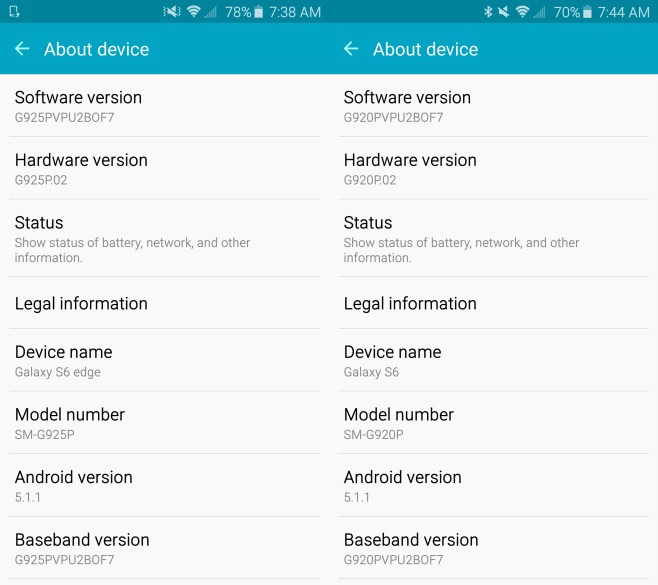
To check the version of Android on your device, follow these steps:
- Open Settings: Go to the Settings app on your device.
- Look For Information: Scroll down and find the section labeled “About phone” or “Phone information.”
- Check The Version: Tap on “Android version” to see the current Android version installed on your device.
How to Check The Version of Android on Different Devices
While the steps above are general, some devices might have slightly different settings menus. Here’s how to check the version of Android on specific devices:
Huawei Devices
To check the version of Android on a Huawei device, follow these steps:
- Open Settings.
- Tap on “Info phone.”
- Scroll down and look for “Version” or “Android version.”
Samsung Devices
To check the version of Android on a Samsung device, follow these steps:
- Open Settings.
- Tap on “Informazioni on the phone.”
- Look for “Information software.”
Xiaomi Devices
To check the version of Android on a Xiaomi device, follow these steps:
- Open Settings.
- Tap on “Info system.”
- Look for “MIUI” and “Android version.”
Oppo Devices
To check the version of Android on an OPPO device, follow these steps:
- Open Settings.
- Tap on “Informazioni on the device.”
- Look for “Version Android.”
How to Check For Available Updates
Once you’ve checked the version of Android on your device, it’s essential to look for available updates. Here’s how to do it:
- Open Settings: Go to the Settings app.
- Look For Update Software: Scroll down and find the section labeled “Update software.”
- Check For Updates: Tap on “Search updates” or “Check for updates.”
How to Download And Install Available Updates
If there are available updates, follow these steps to download and install them:
- Open Settings: Go to the Settings app.
- Look For Update Software: Scroll down and find the section labeled “Update software.”
- Download And Install Updates: Tap on “Download” or “Install” to apply the latest update.
Conclusion
Checking the version of Android on your device is a simple process that can ensure you’re running the latest security patches and features. By following these steps, you can stay up-to-date with the latest updates from Google and enjoy a smooth and secure user experience.
Frequently Asked Questions (FAQs)
- Q: Why is it Essential to Check For Android Updates?
A: Checking for Android updates ensures that your device runs on the latest security patches and features, providing a safe and enjoyable user experience. - Q: How Often Are Android Updates Released by Google?
A: Google releases Android updates regularly, but they might not be available at the same time for all devices due to various reasons such as device support and manufacturer-specific updates. - Q: Can I Install an Update Manually if There’s no Automatic Prompt?
A: Yes, you can check for updates manually by opening the Settings app and looking for the “Update software” section. - Q: What Happens if I Don’t Install Available Updates on my Android Device?
A: Not installing available updates might leave your device vulnerable to security threats and without access to the latest features and functionality. - Q: Can I Check The Version of Android on my Device Even if It’s Not Stock or Personalized?
A: Yes, you can still check the version of Android on a non-stock or customized device by following the steps outlined in this article. - Q: Is Checking For Updates on my Android Device Time-consuming?
A: Checking for updates is usually quick and straightforward, requiring only a few taps on your device’s screen.
I hope you found this guide helpful! If you have any further questions or need assistance with any other tech-related topics, feel free to ask.


