
Unlocking The Power of Powerpoint: A Comprehensive Guide
Are you tired of bland presentations that fail to engage your audience? Do you want to take your PowerPoint game to the next level? Look no further! In this article, we’ll explore the world of animations and effects in PowerPoint, and show you how to encourage the written on your slides like a pro.
Why Encourage The Written on Powerpoint?
Before we dive into the nitty-gritty, let’s talk about why encouraging the written on PowerPoint is so important. A well-designed presentation can make all the difference between captivating your audience and putting them to sleep. By adding animations and effects, you can:
- Make your content more engaging and interactive
- Highlight key points and emphasize important information
- Create a visually appealing presentation that stands out from the crowd
Getting Started With Powerpoint
To encourage the written on PowerPoint, you’ll need to have the software installed on your computer. If you don’t have it, don’t worry! You can use the online version of PowerPoint, which we’ll discuss later in this article.
Once you’ve got PowerPoint up and running, create a new presentation or open an existing one. The first thing you’ll want to do is select the text or title that you want to encourage.
Basic Animations in Powerpoint
To apply a basic animation to your selected text, follow these steps:
- Select the text or title by clicking on it.
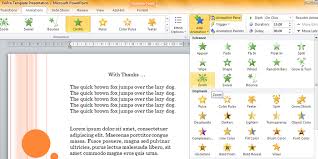
- Go to the “Animations” tab in the top menu bar.
- Click on the arrow in the bottom right corner of the animations panel to expand it.
- Choose an animation from the list (e.G., Entrance, Emphasis, Exit).
- Click on the play button to see a preview of your animation.
Adding Multiple Animations
Want to get creative and add multiple animations to your text? It’s easier than you think! Just follow these steps:
- Select the text or title by clicking on it.
- Go to the “Animations” tab in the top menu bar.
- Click on the “Add Animation” button (located in the top right corner of the animations panel).
- Choose another animation from the list (e.G., Entrance, Emphasis, Exit).
- Repeat steps 3-4 until you’ve added all the animations you want.
Personalizing Your Animations
Want to take your animations to the next level? You can customize them by going into the “Options” menu for each animation. This will give you access to more advanced settings and options.
Using Powerpoint Online
Don’t have PowerPoint installed on your computer? No problem! You can use the online version of PowerPoint, which allows you to create and edit presentations directly in your browser.
To use PowerPoint online, follow these steps:
- Go to the Microsoft Office website.
- Click on the “Sign In” button and log in with your Microsoft account.
- Create a new presentation or open an existing one.
- Select the text or title that you want to encourage.
- Follow the same steps as before to add animations and effects.
Using Powerpoint on Smartphone And Tablet
Want to create presentations on-the-go? You can use the official PowerPoint app for Android and iOS devices!
To use PowerPoint on your smartphone or tablet, follow these steps:
- Download and install the PowerPoint app from the App Store (for iOS) or Google Play Store (for Android).
- Log in with your Microsoft account.
- Create a new presentation or open an existing one.
- Select the text or title that you want to encourage.
- Follow the same steps as before to add animations and effects.
Conclusion
In this article, we’ve explored the world of animations and effects in PowerPoint, and shown you how to encourage the written on your slides like a pro. Whether you’re using the desktop version or the online version, adding multiple animations, or personalizing your effects, we’ve got you covered!
So why wait? Start creating engaging presentations today and take your audience by storm!


