
How to Rotate The Monitor of Your Pc: A Step-by-step Guide
Are you tired of the standard monitor settings on your PC? Do you want to make reading documents or browsing the web more comfortable? Look no further! Rotating the monitor of your PC is a simple yet effective way to enhance your computing experience. In this article, we’ll guide you through the process of rotating the monitor on Windows 11, Windows 10, Windows 8, and Windows 7, as well as on Mac and Ubuntu.
Why Rotate The Monitor?
Rotating the monitor can make a big difference in your productivity and comfort level while working or browsing. Whether you’re reading documents, watching videos, or playing games, rotating the monitor can help reduce eye strain and improve visibility. Plus, it’s a great way to add some personality to your desktop!
Rotating The Monitor on Windows 11
If you’re using Windows 11, rotating the monitor is a breeze. Here’s how:
- Click the Start button and select Settings.
- Click on the “Systems” icon.
- Click on the “Display” tab.
- Scroll down to the “Orientation” section.
- Select the desired orientation: Horizontal (default), Vertical, Horizontal flipped, or Vertical flipped.
- Click “Keep changes” to apply the rotation.
Rotating The Monitor on Windows 10
If you’re using Windows 10, follow these steps:
- Right-click on an empty area of the desktop and select Settings.
- Click on the “Display” tab.
- Scroll down to the “Orientation” section.
- Select the desired orientation: Horizontal (default), Vertical, Horizontal flipped, or Vertical flipped.
- Click “Apply” to apply the rotation.
Rotating The Monitor on Windows 8
If you’re using Windows 8, follow these steps:
- Right-click on an empty area of the desktop and select Resolution.
- Select the desired orientation: Horizontal (default), Vertical, Horizontal flipped, or Vertical flipped.
- Click “Apply” to apply the rotation.
Rotating The Monitor on Windows 7
If you’re using Windows 7, follow these steps:
- Right-click on an empty area of the desktop and select Catalyst Control Center (if you have an ATI graphics card) or NVIDIA Control Panel (if you have an NVIDIA graphics card).
- Select the “Desktop” tab.
- Click on the “Monitor” icon.
- Select the desired orientation: Horizontal (default), Vertical, Horizontal flipped, or Vertical flipped.
Rotating The Monitor With Keyboard Shortcuts
If you’re a keyboard shortcut enthusiast, you can also rotate the monitor using the following shortcuts:
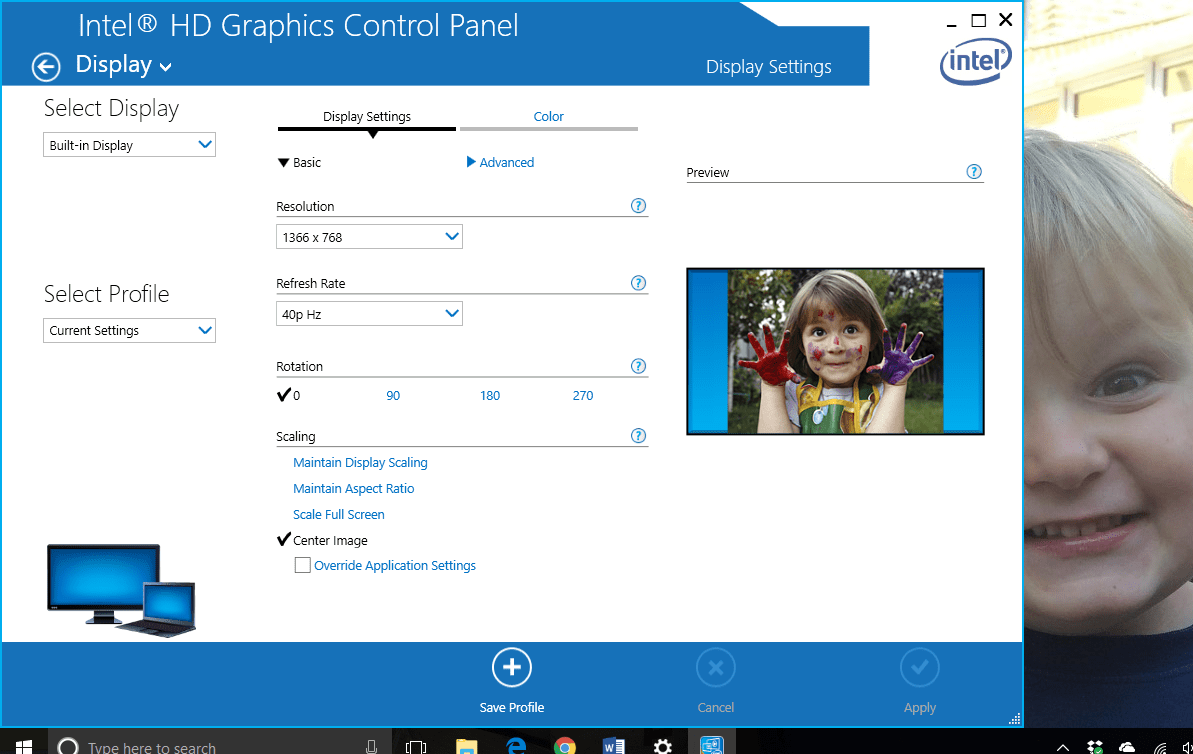
- Ctrl + Alt + Arrow Up: Rotate to 0°
- Ctrl + Alt + Right Arrow: Rotate to 90°
- Ctrl + Alt + Down Arrow: Rotate to 180°
- Ctrl + Alt + Left Arrow: Rotate to 270°
Rotating The Monitor on Mac
If you’re using a Mac, follow these steps:
- Click on the Apple logo and select System Preferences.
- Select Displays.
- Click on the Arrangement tab.
- Select the desired orientation: Standard (default), 90°, 180°, or 270°.
Rotating The Monitor on Ubuntu
If you’re using Ubuntu, follow these steps:
- Click on the icon and select Settings.
- Select Devices.
- Click on the Orientation tab.
- Select the desired orientation: Horizontal (default), Vertical right, Vertical left, or Horizontal flipped.
Conclusion
Rotating the monitor of your PC is a simple yet effective way to enhance your computing experience. Whether you’re using Windows 11, Windows 10, Windows 8, Windows 7, Mac, or Ubuntu, the process is relatively straightforward. Try rotating your monitor today and discover a more comfortable and productive way to work and play!
Frequently Asked Questions (FAQs)
- Q: Can I Rotate my Monitor on Any Operating System?
A: Yes, rotating the monitor is possible on various operating systems, including Windows 11, Windows 10, Windows 8, Windows 7, Mac, and Ubuntu. - Q: How do I Reset my Monitor’s Rotation to Default?
A: To reset your monitor’s rotation to default, follow the steps for your specific operating system (listed above) and select the “Standard” or “Default” orientation. - Q: Can I Rotate Multiple Monitors at Once?
A: Yes, most operating systems allow you to rotate multiple monitors simultaneously. - Q: Will Rotating my Monitor Affect my Computer’s Performance?
A: Rotating your monitor should not significantly impact your computer’s performance. - Q: Can I Customize The Rotation Settings For Each Monitor Individually?
A: In some cases, yes. Depending on your operating system and graphics card, you may be able to adjust the rotation settings for individual monitors.
We hope this article has helped you learn how to rotate the monitor of your PC! If you have any further questions or need additional assistance, please don’t hesitate to ask.


