
How to Create a CD With Mp3 Files: A Step-by-step Guide
Are you tired of carrying around multiple CDs or memory cards filled with your favorite music? Do you want to create a single CD that contains all your favorite songs in MP3 format? Look no further! In this article, we will guide you through the process of creating a CD with MP3 files using various software and operating systems.
Choosing The Right Software
Before we dive into the steps, let’s take a look at some popular software options for creating CDs with MP3 files:
- Windows Media Player (Windows)
- Nero (Windows, Mac)
- CDBurnerXP (Windows)
- ImgBurn (Windows)
- BurnAware Free (Windows)
- Finder (Mac)
- Music or iTunes (Mac)
- True Burner (Mac)
Each software has its own set of features and requirements, so let’s take a closer look at the most popular ones.
Creating a CD With Mp3 Files Using Windows Media Player
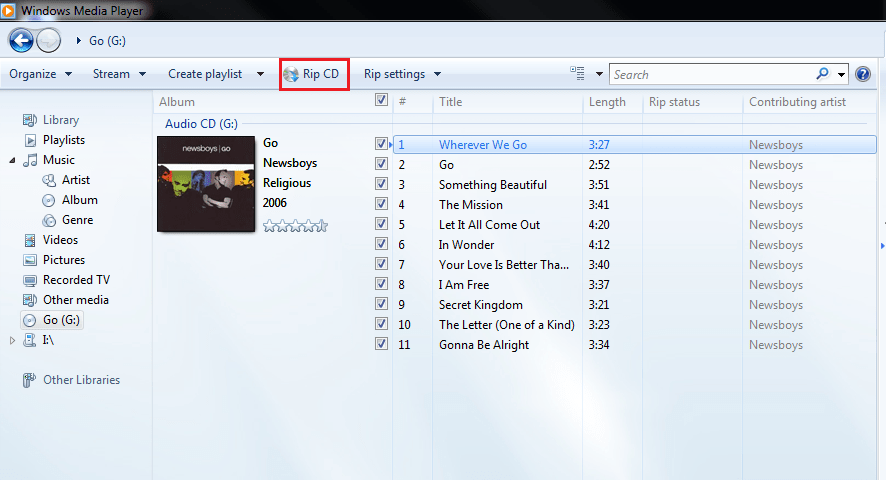
If you’re using Windows 10, Windows Media Player is a great option for creating CDs with MP3 files. Here’s how to do it:
- Insert an empty CD into your computer’s DVD drive.
- Close any windows that pop up asking what to do with the disc.
- Open Windows Media Player and click on the “Burn” tab.
- Select the songs you want to include on your CD by dragging them from the library pane to the burn list pane.
- Click on the “Start Burn” button to begin the burning process.
Creating a CD With Mp3 Files Using Nero
Nero is another popular software option for creating CDs, DVDs, and Blu-ray discs. Here’s how to use it:
- Insert an empty CD into your computer’s DVD drive.
- Open Nero and click on the “Burn” tab.
- Select the songs you want to include on your CD by dragging them from the library pane to the burn list pane.
- Click on the “New Compilation” button and select the MP3 format.
- Choose the speed of burning and click on the “Burn” button.
Alternative Solutions For Windows 10
If you’re not satisfied with Windows Media Player or Nero, there are other software options available:
- CDBurnerXP: A free software that allows you to burn CDs, DVDs, and Blu-ray discs.
- ImgBurn: A popular software that supports burning of CDs, DVDs, and Blu-ray discs.
- BurnAware Free: A free software that allows you to burn CDs, DVDs, and Blu-ray discs.
Creating a CD With Mp3 Files Using Mac
If you’re using a Mac, here’s how to create a CD with MP3 files:
- Insert an empty CD into your computer’s DVD drive.
- Open Finder and select the songs you want to include on your CD by dragging them from the library pane to the burn list pane.
- Click on the “Burn” button in the top right corner of the window.
Alternative Solutions For Mac
If you’re not satisfied with Finder, there are other software options available:
- Burn: A free software that allows you to burn CDs and DVDs.
- True Burner: A free software that allows you to burn CDs, DVDs, and Blu-ray discs.
- Roxio Toast: A commercial software that allows you to burn CDs, DVDs, and Blu-ray discs.
Conclusion
Creating a CD with MP3 files is easier than ever, thanks to the numerous software options available. Whether you’re using Windows or Mac, there’s a software out there that can help you create your own custom CD with all your favorite songs in MP3 format.
Frequently Asked Questions
Q: What software should I use for creating CDs with MP3 files?
A: It depends on the operating system and personal preference. Some popular options include Windows Media Player, Nero, CDBurnerXP, ImgBurn, BurnAware Free, Finder, Music or iTunes, True Burner, and Roxio Toast.
Q: How do I choose the right software for my needs?
A: Consider factors such as ease of use, features, and system requirements. Read reviews and try out different options to find the one that suits you best.
Q: Can I create CDs with MP3 files on a Mac?
A: Yes! Finder is a great option for creating CDs with MP3 files on a Mac.
Q: How do I burn multiple songs at once?
A: Simply select all the songs you want to include on your CD by holding down the Shift key and clicking on each song. Then, drag them from the library pane to the burn list pane.
Q: What if my software doesn’t support MP3 files?
A: Most modern software supports MP3 files, but it never hurts to check the system requirements or contact customer support for assistance.
Q: Can I create CDs with other types of files as well?
A: Yes! Many software options allow you to burn CDs with various file formats, including MP3, WAV, and more.


